0:00
Uh hello guys, welcome to this video. So
0:02
in this video, I will show you how to
0:04
reset every settings of your Google
0:06
Chrome browser or disable all the
0:08
extensions that you installed it. Uh
0:10
this way is very easy. Simply go to the
0:13
three dots on the top right section of
0:15
the screen. Go to the settings option
0:17
and when it opens right here, you will
0:19
see this option appearing reset
0:21
settings. So when you click this option,
0:24
it will simply say reset or restore
0:26
settings to their original defaults.
0:28
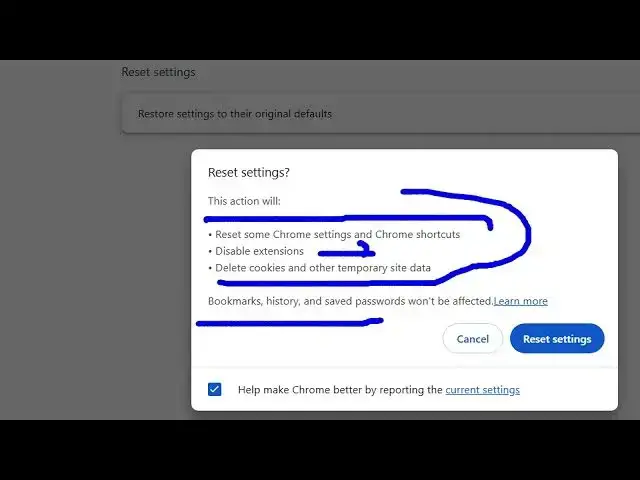
When you click this option, you will get
0:30
this screen right here. This action will
0:32
reset some Chrome settings and Chrome
0:35
shortcuts. It will disable all the
0:37
extensions and it will delete cookies
0:39
and other temporary site data.
0:41
Bookmarks, history, save, passwords
0:43
won't be effective. For some reason, if
0:46
your Google Chrome browser have some
0:47
kind of a problem, then you can reset or
0:50
restore everything to default settings
0:54
by going to settings. we have this
0:56
option reset settings and
0:59
by simply clicking this reset settings
1:01
everything will be restored to their
1:03
default settings. So after clicking this
1:05
option just restart your Google Chrome
1:07
browser and your problem will be solved.
1:11
So in this easy way you can do this.