0:00
Uh hello guys, welcome to this video. So
0:02
in this video, I'll show you how to
0:03
reset your network settings inside
0:06
Windows 11 to fix your Wi-Fi or internet
0:08
connection. So it's very easy. So if
0:10
your internet is not working, the very
0:12
first step you can do is that you can go
0:14
to settings and right inside your left
0:18
hand side corner of the screen, you will
0:19
see this option network or internet
0:23
and just drag down. After that, you will
0:25
go to this advanced network settings.
0:28
Simply click on that and after that you
0:33
will see this option at the bottom side
0:35
which is network reset.
0:38
So this will actually reset all your
0:40
network adapters to factory settings. So
0:43
once you click this you will see this
0:44
option network reset and simply click
0:48
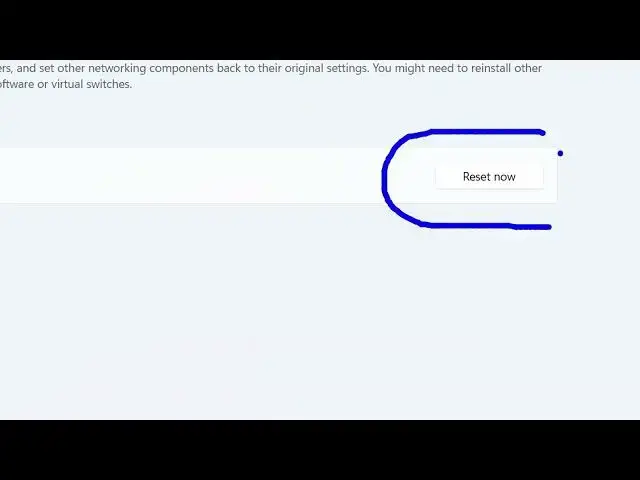
this button of uh reset. Now after you
0:50
click this button your PC will
0:52
automatically be restarted and this will
0:56
99% of the time will fix your internet
0:58
connection. So it will actually reset
1:02
all your network adapters all your Wi-Fi
1:04
adapters to their default settings. So
1:06
for some reason if your Wi-Fi is not
1:08
working you can simply reset this. Click
1:11
the reset now button and then it will PC
1:13
will get restarted and automatically
1:17
then you can actually
1:20
your Wi-Fi connection will work. So this
1:23
is the thing that you can do and also
1:25
check out my website freemediatools.com
1:28
uh which contains thousands of tools.