Up next in 10


Buy the full source code of application here:
https://bit.ly/3iVRhAU
Show More Show Less View Video Transcript
0:00
Uh hello friends, today in this tutorial
0:02
I will be telling you that how to read
0:04
all the files which are present inside
0:06
your Google drive and all the folders
0:08
also using Google appcript. We will be
0:12
printing it on the console here. So
0:14
first of all just open this link which
0:16
is script.google.com.
0:18
Here we will be first of all be creating
0:20
our project. So let me just zoom out and
0:23
click on new project.
0:25
And uh now inside this we will be
0:29
writing our code here. Let me just zoom
0:31
in. And uh let me just uh create a very
0:34
simple function which will print all the
0:36
files which are present inside Google
0:38
drive. Let's suppose list
0:42
folder
0:43
and files
0:46
and inside this function guys we will be
0:49
first of all be uh getting the folder.
0:52
We will be first of all printing out all
0:54
the folders which are present. So we can
0:56
just do it by drive app class dot get
0:59
folder. Get folders. This is a method.
1:02
Here you will see that this is a method
1:05
and this returns iterator. And now we in
1:08
order to process this we will be using a
1:10
while loop.
1:13
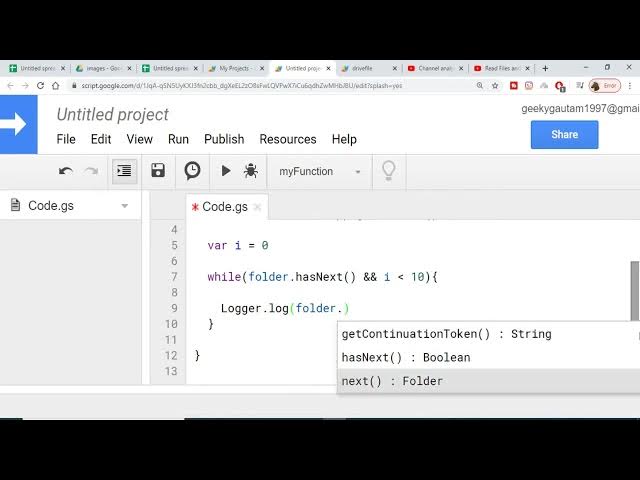
Inside this while loop we will be having
1:15
a condition that folder dot has next. So
1:19
basically this will return a boolean
1:21
value. So this simply means that if it
1:24
contains a folder then it will execute
1:26
it then it will return a true value and
1:29
also let me just declare a i value
1:32
because it takes some time because it
1:34
will be printing all the folders inside
1:36
the console. So for the time being I
1:38
just want to print out 10 folders. So I
1:41
will be taking a index variable i is
1:43
equal to0 and I will be having and
1:45
condition
1:47
i is less than 10. So basically it will
1:49
run for 10 times thereby it will be
1:52
taking less time. And now inside this we
1:55
just need to log this. So I will be
1:57
making use of log class and I will be
2:00
simply be using the log method and
2:01
inside this I will pass folder dot next.
2:05
It will print the folder and after that
2:07
I can just increment the value of I. I
2:11
+ one. That's it.
2:14
And now if I run this, first of all I
2:17
need to select the function here. First
2:19
of all if I run this I need to save the
2:21
project. Let me just have this name.
2:24
Click on okay.
2:26
And now again I need to first of all
2:29
save my code here. It will run it. And I
2:32
need to grant permission. So I need to
2:35
select the account
2:39
and click on advanced and again try this
2:43
and need need to grant permission. So
2:45
click on allow
2:50
and now we just need to select our
2:52
function which is list folder and files
2:54
and again run this. So basically this
2:57
will run this and now I can just check
3:00
my logs here. You will see that the
3:02
these are the folders which are printed
3:03
out uh images, Google book API, uh
3:08
external examples. You can see that
3:10
these are the folders.
3:13
And now guys, in order to print out the
3:16
files here, we need just need to change
3:19
this to
3:21
drive app dot get
3:25
files. So this is a method in order to
3:27
print out the files here. Get files
3:31
And now we will be again be executing
3:33
this. The rest of the code will remain
3:36
constant. And now if I refresh it and
3:38
check the logs, you will see the live
3:41
the files printed out. You can see that
3:44
this contains JPG files, image files
3:47
also, spreadsheet files also, drive
3:49
files also, all that stuff.
3:52
So this is a method get files in order
3:55
to print out the files and get folders
3:57
in order to print out the folders.
4:00
And in this way guys you can just print
4:02
out I can just change this value to 100
4:04
here. Let's suppose I need to print out
4:06
100 files at a time. If I again save
4:08
this it will run this function and uh it
4:11
will take some longer time because we
4:13
are printing 100 times here. If I check
4:15
the logs you will see that it will print
4:17
out 100 times here.
4:21
So in this way guys very easily you can
4:24
print out the folders and the files
4:26
which are stored inside your Google
4:27
drive inside Google appcript. So thanks
4:30
very much for watching this video.