Up next in 10

How to Manage Google Drive Directly in VS Code — List, Upload, Delete & Preview Files!
Mar 7, 2025

Get the full source code of application here:
Watch My Visual Studio Code IDE Setup Video For Fonts,Themes & Extensions
https://youtu.be/Bon8Pm1gbX8
Hi Join the official discord server to resolve doubts here:
https://discord.gg/cRnjhk6nzW
Visit my Online Free Media Tool Website
https://freemediatools.com/
Buy Premium Scripts and Apps Here:
https://procodestore.com/
Show More Show Less View Video Transcript
0:00
uh hello guys welcome to this video so
0:02
in this video I will show you how to
0:04
manage all your Google drive files right
0:06
in the vs code you will be able to
0:08
preview delete upload files to your
0:11
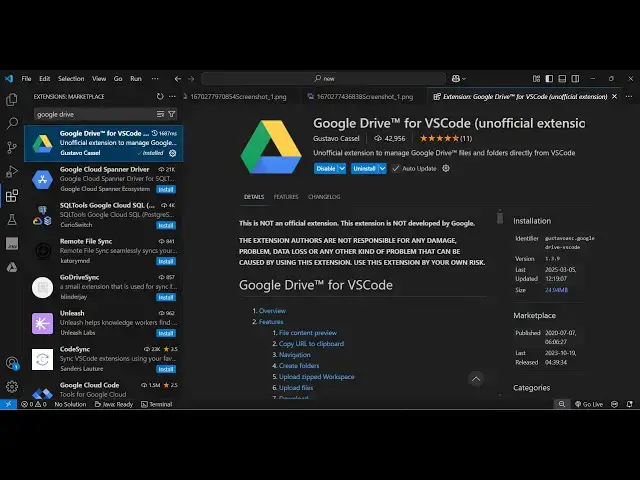
Google Drive so this is actually
0:13
extension right here uh it's not a
0:15
official extension by Google but someone
0:17
has developed this extension Google
0:20
Drive so this is actually if you just
0:23
type Google Drive in the extensions tab
0:25
this extension which comes 42,000
0:27
installs with it I personally tried it
0:30
it
0:30
works and you just need to click the
0:33
install button first of all to activate
0:35
this extension so once activated this it
0:38
will add this sidebar item right here
0:41
Google Drive and first of all I've
0:44
already activated this so that's why if
0:46
you seeing we are seeing all these files
0:48
in my Google Drive so after you
0:51
authenticate you will see all these
0:53
files of your Google Drive appearing and
0:56
you
0:57
can copy the URL or you can rename this
1:00
or you can download the file inside your
1:03
computer from your Google Drive so
1:06
simply save it so it is saying it is
1:08
downloading the file from your Google
1:09
Drive so once completed you will get a
1:16
notification so let me
1:18
just download this
1:22
one so it's a audio file so it is
1:25
downloading so you will get this
1:26
notification message file successfully
1:29
downloaded from
1:31
drive so both these files you can see it
1:33
is
1:35
downloaded and uh you can even upload a
1:38
file directly so let's suppose I want to
1:41
upload this file so what I will do right
1:43
click and you will say Google Drive
1:46
upload selected file to drive so you
1:48
simply select this and automatically
1:51
choose the location so I just want to
1:53
upload it to the current folder which is
1:55
root folder so you can see uploading
1:58
file to Google Drive and file
2:01
successfully uploaded to drive so in
2:04
this easy way guys you can use this
2:06
extension and if you're doing it for the
2:08
very first time then you just need to go
2:11
to Google Cloud console because it needs
2:15
authentication so just go to Google
2:17
Cloud console you should have an account
2:19
here you can create a free account and
2:22
then you need to go
2:23
to this uh API services and
2:27
credentials and just you need to create
2:30
a client ID just click on this option
2:33
create credentials and then go client ID
2:37
and specifically it's a desktop
2:39
application so here the application type
2:42
will be desktop application so right
2:45
here simply select this as you select
2:48
this simply click the create option and
2:50
it will give you this Json
2:53
file so click on download Json so
2:57
download this into a Json file so now
3:00
once you just press the shortcut key
3:03
control shift p or simply open the
3:05
command pallet right
3:08
click control shift p and just type your
3:11
Google Drive and first of all you need
3:13
to select this option if you're trying
3:15
it for the very first time so configure
3:18
credentials so simply select this option
3:21
so now it will ask you to select that
3:23
Json file that you selected simply
3:26
select this file and after that you
3:28
select this
3:31
credentials successfully stored and now
3:34
you just need to say Google Drive fetch
3:38
files so it will open the URL and then
3:41
you need to Grant the permission so
3:43
select your Google account and here you
3:46
need to click continue and then select
3:50
all so it will actually able to see and
3:53
download all your Google drive
3:56
files so simply click on continue so
3:58
once it is granted access you will see
4:01
this once you click this you will
4:03
see all your files will appear in the
4:06
Side Bar so you just need to click
4:08
continue so you will see the
4:09
authentication is completed please
4:11
return to vs code so now you will see
4:14
that it will show you all
4:17
the files here so in this way guys you
4:20
can actually use this extension Google
4:24
Drive for vs code to actually carry out
4:28
all the operations for completely free
4:31
it's a complete free extension which you
4:33
can manage your Google drive files right
4:35
in the VSS code so thank you very much
4:37
for watching this video and also visit
4:40
my website freem mediat tools.com which
4:43
contains thousands of tools regarding
4:45
audio video and image and I will be
4:47
seeing you in the next video
#Software
#Business & Productivity Software
#File Sharing & Hosting
#Cloud Storage