Up next in 10


Get the full source code of application here:
Show More Show Less View Video Transcript
0:00
Uh hello guys, welcome to this video. So
0:02
in this video, I'll show you a VS code
0:04
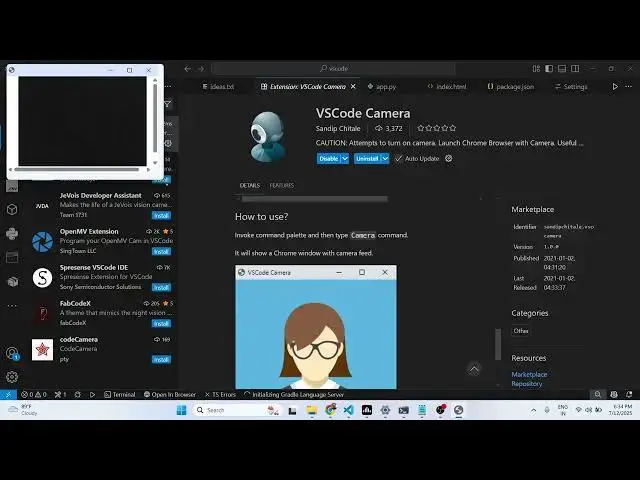
extension which uh directly connects
0:06
your uh web camera inside VS code. So
0:11
just go to the extensions tab. Just
0:12
write here camera and this extension
0:15
will come. It's a third party extension
0:17
which connects your web camera inside
0:19
directly inside VS code. So just click
0:22
the install button to activate this
0:25
extension. And then after activating
0:28
this you either you can go to command
0:31
pallet or just type control shiftp
0:34
shortcut and directly type here camera
0:37
and this will simply launch a Google
0:39
chrome window
0:42
where it will start your web cameras. So
0:45
you just need to grant the permission
0:47
and after that your web camera will
0:49
start and you can resize this window
0:52
place it accordingly. So this is really
0:55
useful because if you are basically
0:57
recording a video or anything you are
1:00
doing it you can
1:03
position it place it right here and
1:06
connect your VS code with your web
1:10
camera. So this is a simple extension.
1:12
Simply activate this and go to command
1:14
pallet and simply search here camera and
1:18
then your camera will start
1:20
automatically.
1:21
It will open a chrome window and uh here
1:24
you would see.
1:28
So if you just want to stop it simply
1:30
close this window and automatically the
1:34
camera will stop.
1:37
So this is a really
1:40
good extension you can install.