Up next in 10

How to Fix python is not recognized as an internal and external Command Error in CMD
Jun 7, 2025

Buy the full source code of application here:
Show More Show Less View Video Transcript
0:00
uh hello guys in this video I will show
0:03
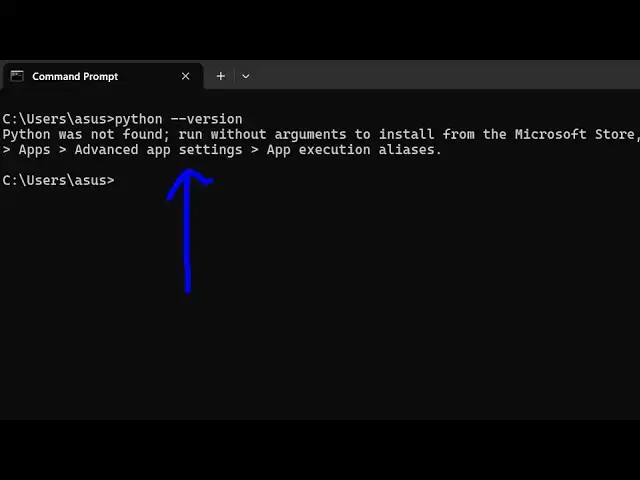
you this how to fix this error message
0:05
which is coming if you type python in
0:08
your
0:09
terminal if this error message is coming
0:12
that python was not found run without
0:15
arguments to install so if you can't
0:17
access python from your terminal then I
0:20
will show you how to fix that error in
0:22
this video
0:24
so for this you do need to install
0:27
python so just go to python website
0:30
and download the latest version of
0:32
python right here from this website
0:34
which is 3.1
0:37
3.2
0:38
so by default it will add the python
0:41
into your path but for but for some
0:44
reason if you have remove the python
0:46
installation From the Path that's why
0:49
you can't access python from the
0:50
terminal so I will show you the manual
0:52
method so just go to the C drive after
0:55
you install python by default it's
0:57
stored inside your users folder
1:00
this folder and whatever is your
1:02
username mine is Asus right here just go
1:05
to your username and then there is a
1:07
folder called as app
1:09
data so this is actually the folder
1:11
right here by default it's hidden app
1:14
data go to this folder and then we have
1:17
the folder called as local go to this
1:20
folder and just search for programs
1:23
folder right
1:24
here so this is your folder right here
1:28
and inside this
1:30
you will
1:32
actually
1:33
see python folder so just search for the
1:36
python
1:38
folder you will see that all your python
1:41
installations will be stored right here
1:43
so this is your python folder just open
1:45
it and if you have multiple
1:47
installations of python you will
1:49
see I have multiple ones which is python
1:52
3.9 and python
1:56
3.1.2 so whatever python version you
1:59
want to use simply open that and
2:03
then you need to Simply copy this path
2:07
here so right
2:09
click copy and then open your
2:12
environment
2:13
variable and just go to environment
2:15
variable and just go to the system
2:20
variable and just add this
2:23
entry the full path here if you see that
2:26
c users
2:31
and
2:32
uh same we do need to do this for the
2:35
script section as well so just go to the
2:37
scripts folder and whatever is this path
2:40
as well right click copy and uh again do
2:44
the same process uh add this to the
2:47
system path
2:53
variable so just add
2:57
this just click okay okay okay and just
3:00
restart your terminal and type the same
3:03
command here
3:05
Python and now you will see that the
3:08
python you can access python from your
3:11
terminal so python 3.1.2 point4 so in
3:15
this easy way just follow the step
3:17
by-step process that I showed you in
3:18
this video just add the installation of
3:21
python inside your path system path and
3:25
now you can access the python terminal
3:28
right here to execute python from the
3:31
command line so thank you very much for
3:33
watching this video and also check out
3:35
my website free mediat tools.com which
3:37
contains thousands of tools regarding
3:40
audio video and image and I will be
3:42
seeing you in the next video
#Programming
#Scripting Languages