Up next in 10

How to Fix File Explorer not Responding or Frozen By Reseting & Restart in Task Manager in Windows
Jul 7, 2025

Get the full source code of application here:
Show More Show Less View Video Transcript
0:00
Uh hello guys, welcome to this video. So
0:02
in this video, I'll show you how to fix
0:03
this file explorer. Sometimes it can be
0:07
hanged. It can not respond or it can
0:10
become frozen. So there is a trick that
0:12
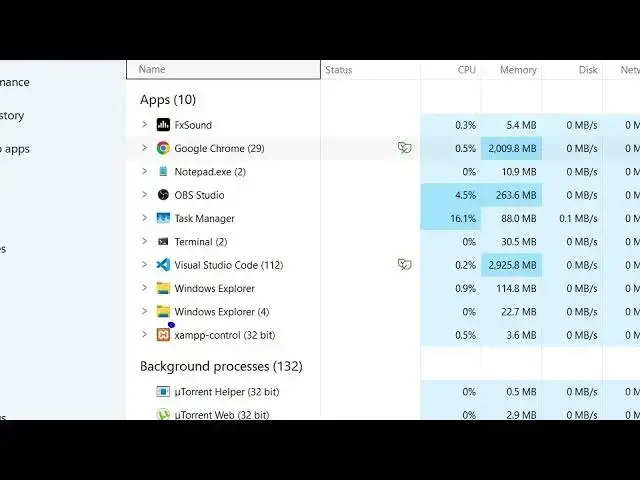
you can do. You can open your task
0:14
manager and uh right inside the task
0:18
manager there will be this process here
0:20
of file explorer. If you see
0:24
this is the explorer window. Sometimes
0:27
it becomes not responding and to fix
0:29
that issue simply right click on this
0:32
and uh you will see this option of
0:34
restart.
0:36
So if you see right click this on this
0:39
process and just click this option and
0:41
it will automatically restart your
0:43
explorer and it will reset this. So it
0:47
doesn't require any restart of your
0:48
computer. it can just it resets the file
0:52
explorer window and then automatically
0:55
adjusts adjust itself. So if you face
0:58
any sort of issues simply open the task
1:00
manager window you can access it from
1:02
the
1:04
start menu and inside start uh task
1:07
manager you will see this windows
1:10
explorer
1:11
or
1:13
both of this. So simply click any of
1:15
this right click and you will see this
1:18
option restart and simply click this
1:20
restart button to actually fix all these
1:22
issues and it will automatically restart
1:24
and fix all those issues. So in this
1:27
easy way you can do this using your task
1:29
manager. It will fix all the issues
1:32
related to file explorer if it is not
1:34
responding or it's frozen. You can do
1:36
this process inside your Windows 10
1:38
Windows 11 machine. So thank you very
1:41
much for watching this video. Uh please
1:43
hit that like button, subscribe the
1:44
channel and also check out my website
1:47
freemediatools.com
1:49
uh which contains thousands of tools.
#Software