Up next in 10


Get the full source code of application here:
Show More Show Less View Video Transcript
0:00
Uh hello guys, welcome to this video. So
0:02
in this video, I'll show you how to find
0:04
out the Google Chrome version
0:05
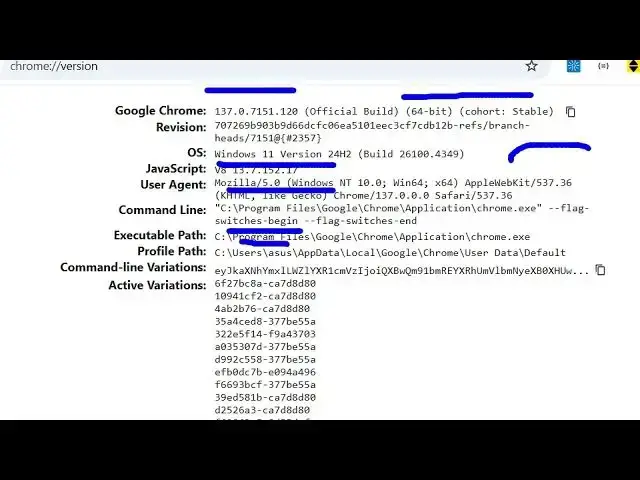
information such as uh where the Google
0:08
Chrome is located inside your computer.
0:10
So you just need to type inside your
0:12
browser chrome colon/ version. So just
0:16
open a new window and inside the address
0:19
bar just type this chrome col
0:23
uh slash version. So this is the thing
0:26
that you need to type inside your
0:29
browser and enter and after that it will
0:32
display everything related to Google
0:34
Chrome what version you are using it and
0:37
uh which which operating system you're
0:40
using user agent as well. It will tell
0:43
all this information and also it will
0:45
tell you where the Google Chrome
0:47
executable path is located. So it will
0:49
tell you the entire location right here.
0:52
So if you need the entire location where
0:54
Google Chrome is located, you can simply
0:56
copy this path here and simply open it
1:00
inside your address bar.
1:03
So in this folder structure, you will
1:06
see your Google Chrome executable is
1:08
located. So if you want to find out what
1:11
is the Google Chrome version, where it
1:12
is located, executable path, all this
1:14
information, just go to the command uh
1:17
browser and just type your chrome col//
1:20
version inside the browser and you will
1:22
get all this information. So thank you
1:24
very much for watching this video and
1:26
also check out my website
1:28
freemediattools.com
1:30
uh which contains thousands of tools.
#Internet Software
#Internet & Telecom