0:00
Uh hello guys, welcome to this video. So
0:02
in this video, I'll show you how to
0:03
enable or disable user account control
0:06
setting inside your uh PowerShell or
0:09
command lines. So in the description of
0:11
the video, I've given both these
0:12
commands. So just go to your
0:16
control or sorry p command prompt and
0:19
simply open this as run as administrator
0:23
and then inside your command line simply
0:26
paste this command. So this will
0:30
I think for this you need to open
0:35
Yeah. So open PowerShell run as
0:37
administrator and simply paste this
0:39
command. This will enable
0:42
the UAC completely. This is a command
0:46
here. You set this value to one. So this
0:49
will enable. And same command if you set
0:52
this value to zero. This will disable
0:56
the user account control setting. So I
0:58
have given this command in the
1:00
description of the video. So simply
1:02
paste this command inside your
1:04
PowerShell and simply enter and you will
1:07
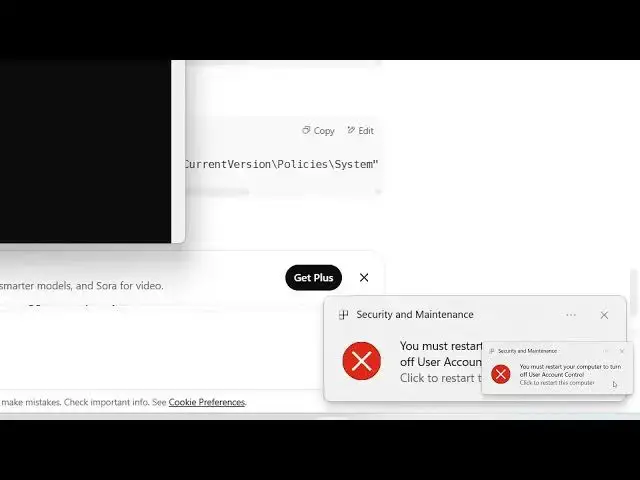
get this notification. You must restart
1:09
your computer because you have turned
1:11
off user account control setting.
1:14
So that's why I will revert back to
1:17
turning on this setting which is user
1:19
account control. It's a recommended one.
1:21
do not disable it because you make your
1:23
system vulnerable to all the threats.
1:27
So if for some reason if you want to
1:30
disable it, you can change from this one
1:36
So the command is given in the
1:37
description of the video and thank you
1:39
very much for watching this video and
1:41
also check out my website free media
1:43
tools.com uh which contains