Up next in 10

How to Enable & Disable Webpage Preloading Mode in Google Chrome Browser to Increase & Boost Speed
Jul 7, 2025

Get the full source code of application here:
Show More Show Less View Video Transcript
0:00
Uh hello guys, welcome to this video. So
0:02
in this video, I'll show you one mode
0:03
inside Google Chrome. It's called as
0:05
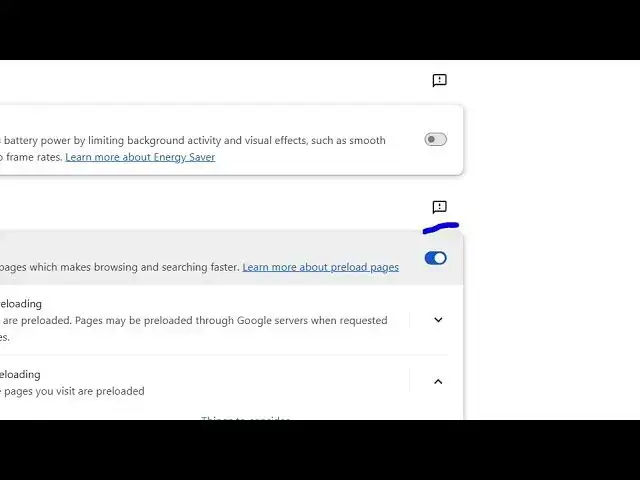
webpage preloading mode. You can enable
0:08
or disable it to increase speed. So just
0:11
go to settings section and right it is
0:13
located inside the performance section
0:15
of the and if you drag down you will see
0:18
this section of speed and by default it
0:22
is set to extended preloading. So it
0:25
actually Google Chrome by default
0:28
preloads more pages. Whenever you load
0:31
the Google Chrome browser, it will
0:33
request more sites to be loaded inside
0:36
the browser. But you can even change
0:39
this to standard preloading as well.
0:42
So depending upon
0:45
which setting suits your Google Chrome
0:47
browser, you can play with these
0:48
settings. But definitely toggle this
0:51
option to on. If you disable this then
0:54
it will reduce the speed of the browser.
0:56
So definitely in toggle this option on
1:00
if by default if it is turned to off.
1:03
Definitely enable this feature and just
1:07
change it to standard or extended. I
1:10
prefer this to be extended preloading.
1:13
So this will make sure that Google
1:14
Chrome will load your pages
1:18
on demand as soon as you open the uh
1:21
Google Chrome browser. So this will
1:23
significantly will boost and increase
1:25
the speed of Google Chrome browser. So
1:28
definitely
1:29
hit that like button and also comment if
1:32
you do notice a increase of the speed
1:35
and also check out my website
1:37
freepediatools.com
1:39
uh which contains thousands of tools.
#Internet Software