Up next in 10


Get the full source code of application here:
Show More Show Less View Video Transcript
0:00
Uh hello guys, welcome to this video. Uh
0:02
in this video, I'll show you how to
0:04
enable or disable the reading mode
0:06
inside the Google Chrome browser. Uh
0:08
this is a new feature which is developed
0:10
inside the Google Chrome browser where
0:12
you can read anything.
0:14
So simply toggle this by these three dot
0:17
symbols that is appearing in the top
0:19
right position. Simply click on that and
0:21
then inside the more tools section you
0:24
will find out this option of reading
0:26
mode. You will see that.
0:29
So just go to more tools and simply have
0:32
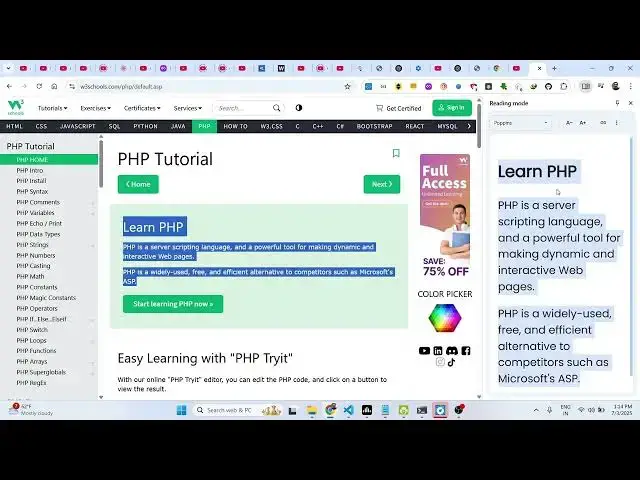
this reading mode. So here you need to
0:34
simply highlight the text using your
0:36
mouse and on the right hand side you
0:38
will see you will be able to read your
0:40
text very easily
0:43
and you can scroll down just highlight
0:45
which text you want to read and you can
0:47
even change the font as well using the
0:49
drop-down feature you will see that. So
0:51
this is the reading mode inside the
0:53
Google Chrome browser. You can activate
0:55
this simply going to the more tool
0:58
section and right here you will see this
1:00
reading mode. And now to disable this
1:03
you can click the cross icon. So this
1:05
will close. Again if you want to enable
1:07
this you simply go to this more tool
1:09
section
1:16
and you can go to any page here. just
1:19
highlight the text
1:21
and then it will appear it on the right
1:23
hand side. So in this way you can you
1:26
activate
1:27
this reading mode inside Google Chrome
1:29
browser. Uh please hit that like button,
1:32
subscribe the channel and also check out
1:34
my website freemediatools.com
1:36
uh which contains thousands of tools.
#Software