Up next in 10


Get the full source code of application here:
Show More Show Less View Video Transcript
0:00
Uh hello guys, welcome to this video. So
0:02
in this video, I'll show you a complete
0:03
example of the selenium library inside
0:06
Python to actually do some web
0:09
automation. Selenium as you all know
0:12
it's a very popular automation library.
0:14
If you want to automate your browser,
0:17
you can simply type selenium and this is
0:20
their official website. It can work with
0:22
any sort of programming languages,
0:23
JavaScript, Python, Java as well. But in
0:27
this specific example, I will talk about
0:29
the Python language. So I will simply
0:32
create a simple Python script which will
0:35
automatically download Selenium, install
0:38
it and also run a simple example. So let
0:40
me just create a simple folder and let
0:44
me just name it as Selenium example and
0:47
I just open it inside my VS code.
0:55
first of all cd into this.
1:03
So first of all you should have Python
1:05
installed on your system and
1:10
on the terminal section we simply write
1:13
we need to just install these two
1:15
modules which are necessary. So just go
1:19
to the terminal and just write here pip
1:22
install selenium
1:27
and after that one other library we need
1:31
to install which is uh web driver
1:34
manager. So selenium works with a chrome
1:39
driver.
1:41
So if you're using chrome as your
1:43
browser it needs a chrome driver. So it
1:46
will automatically install this this
1:48
package web driver manager. The spelling
1:51
is m a n a g e r. So just install these
1:55
two modules and then it will install the
1:57
selenium package globally inside your
2:00
system. So once the command execute
2:02
successfully. So now after that just you
2:05
need to execute a python script here
2:09
and uh you just write here from selenium
2:14
we need to import this web driver
2:18
and then from selenium dot
2:22
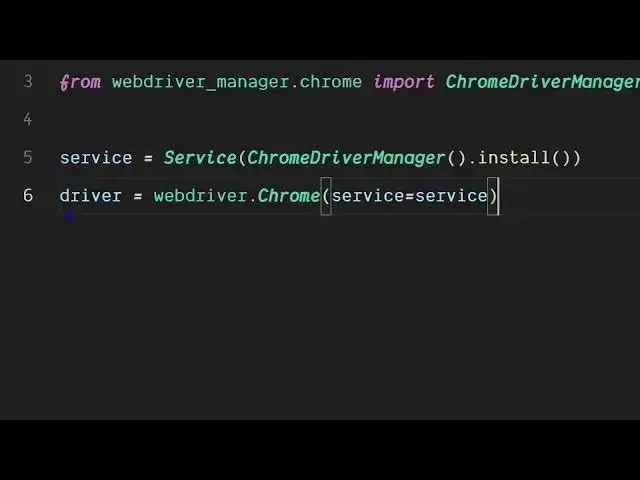
webdriver dot chrome.service service
2:26
we need to import the service
2:31
and then from the web driver manager dot
2:35
chrome we need to import the
2:39
chromedriver manager and after that it
2:42
will automatically download the right
2:44
version of your chrome driver depending
2:46
upon your version of the Google chrome
2:50
so you don't need to manually install
2:52
this so this line will make sure it
2:54
automatically installs the correct
2:57
Chrome driver for you and it will set
3:00
this. After that we open a simple
3:03
website go to google.com and simply
3:07
print out a message
3:11
chrome open successfully.
3:13
So if I just go to the terminal just
3:16
execute this Python script. So now what
3:18
you will see it will install the
3:20
selenium the driver as well and then
3:23
automatically open a window and go to
3:25
google.com. So this is the Python script
3:28
that you need to have to get started
3:30
with Selenium.
3:32
And uh once it is installed, you can
3:35
even check the version which version you
3:37
are using by simply typing here selenium
3:41
dash version I think. No, simply
3:46
we have installed selenium right here.
3:50
So it's a library. It works with the
3:53
Python language. So we have installed
3:54
this package right here.
3:58
So
4:00
in this easy way you can see I have
4:03
given this script in the description of
4:04
the video. So it automatically downloads
4:07
the correct chrome driver and
4:09
automatically opens and now you can do
4:12
any sort of automation.
4:16
So as you can see it opens
4:19
google.com. So, so the link is given.
4:23
You can actually copy paste the script
4:25
and also check out my website free media
4:28
tools.com uh which contains thousands of
4:31
tools.
#Programming
#Software
#Scripting Languages