Up next in 10


Get the full source code of application here:
Show More Show Less View Video Transcript
0:00
Uh hello guys, welcome to this video. So
0:02
in this video, I'll show you how to
0:03
enable or disable safe search inside
0:06
your Windows 10 or 11 machine. Safe
0:08
search is a feature that filters out
0:10
explicit content like adult images or
0:12
websites in web searches. You can enable
0:15
this feature inside your Windows
0:16
machine. So Windows machine comes with
0:18
the Microsoft Edge as a default or Bing
0:21
browser. So what you can do, you can go
0:25
to the Bing browser.
0:28
So simply say bing.com.
0:30
This is the default browser which comes
0:32
with the Microsoft Windows machine. So
0:35
there's this address you can go to
0:38
bing.com/
0:42
account/journal.
0:45
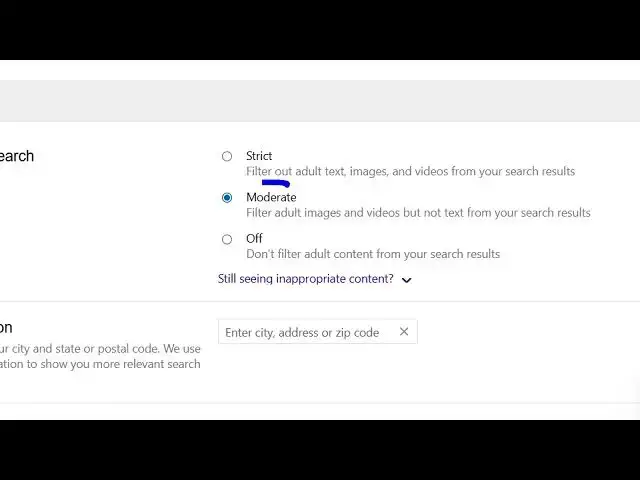
These are settings here. This setting
0:46
comes with this safe search setting. So
0:50
default setting is moderate but you can
0:53
actually turn on the safe search feature
0:55
and make this to strict or you can even
0:58
disable this as well and turn this off
1:00
as well. So in this easy way you can
1:02
toggle this setting enable or disable
1:05
save search inside windows. The second
1:07
way by which you can do the same thing
1:09
is by registry editor. You can open the
1:12
run menu and uh just simply type here
1:16
reg. This will open your registry editor
1:20
and right here you need to go to this
1:23
address which is the explorer address.
1:28
Simply paste this address and enter.
1:32
So here you will land on this
1:37
this explorer setting.
1:43
But uh this is not a very good practice
1:47
to actually modify your registry
1:50
settings. So I will stick to the first
1:52
option that I showed you bing.com
1:54
account general. Simply open it in the
1:56
browser and simply toggle this setting
1:58
either to off or strict. So in this easy
2:03
way you can do this. Also check out my
2:04
website freemediatools.com
2:06
uh which contains thousands of tools.
#Software
#Search Engines