Up next in 10


Get the full source code of application here:
Show More Show Less View Video Transcript
0:00
Uh hello guys, welcome to this video. So
0:02
in this video, I'll show you how to
0:03
create a restore point inside your
0:05
system restore point in Windows. So
0:07
there are quite a number of options. If
0:09
you go to start menu and if you just
0:12
type here restore point
0:15
automatically this option will come
0:16
right here create a restore point you
0:18
will see that.
0:21
So just go to the start menu just type
0:23
here restore point. If this option is
0:26
not appearing then you can actually go
0:28
to control panel as well.
0:33
And right here if you see we have system
0:35
and security and here you can go to the
0:38
system settings
0:42
and right here as well we get this
0:45
system protection right here. Simply
0:48
click this and this will also open the
0:50
same window.
0:52
So there is also one other route you can
0:55
go to the same window. Go to settings
1:00
and uh then you go to system
1:05
and then you have this uh
1:12
system.
1:18
Yeah. So inside this I showed you this
1:21
recovery option here
1:25
and if you see there will be this option
1:28
right here.
1:32
So the first option that I showed you
1:34
this one is okay. If you simply go to
1:37
control panel,
1:40
go to system here and right here you
1:43
have system.
1:49
Yeah. So if you go to system, you need
1:50
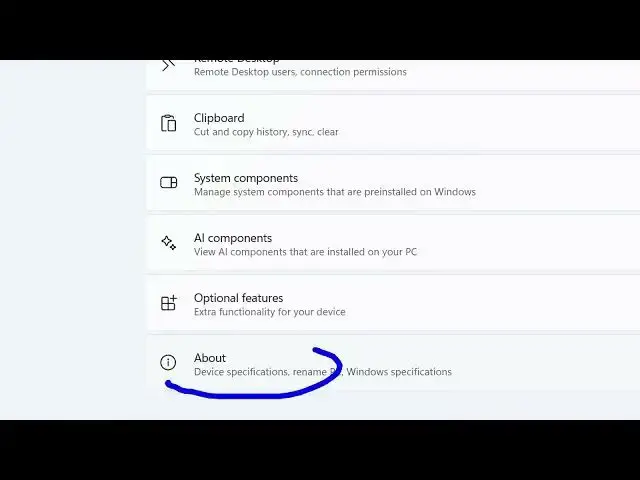
to go to this about section. So inside
1:54
this about section, you see this option
1:56
of system protection. So this will open
1:59
the same window and here you can create
2:01
a restore point. So there is this option
2:03
if you see create a restore point right
2:06
now for the drives that have system
2:07
protection turned on.
2:10
So as you can see my protection is
2:12
turned on for
2:14
the C drive. So this will create a
2:16
restore point. And here you can even
2:18
configure
2:22
if you just want to disable or turn on
2:24
system protection. You can even delete
2:27
all restore points for this drive as
2:29
well. This is for system protection for
2:32
you can click the delete button to
2:34
delete everything all restore points
2:38
or you can even click this button as
2:40
well system restore to actually restore
2:42
to a
2:44
restore point that you already created.
2:47
So you just need to click it a restore
2:50
point. So this is manually created if
2:53
you see
2:55
today which is uh
2:58
the PC automatically creates this for
3:01
the C drive.
3:03
So you can click on next and confirm
3:07
your restore point. So your computer
3:09
will be restored to the state it was
3:10
before the event in the description
3:12
field appear. So if you are facing some
3:14
issues in the PC you can restore it to a
3:16
previous location previous time and
3:19
click on the finish button and then just
3:21
need to restart your computer to apply
3:23
the changes. So in this easy way you can
3:25
create restore point and then you can
3:28
restore it restore the system by
3:29
clicking this button. So here we need to
3:31
click on create button to create a
3:33
restore point. So this will
3:35
automatically create a restore point for
3:37
the system. So in this easy way you can
3:39
create a restore point inside your
3:41
Windows machine and also check out my
3:44
website freemediatoludes.com
3:48
uh which contains uh thousands of tools.
#Software
#Operating Systems
#Software Utilities