Up next in 10

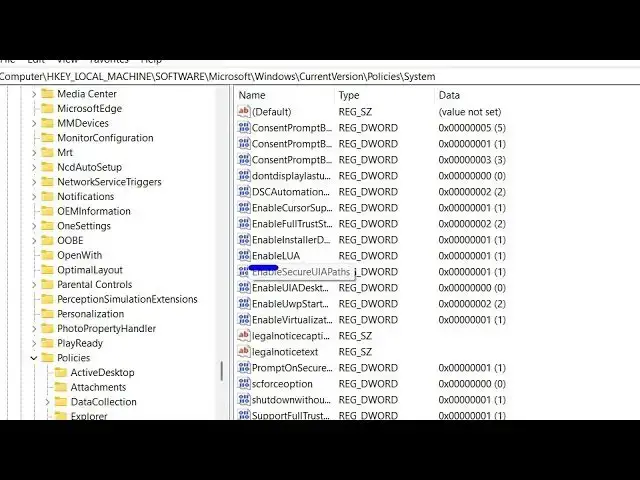
How to Completely Enable or Disable UAC (User Account Control) in Windows Using Registry Editor
Jul 7, 2025

Get the full source code of application here:
Show More Show Less View Video Transcript
0:00
Uh hello guys, welcome to this video. So
0:02
in this video, I'll show you how to
0:03
completely disable user account control
0:06
setting using your registry settings,
0:08
registry editor inside Windows 11. Go to
0:11
command
0:13
uh start menu. Just type the run command
0:15
and just go to registry settings here.
0:19
So this will open your registry editor
0:22
and right here in the description of the
0:23
video I given this address here. Simply
0:26
paste this address right in this search
0:28
bar.
0:29
and enter it. And this will open this
0:31
window right here. And uh it is located
0:34
if you see computer HK local machine
0:38
software Microsoft Windows current
0:40
version policies system. Just go to
0:43
navigate to this address. After that
0:45
there will be this property you will say
0:47
which is enable LUA. This is the
0:51
property here in the registry settings.
0:53
Simply click on that. And uh if you want
0:56
to disable the user account control
0:58
setting, the default value is set to
1:00
one. You just need to change this value
1:03
to zero. This will completely disable
1:06
your UAC settings. And simply click on
1:09
okay. After that you will see this
1:12
notification that you must restart your
1:15
computer because you have turned off
1:17
user account control setting. So you can
1:20
restart your computer to actually save
1:23
the changes but I will never recommend
1:26
you to disable this setting. So again I
1:28
will again change back to this one here
1:32
because it can
1:35
uh just expose your system to threats.
1:38
So it is not recommended. So I will
1:39
again change this to from 0 to one. Uh
1:44
and also you can also
1:47
indirectly as well go to control panel
1:49
and toggle the settings as well system
1:52
security security maintenance and then
1:55
you will see this setting here change
1:56
user account control settings and here
1:59
also you can do this setting you can
2:02
disable it but it's not recommended but
2:04
you'll I will stick to the recommended
2:06
option as well.
2:10
So in this easy way you can do this. Uh
2:12
also check out my website
2:14
freemediattools.com
2:17
uh which contains thousands of tools
2:21
and I will be seeing you in the
#Computers & Electronics
#Computer Security
#Operating Systems