0:00
Uh hello guys, welcome to this video. So
0:02
in this video, I'll show you how to
0:03
check your Windows operating system
0:07
uh and hardware related information
0:10
inside your PowerShell.
0:13
It is not terminal, it is PowerShell. So
0:15
if you just search Windows PowerShell,
0:17
it will open right here. Just open this.
0:20
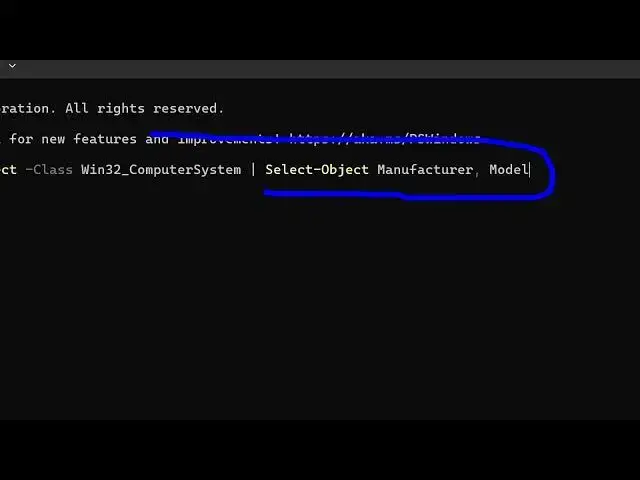
And I have given this command here in
0:22
the description of the video. So if you
0:24
just copy this command and simply
0:28
execute this inside your PowerShell. So
0:31
simply paste it and the command looks
0:34
like this. Get wm object-class
0:37
win32 computer system/
0:41
select object manufacturer model. So
0:43
just enter this and it will give you the
0:46
manufacturer which manufacturer you
0:48
using your laptop or PC and which model
0:51
number you are using. So these are very
0:53
important information related to your
0:55
computer or PC. So simply execute this
0:58
command on PowerShell and instantly it
1:02
manufacturer and model name. So you can
1:05
see it will instantly give you which
1:08
model of laptop you're using, which
1:10
company you're using, all such
1:12
information will be given to you. So in
1:13
this easy way you can find out this and
1:16
uh the command I have given in the
1:18
description of the video and also check
1:20
out my website freemediatools.com
1:23
uh which contains thousands of tools.