Up next in 10


Get the full source code of application here:
Show More Show Less View Video Transcript
0:00
Uh hello guys, welcome to this video. So
0:02
in this video, I'll show you how to
0:03
check pandas version directly in the
0:06
terminal and that there its location as
0:08
well. Pandas as you all know it's a
0:10
package related to python. So you should
0:14
have first of all python installed in
0:16
your system and then you need to install
0:18
this package by using this command pip
0:20
install pandas. I've already installed
0:23
it. So if you haven't installed this,
0:25
this will download and install pandas
0:27
inside your system. Now if you want to
0:30
show which version you are using of
0:31
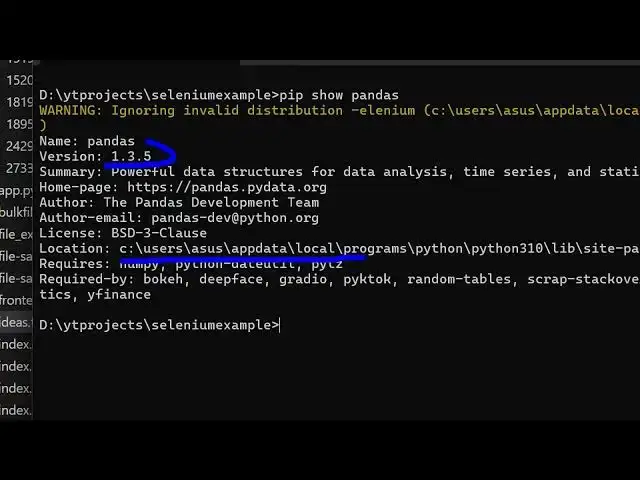
pandas, this is a command here tip show
0:34
pandas. It will exactly tell you which
0:37
version of pandas you're using it. If I
0:39
enter it, it will tell you the version
0:42
number which is this 1.3.5.
0:45
It also tells you the location where
0:48
pandas is installed in your system. So
0:51
it gives you this entire location.
0:54
One other command is there. You can
0:56
simply type here where pandas. This also
0:59
returns the exact path where pandas is
1:02
located in your computer. So I think the
1:06
previous command is enough. This is this
1:09
command doesn't work. So just pip show
1:12
pandas is enough. It will tell you the
1:14
entire location. So you could copy this
1:16
location
1:21
and go to the explorer window and simply
1:23
paste it. And here you will find out
1:28
all your packages are located. So one
1:31
such package is this pandas package as
1:33
well
1:38
I think. Yeah. So this is a folder here.
1:40
If you see
1:42
here all the executables are present. So
1:44
in this easy way you can track the
1:46
version and location of pandas directly
1:48
in the terminal. Also check out my
1:50
website freemediatools.com
1:53
uh which contains thousands of tools.
#Programming
#Software