Up next in 10


Get the full source code of application here:
Show More Show Less View Video Transcript
0:00
Uh hello guys, welcome to this video. So
0:02
in this video, I'll show you how to see
0:04
the version number of numpy you are
0:06
using. So first of all in the terminal
0:09
you need to install this by executing
0:12
this command pip install numpy. After
0:15
you install this now we have a command
0:17
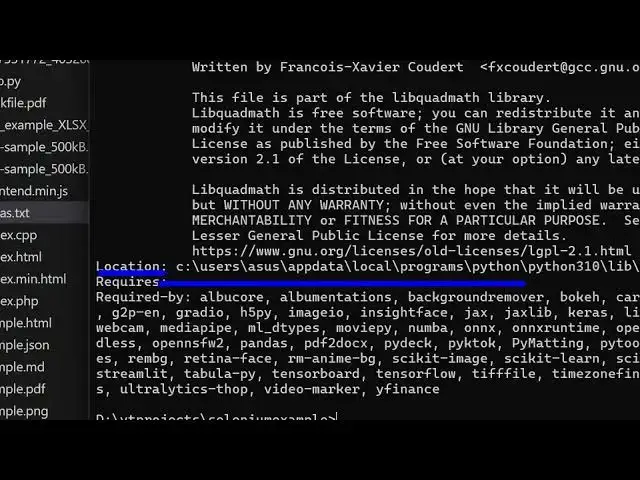
here pip show numpy. So with the help of
0:20
this command you will be able to see
0:22
which version of numpy you're using
0:24
inside your project. So it gives you
0:27
right in the terminal itself. So this is
0:30
the version here 1.2
0:34
1 1.26.4
0:36
and it also tells you the location here.
0:38
If you drag down you see that this
0:40
location
0:42
here you can copy this location and open
0:46
the file explorer window and simply
0:48
paste this path.
0:52
So just search for the numpy folder.
0:58
You can see that this is a folder here.
1:00
So here all the numpy files are located.
1:04
In this easy way, you can keep track of
1:06
the location and the version number.
1:09
Also check out my website
1:10
freemediattools.com
1:12
uh which contains thousands of tools.