Up next in 10


Get the full source code of application here:
Show More Show Less View Video Transcript
0:00
Uh hello guys, welcome to this video. So
0:02
in this video, I'll show you how to
0:04
check the NodeJS version installed on
0:07
your system on the terminal. So the
0:09
command is very simple. You simply write
0:11
node d- version. So this will exactly
0:15
tell you the installed version inside
0:17
your system which is 23.7.0.
0:20
And if you're wondering where is NodeJS
0:22
installed on your system, so there is
0:24
this command here which you can execute
0:27
where node. So then it will exactly tell
0:30
you the location where it is installed
0:32
on your system. So it is typically
0:34
located inside C program files NodeJS.
0:38
So you can copy this address and simply
0:41
go to the right here and simply paste
0:44
this location.
0:48
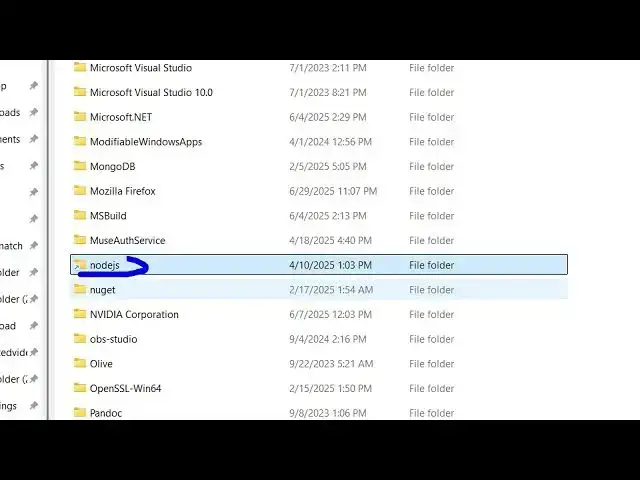
So see program files NodeJS. So it
0:51
actually inside your program files we
0:53
have this folder NodeJS and inside this
0:56
we have all these executables out there
0:58
if you see so this is our NodeJS
1:01
executable.
1:04
So in this easy way you can locate your
1:06
NodeJS inside your system inside
1:08
terminal and if you haven't installed
1:10
NodeJS it's very easy simply type node
1:13
download go to their official website
1:16
and download the latest version.
1:19
So
1:21
for Windows we have this installer right
1:23
here. So which will automatically
1:25
install it for your Windows machine. For
1:27
Linux you run simply select the
1:30
architecture and operating system and
1:32
then install it. And also check out my
1:35
website freemediatools.com
1:38
uh which contains thousands of tools.
#Programming
#Software