Up next in 10


Get the full source code of application here:
Show More Show Less View Video Transcript
0:00
Uh hello guys, welcome to this video. So
0:02
in this video I will show you how to
0:04
change line height of editor inside your
0:07
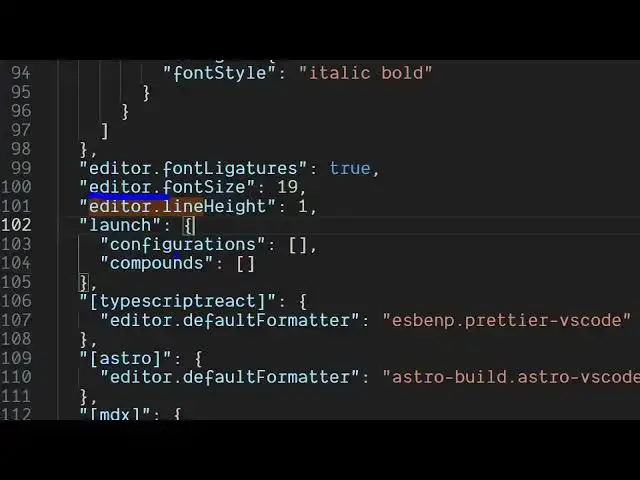
VS code IDE. Uh line height is very
0:11
simple. You go to the settings user
0:14
settings file just control shiftp inside
0:17
your command pro pallet open your user
0:21
settings file and right here there is a
0:23
property that you can control it which
0:26
is editor dot line height so currently I
0:30
set this line height to be two but you
0:32
can change this to let's suppose to five
0:35
so now it increases it so as you can see
0:38
it increases the line height to five
0:41
let's suppose I set it to one. So line
0:44
height typically is the distance between
0:48
vertically how much.
0:50
So currently I set this to two which is
0:53
more than enough which in this easy way
0:56
you can set the line height.
0:58
Secondly, you can click the settings
1:00
icon and also in the search bar simply
1:02
type line height
1:06
and by
1:08
you can input right here as well the
1:11
value in this easy way you can do this.
1:14
Also check out my website
1:15
freemediattools.com
1:17
uh which contains thousands of tools.