Up next in 10

How to Add Run Button in Package json File of Node js Project in VSCode IDE to Run Scripts
Jul 12, 2025

Get the full source code of application here:
Show More Show Less View Video Transcript
0:00
Uh hello guys, welcome to this video. So
0:02
in this video, I'll show you a VS code
0:04
extension which directly allows you to
0:06
execute all the packaged JSON scripts
0:09
with a single click. So go to the
0:12
extensions tab and just search for this
0:14
extension which is npm run. So this
0:17
extension will come. It's a fairly new
0:20
extension. 5,000 installs are there. So
0:23
simply click the install button. So what
0:25
this is it will do. So if you have an
0:28
existing package dojson file and if you
0:31
have declared some of the scripts here,
0:34
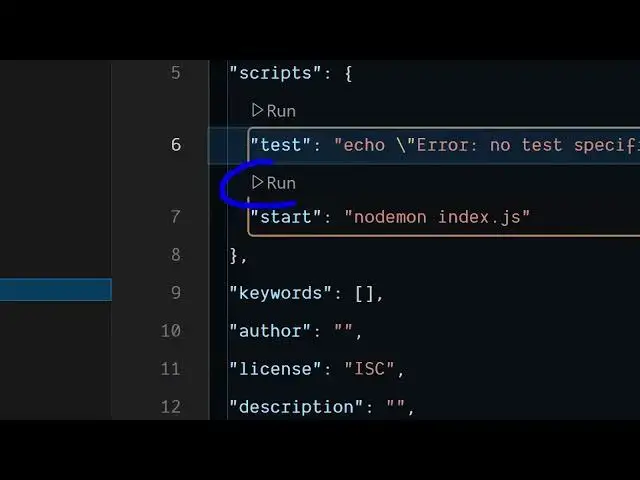
it will just add a run button right in
0:36
this file itself. So after activating
0:40
this extension, you will see this run
0:42
button available. Click the install
0:44
button. Uh just activate this extension.
0:47
So after you open package.json file, you
0:49
will see this run button appearing
0:52
uh alongside with each script here.
0:55
Click the run button. It will
0:57
automatically start your
1:01
you can see it is executing the script
1:03
here automatically in the terminal. So
1:05
you don't need to do manually go to that
1:08
command line. Just type npm run start.
1:10
It will do automating thing for you. You
1:13
can just run the test script as well. So
1:17
you can see that how easy it is. So it
1:19
basically prints out this.
1:22
just put this run button right in the
1:25
package JSON file itself. So you can
1:27
have multiple scripts mentioned right
1:29
here and for each script there will be
1:31
the run button. So this is the extension
1:34
of VS code definitely install it and
1:36
this it will automate all your package
1:39
JSON scripts with a single click.
1:42
So also check out my website
1:44
freemediatoluds.com
1:46
which contains thousands of tools.
#Scripting Languages