Up next in 10

Google Gemini AI Powered Comment Generator For Source Code in Visual Studio Code IDE
Jul 14, 2025

Get the full source code of application here:
Show More Show Less View Video Transcript
0:00
Uh hello guys, welcome to this video. So
0:02
in this video, I'll show you a VS code
0:04
extension uh which actually powers by
0:07
Google Gemini Pro AI and it actually
0:11
generates comments for your source code
0:13
automatically. You just select your
0:15
source code and it will generate the
0:16
comments. This is the name of the
0:18
extension code charm. It's an newly
0:21
extension which is uh deployed on VS
0:24
code. I recently checked it. If you go
0:26
to extensions, just type the name here.
0:29
Code charm. This is the name here. If
0:33
you just type this, you will see this
0:35
extension will come. I personally tried
0:37
this, it works. It has got only three
0:39
installs. But just click the install
0:41
button and just install and activate
0:45
this extension. So after that, it will
0:47
take the use of Google Gemini AI and
0:50
generate the comment. So once it is
0:52
activated, go inside your source code.
0:54
So let's suppose I take an example of a
0:56
file here index dotphp code. I go to the
1:00
file and simply I select the code here
1:04
for which I need to generate the comment
1:06
using the mouse. So simply select that
1:08
code first of all and then I either you
1:11
go to the command pallet or simply type
1:14
the shortcut control shiftp and right
1:17
here just search for this extension code
1:20
charm and this will come right here you
1:22
will see generate comment
1:24
just click it and in the background it
1:27
will generate the comment here you will
1:29
see. So now it generated this comment
1:32
here
1:34
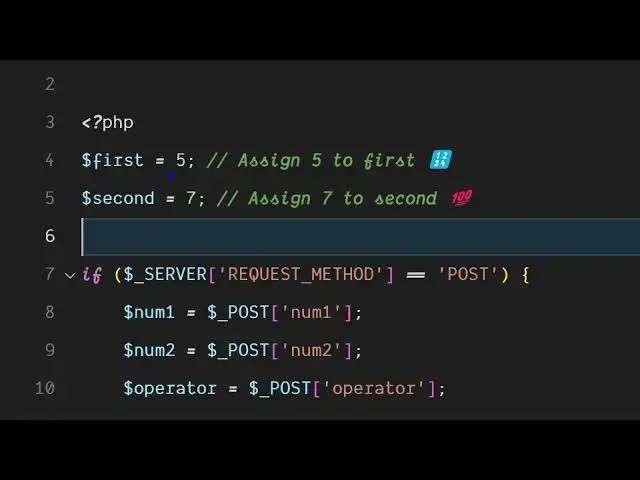
the slash you will see assign five to
1:37
first assign seven to second. So these
1:41
icons are also automatically generated.
1:44
So as you can see how perfectly it had
1:46
generated and if you just want to
1:48
generate the comment here
1:52
of the whole file you simply select the
1:55
whole file here like this the whole PHP
1:59
code. Simply select it and simply type
2:02
control shiftp which open the command
2:04
pallet and simply type code char and
2:07
enter. And after that it will generate
2:10
it will scan all the code here and then
2:12
automatically generate comment for it.
2:14
You will see for each line it generated
2:17
this nice little comment here
2:19
documentation. So if you're deploying
2:21
the code here it's very good. It will
2:23
save you a lot of time here. So you can
2:25
see for each line it has generated these
2:29
comments here which are more than
2:33
goodlooking. You will see it also have
2:35
these icons also and it also works with
2:38
other languages as well. So if you want
2:40
to generate comments here for
2:44
the HTML language as well. So you select
2:46
the language here. After that again
2:48
press the keyboard here which is code
2:50
chart
2:53
generate comment. So now it will
2:56
generate this HTML comments as well. You
2:58
will see that. So
3:01
you can do this unlimited number of
3:03
time. There is no kind of restriction
3:05
that you need to put any sort of API
3:07
key. It is using the power of Google
3:10
Gemini Pro. So as you select a bunch of
3:13
code here, simply select that and then
3:16
type control shiftp code char and then
3:19
it scans the entire code and generates
3:21
the comments for each line of code. So
3:23
definitely install this extension. Uh
3:26
it's a fairly new extension
3:29
but still it works here. So I can show
3:32
this for any language here. It can be
3:34
you can see JavaScript as well. So again
3:37
we scan the we select the code and then
3:40
type here code charm. So once again it
3:43
will scan the code here and now it will
3:46
generate the documentation. So
3:50
it work with any language here. So after
3:53
selecting the code simply type code
3:55
charm and
3:59
so this is the extension your code charm
4:01
definitely install it. It is using the
4:03
Google gemini pro AI for generating
4:07
smart comments for your source code and
4:08
VS code. So also check out my website
4:12
freemediatools.com
4:14
uh which contains thousands of tools.
#Software
#Development Tools