Up next in 10


Get the full source code of application here:
Show More Show Less View Video Transcript
0:00
Uh hey guys, welcome to this video. So
0:02
in this video, I'll show you a very
0:04
useful Chrome extension for programmers
0:06
and developers. So if you ever wanted to
0:09
actually test your app in different
0:11
screen sizes and this is a multi-creen
0:14
responsive testing tool. So this also
0:18
offers a free Chrome extension that you
0:19
can install, responsive viewer,
0:24
and you simply click add to Chrome. So
0:26
this is their official website,
0:28
responsiveview.org. RG. You can even try
0:31
their online version as well. They
0:33
provide you with this. But uh
0:39
to unlock all the capabilities, you
0:41
should install the Chrome extension. So
0:44
after you install this Chrome extension,
0:46
this will appear right here. Now if you
0:49
visit any website,
0:52
just click on that button and now
0:56
you will be able to
1:02
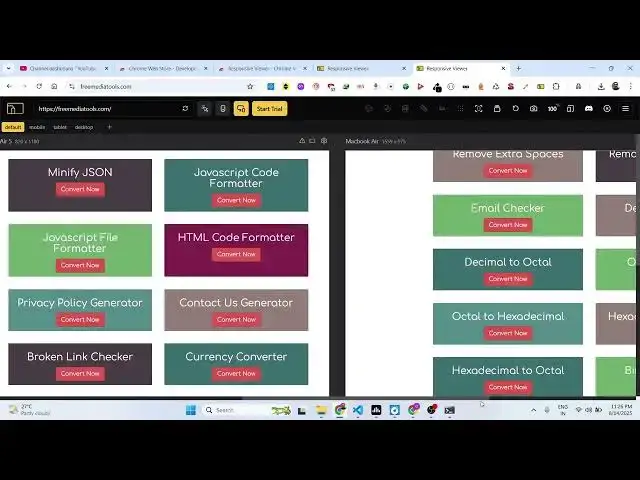
manage the website in different screen
1:05
sizes, mobile, desktop, tablet,
1:07
everything. So now this is your
1:10
website looking in mobile devices.
1:13
This is in mobile. Here you will see
1:14
this is in tablet
1:17
and this is in desktop.
1:25
You can select which tablet you want to
1:27
use. So various suggestions are there.
1:31
So you can just see here in different
1:34
phone sizes Samsung Galaxy you can pick
1:36
your mobile version and this website
1:39
looks something like this. And same goes
1:41
with desktop as well.
2:05
So in this easy way you can see that
2:09
you can view your website like this very
2:12
simply.
2:15
So it basically shows all the screen
2:17
sizes.
2:19
MacBook Air, this is your iPad. This is
2:23
your Pixel 4. So it shows the website
2:27
here in all the screen sizes. So in a
2:31
single screen you can test out on
2:32
multiple devices. So it will save you a
2:35
lot of time if you are a developer. And
2:37
you can even have these editors as well.
2:39
So if you just want the single screen
2:41
this will appear like this. You will see
2:43
that. So
2:45
stack screens vertically. So you can
2:47
stack them vertically as well.
2:50
You can even rotate as well.
2:54
And then you can even capture full page.
2:57
It will take the screenshot to you and
2:59
simply save it.
3:04
So
3:06
you can see automatically it is doing
3:08
the screenshot.
3:14
So here you can visit any website. Here
3:18
inside this editor you basically type
3:25
Just activate this by going to this
3:28
Chrome extension. And now this tour will
3:31
start right here. You can see that. So
3:46
can control the sizing as well. You can
3:48
see that
3:56
So it's a very useful extension guys.
3:58
The thing is that it's completely free.
4:01
So you don't need to pay anything.
4:06
So this is the extension responsive
4:08
viewer. Definitely install this inside
4:11
your Chrome browser and also check out
4:14
my website freemediatools.com
4:17
which contains thousands
#Programming
#Software