Up next in 10


Get the full source code of application here:
Show More Show Less View Video Transcript
0:00
Uh hello guys, welcome to this video. So
0:02
in this video I'll show you a AI
0:04
assistant specifically for Google
0:06
Chrome. So here you can instantly use AI
0:08
in any web page using this extension
0:10
which is called as AI blaze. So simply
0:13
search for this extension. They have
0:15
their own website as well blaze.
0:18
And you can automate the repetitive task
0:21
that you do almost everywhere inside the
0:24
browser such as replying to emails or
0:28
all these you can basically have
0:30
templated responses so that you can
0:33
prevent typing the boring stuff. So
0:35
using this extension text blaze this is
0:39
the extension right here. Simply click
0:41
the add to chrome button and as soon as
0:44
you do this you can get started
0:45
completely free. You just need to click
0:47
the sign up with Google button. Simply
0:50
grant the access.
0:55
So just grant the permission right here
0:57
and after that you will be redirected to
1:00
the dashboard area. So right here just
1:03
uh activate this extension. So you can
1:06
basically get started works on any web
1:09
page.
1:11
So let me just open right here.
1:17
any email that you want to reply.
1:22
So let me just if I want to reply to
1:25
this email address I click the reply
1:28
button. As soon as you do this this
1:30
extension simply click on that and
1:33
various if you now click this you will
1:35
see this sidebar window will appear and
1:38
you will see this option reply to this.
1:41
So once you click this this window will
1:44
appear.
1:47
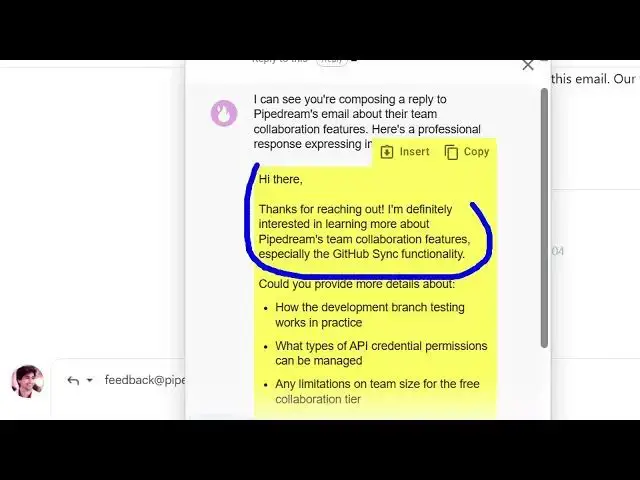
So it will automatically scan everything
1:49
what what are you working in this page.
1:51
So it is summarizing that I am there for
1:54
you to composing this reply to this
1:56
email. So
2:00
now you can click this button insert
2:02
highlighting into page.
2:04
So it automatically generated this
2:06
response for you. Hi there thanks for
2:08
reaching out. But I'm definitely
2:10
interesting in learning more. Based upon
2:12
the message that it automatically
2:14
generated this uh if you're happy you
2:17
can click this insert and automatically
2:19
your response will be inserted. You
2:22
don't need to type anything. This AI
2:24
will take care of itself and now you can
2:26
click the send button. So this is one
2:28
use case of this extension. you can
2:30
automatically reply to the extension uh
2:32
the email addresses in Gmail or if you
2:36
want to translate something if you're
2:39
your language is different if you're
2:42
reading a blog post let's suppose
2:44
let's suppose I am reading this again
2:47
just activate this extension and all
2:50
these
2:56
so you click on translate it.
3:01
So it will translate everything for you.
3:06
So you can see automatically it detects
3:08
here.
3:11
So
3:14
right here you can edit and translate.
3:21
So you can basically translate any text
3:24
here. You just need to summarize it with
3:26
a target language. Apart from that as
3:29
well, you also get summarized as learn
3:31
more, answer this question. All these AI
3:34
options you get to automate inside your
3:38
browser to don't repeat the so
3:41
definitely check out this extension AI
3:44
blaze and uh just install this
#Intelligent Personal Assistants
#Email