Up next in 10

Google Apps Script Example to Create Files in Google Drive and Send it to Gmail
Dec 21, 2025

Buy the full source code of application here:
https://procodestore.com/index.php/product/google-apps-script-example-to-create-files-in-google-drive-and-send-it-to-gmail/
Show More Show Less View Video Transcript
0:00
Uh hello friends today in this tutorial
0:02
we will be looking that how to create a
0:05
new file inside your Google drive and
0:07
send it through Gmail using Google app
0:10
script. So just go to this link guys
0:13
which is script.google.com
0:17
and through this tutorial you will get
0:19
to know about what is Google appcript.
0:21
So basically it is kind of a abstraction
0:24
that it is kind of a new language which
0:27
is introduced by Google in order to
0:28
interact with their APIs with the help
0:30
of JavaScript language. So if you go to
0:33
this link here script.google.com
0:35
you will be prompted to create a new
0:37
project. If you click it new project you
0:40
will be redirected
0:42
onto it this editor online editor. Here
0:45
you can just write JavaScript code in
0:47
order to directly interact with the
0:49
Google API. So this is the Google script
0:52
file that you can see that this is the
0:54
function that we will be writing here.
0:57
So there is a run option also. So here
0:59
we first of all need to create our
1:01
Google drive file and then we just need
1:03
to send this file across our Gmail. So
1:07
first of all in order to create a new
1:09
document we will be declaring a new
1:10
document here voc
1:13
is equal to document
1:17
app. So basically document app dot
1:21
create. So basically it will create a
1:23
new document with a name. So here we
1:25
just need to pass a simple name. Let's
1:27
suppose I pass here hello world. So
1:29
basically it will create this file onto
1:31
my lo Google drive. You can see that
1:33
this is my Google drive. So it will
1:34
create this files once I uh run this
1:37
function. And after that we need to add
1:42
some text to it. Let's suppose we need
1:45
to add some uh text to it. So first of
1:48
all we will be using this function
1:50
doc.get body dot append paragraph. So
1:55
this function we will use and here we
1:57
can just pass anything
1:59
uh this document contains
2:03
hello world message.
2:06
So basically in this uh file we have
2:08
first of all created this file and added
2:10
some text to it. And now after that we
2:14
will be getting the URL of this fi file
2:17
getting the URL. So in order to get this
2:19
we will be declaring a new URL variable
2:23
and then we will be invoking a very
2:25
simple method doc dot get URL. So this
2:28
is a method. So this will get the URL of
2:30
this file. And now we just need to get
2:34
the email address
2:36
where we need to send this file. So in
2:39
order to get the same email address we
2:41
will be uh declaring a new variable
2:45
where email and we will be making use of
2:47
session here session dot get active
2:51
user. So and this will return the email
2:54
for us get email. So
2:57
put a semicolon and now this will return
2:59
the active email address that the user
3:02
has logged in. After getting the email
3:04
address, we just need to send the email
3:07
and before that we will be constructing
3:10
our subject. So make a new subject
3:12
variable and the subject will be simply
3:14
the name of the file which will be
3:16
dog.get name. So this will return the
3:18
name of the file and we are storing this
3:20
inside subject. And now we just need to
3:23
construct the body simple body of the
3:24
email which will be link to the doc.
3:29
And then we can just concatenate the URL
3:32
variable that we have. That's it. So
3:34
after that the last thing we will be
3:37
sending email to Gmail id. So this will
3:40
be very simple.
3:43
Let me just create some space. So this
3:46
will be document
3:48
oh sorry Gmail app. So this is the way
3:51
by which you can just send emails. Gmail
3:54
app dot send email. And here we just
3:57
need to provide our recipient. So this
4:00
is located inside email variable subject
4:03
we are passing the name of the file and
4:05
the body is that link to a document URL.
4:08
And now our application is complete. So
4:11
you can see that very few lines of code
4:13
we have developed a web application
4:15
where we create this file onto our uh
4:18
Google drive and then we are sending
4:20
this file to Gmail to the currently
4:24
logged in email address. And now in
4:26
order to run this so just press this run
4:29
command and first of all we need to save
4:32
our project. We will be saving this
4:34
inside mail here and clicking on okay.
4:37
So this will save our project. And now
4:39
after that we again want to press this
4:41
button. So it will run this function.
4:44
And first of all if you first uh launch
4:46
this application you must provide the
4:49
permissions. So I will be clicking the
4:51
review permission button and then I will
4:53
select my email address.
4:56
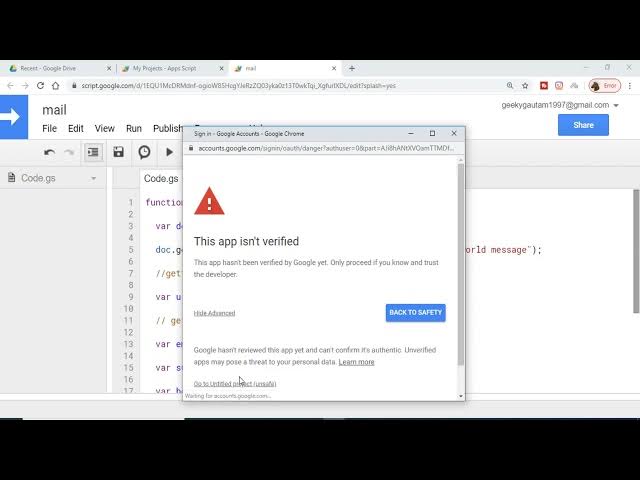
So it it will say that this app isn't
4:59
verified. You just need to click on
5:00
advance and go to the
5:04
just click it. And now it will ask for
5:06
the permissions. So just allow it like
5:08
this.
5:11
And once you grant the permissions it
5:13
will successfully run your function.
5:17
So it has successfully run the applica
5:19
uh function here. And now if I refresh
5:22
it, if I open my email address, let's
5:26
suppose go to Gmail and I have I will be
5:29
receiving a email address something like
5:32
this. So just wait.
5:34
So you will see that guys, I have
5:35
received a email hello world and uh you
5:40
will see that if I open this document,
5:43
this will be contained inside it. You
5:45
will see that this this document
5:48
contains hello world message. the same
5:50
message that we have typed here. You can
5:52
see that. And now if I open my Google
5:54
drive and search for this document, the
5:56
name of the document is very simple
5:58
which is hello world. Let me just see
6:02
the name is hello world. And now let me
6:05
just search for this document here.
6:08
Hello world.
6:11
You will see that this is a document
6:13
that we have constructed here. It is
6:15
just opening. You will see that hello
6:18
world.
6:21
So it is opening in Google Docs here. So
6:23
you can see that the same document this
6:25
document was created by Google appcript.
6:27
And now in order to verify once more I
6:29
can just change the title to uh title of
6:33
the document
6:36
something like this and just change this
6:38
message to some other message. this
6:40
document is sent by email address
6:47
and again click the run button. So it
6:50
will run the function instantly. And now
6:52
you will see another message popping in
6:54
inside my email address. You will see
6:57
that title of the document. And this is
6:59
you will see that if I open this now you
7:03
will see that this document is sent by
7:05
email address. And now if I show you
7:09
uh title of the document.
7:20
So you can see that this is a
7:24
uh this is a way by which you can just
7:26
create uh
7:28
uh Google drive files and you can send
7:31
it across your uh email address in Gmail
7:34
with the help of Google app script. So
7:37
this is a very good technology
7:38
introduced by Google. You should use
7:40
this instead of making calls to the API
7:43
which is a very boring code you need to
7:45
write. You can just make use of this
7:47
script.google.com google.com and write
7:49
your scripts in five to 10 seconds. You
7:52
can just accomplish the same task
7:54
without having to interact with the API.
7:56
So just thanks very much for watching
7:58
this