Up next in 10

FREE Canva Alternative Build a Professional PDF Editor with JavaScript (No Backend Required)
Mar 13, 2026

Buy the full source code of application here:
https://procodestore.com/index.php/product/free-canva-alternative-build-a-professional-pdf-editor-with-javascript-no-backend-required/
Show More Show Less View Video Transcript
0:00
Uh hello guys. If you are looking
0:02
forward for a PDF editor something like
0:05
Canva, you are watching the correct
0:08
video. So in this video I'll show you a
0:10
professionallook PDF editor and
0:11
generator that I developed entirely in
0:13
browser inside HTML, CSS and JavaScript.
0:16
So this is the best Canva Pro
0:18
alternative editor. So let me show you
0:22
the demo right here. It has all the
0:24
features for adding pages, editing
0:26
pages, adding text, images,
0:28
highlighting, annotating anything. So I
0:32
have given the link in the description.
0:34
You can directly purchase the full
0:35
source code. So after purchasing this,
0:37
you will get this single file. So it's a
0:39
single page application. So we have
0:42
developed this in HTML, CSS and
0:44
JavaScript. Almost
0:46
2,200 lines of code is there in this
0:48
file. So once you get the source code
0:51
you will be able to modify or add
0:52
additional features. So it's very easy
0:54
to run this in VS code simply run this
0:57
with VS live server. This is actually
1:00
the demo of the application and it's
1:03
also very easy to deploy the application
1:05
as well. So you simply select whatever
1:07
PDF file that you are editing. So once
1:09
you select the PDF file, it will show
1:11
you the live preview. It will show you
1:13
the total number of pages. You can
1:15
individually select the page number and
1:18
then you have these operators. You can
1:21
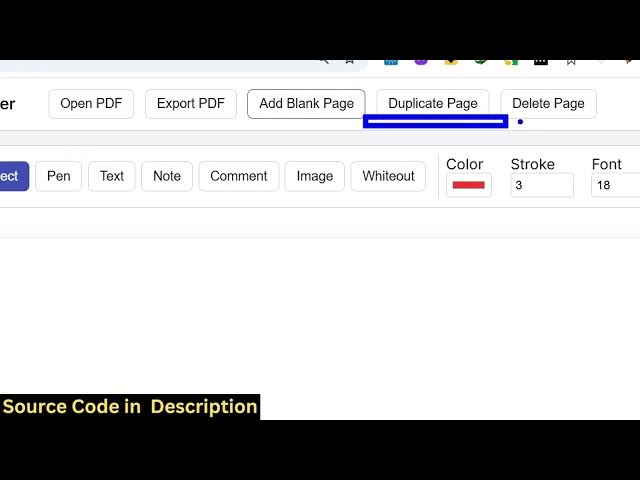
even add a blank page as well. Simply
1:23
click this button. Duplicate as well.
1:26
You can even delete this page. Simply
1:28
click this and click on delete. It's
1:31
very easy. You can click duplicate to
1:34
actually make duplicate pages as well.
1:37
So it's really easy. Then we have these
1:39
operators, the pen operator to highlight
1:41
or annotate something. As you can see,
1:43
it's very easy to highlight the text in
1:46
the PDF.
1:48
Then you can even change the color of
1:50
the highlighting as well by using this
1:52
color picker
1:54
and then you can even change the stroke
1:58
which will make this a little bit
2:00
larger.
2:02
So it's all these features are there.
2:04
Then you also have the capability to add
2:06
the text in PDF. Simply click and then
2:09
you can also add any text
2:12
multiple text. Just click wherever you
2:14
want to add the text and then using the
2:18
select operator you can actually place
2:20
it accordingly. Then you also have the
2:23
capability to add images as well. Simply
2:26
select this from the local file system
2:28
and simply place it. You can change the
2:31
width everything you can place it
2:33
accordingly. This will save you a lot of
2:35
time guys. This is Canva clone
2:37
professional looking PDF editor directly
2:39
in the browser. And then we also have
2:42
the feature for hide hide something. So
2:46
you can use this operator.
2:48
So now let's suppose I want to hide
2:50
this. So I can simply select this and
2:52
this will be hidden. So as you can just
2:55
see right here. So it's very simple
2:58
guys. All the now once you are happy you
3:01
can click this button export PDF. After
3:03
that all the changes that you have done
3:05
is automatically saved right here. The
3:08
images text this part is as you can see
3:11
it's hidden. [snorts]
3:13
So this is an ultimate professional
3:16
looking Canva clone PDF editor. If you
3:19
are interested in this script guys the
3:21
link is given in the description. Uh you
3:24
can directly purchase it.