Up next in 10


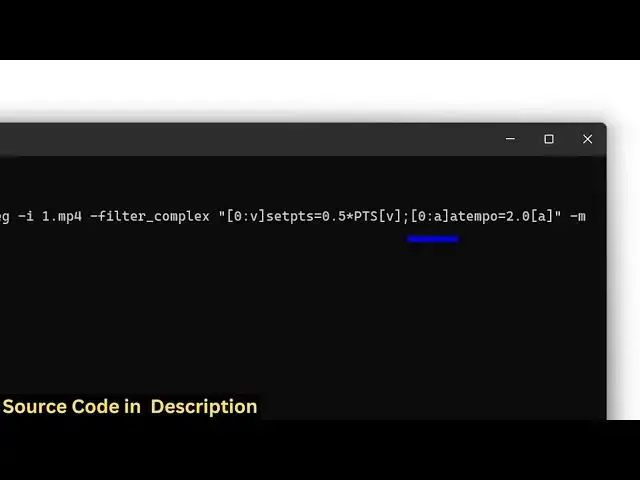
ffmpeg -i input.mp4 -filter_complex "[0:v]setpts=0.5*PTS[v];[0:a]atempo=2.0[a]" -map "[v]" -map "[a]" output.mp4
ffmpeg -i input.mp4 -filter_complex "[0:v]setpts=2.0*PTS[v];[0:a]atempo=0.5[a]" -map "[v]" -map "[a]" output.mp4
Show More Show Less View Video Transcript
0:00
uh hello guys uh welcome to this video
0:02
so in this video I will show you how to
0:04
increase or decrease the speed of a
0:07
video inside uh ffmppg right in the
0:09
terminal itself so we have a simple
0:12
video right here if you see 1.mpp4 it's
0:15
a 30 secondond video that I will be
0:17
processing i will be changing the speed
0:19
of this video uh hello guys welcome to
0:21
this video so in this video a particular
0:24
video so you can see it is there in the
0:27
right in the terminal terminal temp
0:29
normal speed right here so what I will
0:31
do I will go to the command line and I
0:34
have given all these two commands in the
0:36
description of this video so first of
0:37
all I will show you how we can increase
0:40
the speed
0:42
so just open your command
0:47
line write in the folder where the video
0:49
file is present and paste this command
0:52
i've given both these commands in the
0:54
description of this video so right here
0:56
we are taking let me explain you the
0:59
command here so ffmppg- i and then you
1:03
need to give the input file name which
1:05
is
1:06
1.mpp4 so we are giving the input file
1:08
name then we are applying this complex
1:11
filter dash filter complex and then we
1:15
are setting these properties set pts
1:17
zero 0.5 multiplied by pts this is
1:21
really important because we are
1:23
increasing the speed so that's why the
1:25
value should be lower than one after
1:28
that we are also a tempo value two and
1:32
then encoding settings and then this is
1:34
your output file so if I just enter it
1:37
you will see it will create this output
1:40
file and uh this will take very less
1:44
time in processing it and encoding it uh
1:48
so it's a 30-cond video so you can see
1:51
now it has finished encoding and uh the
1:54
size difference you will see that this
1:55
was the original video which was 4
1:58
mgabytes this is 1 MB because the speed
2:01
is increased so it will be in less
2:04
seconds if I open this you will see that
2:06
the difference hello guys welcome to
2:08
this video so in this video I'll show
2:09
you how to change the frame per second
2:10
of the video and also speed of light in
2:13
the terminal so you can see we have a
2:14
simple video so you can see the total
2:16
length is 14
2:18
second the original length was uh 30
2:21
second now this one is 15 second so in
2:25
this easy way
2:27
of you can increase the speed of the
2:30
video and you can change this command
2:32
accordingly
2:34
you just need to basically change this
2:38
value so here we are just telling it to
2:41
speed up 0.5 we are multiplying bit so
2:45
you can change this value and now for
2:47
slowing down the video we have the
2:49
second command uh let me just uh paste
2:55
it so this is the command for slowing
2:58
down the video so let me paste it so
3:01
here we are setting the pts here we are
3:04
not putting 0.5 instead we are putting
3:08
2.0 so this will increase the length of
3:11
the video because it will slow down the
3:13
video rest of the command remains the
3:15
same if I enter it just need to change
3:19
the name of the input file which is
3:24
1.MPP4
3:27
so now you will see it
3:33
will processing the video here so just
3:36
wait for the processing to finish so
3:38
this will increase the speed of the
3:40
video it will make it you can see
3:44
original was 4 MB this is 2 MB but the
3:47
length of the video is
3:49
changed uh hello guys welcome to this
3:53
video
3:56
uh frame per
3:58
second so you can see the original
4:00
length is now 1 minute instead of 30
4:03
seconds so we have increased the speed
4:05
of the video so in this guy in this way
4:07
guys you can play with the speed of a
4:10
particular video inside FFMPG either you
4:12
can increase or decrease it both the
4:14
commands I have given in the description
4:16
of this video you can check out and uh
4:19
thank you very much for watching this
4:20
video and also check out my website uh
4:24
freemediatools.com
4:26
uh which contains thousands of tools
4:28
regarding audio video and image
#Online Media
#TV & Video