Up next in 10


ffmpeg -i input.mp4 -an -c:v copy output_noaudio.mp4
Show More Show Less View Video Transcript
0:00
uh hello guys welcome to this video So
0:02
in this video I will show you how to
0:04
remove audio from the video file using
0:08
ffmppg So in many scenarios if you want
0:11
to completely remove the audio track
0:13
from the video you can use a very simple
0:16
ffmpg command for this You don't need
0:19
any sort of video editor for this You
0:21
can save a lot of time by just executing
0:24
this command fmpp i And then we provide
0:28
the input file name The video is already
0:31
present in the same directory and we
0:33
providing
0:34
1.MP4 And then there is a filter right
0:37
here dash
0:39
an which automatically removes the audio
0:43
from the video -
0:46
anopy the encoding settings -
0:50
c_v
0:52
copy and then the output file name
0:56
removed audio
0:58
mp4 So the command is very simple I've
1:01
also given the command just see
1:04
providing the input file - an then we
1:08
are in copying the encoding settings and
1:10
this is your output file So just enter
1:12
it you will see the file will be created
1:16
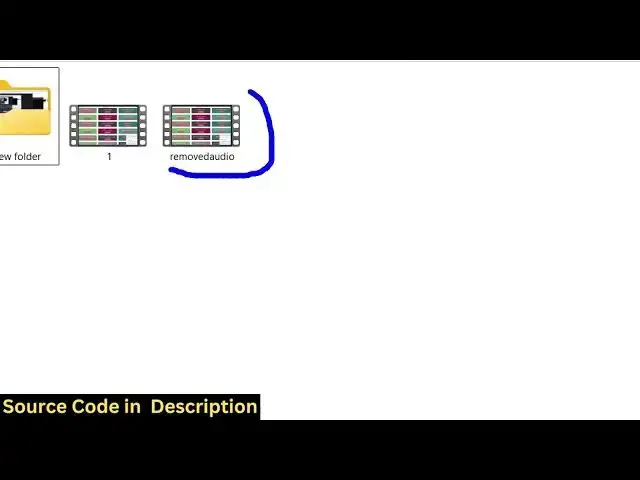
output file If I try to open
1:21
this so there will be no audio present
1:24
You will see it has completely removed
1:26
the audio from the
1:28
video So this is was the original video
1:31
which I show you It contains sound Uh
1:33
hello guys
1:37
You can see the now this is the output
1:40
file which doesn't contain audio
1:43
So this is the
1:46
command very simple command in FMPG and
1:49
uh thank you very much for watching this
1:51
video and also check out my website
1:54
freemediattools.com
1:55
uh which contains thousands of tools
#Multimedia Software