Up next in 10

FFMPEG Command to Record Desktop Screen With Audio & Export it as MP4 Video File in Terminal
Jun 3, 2025

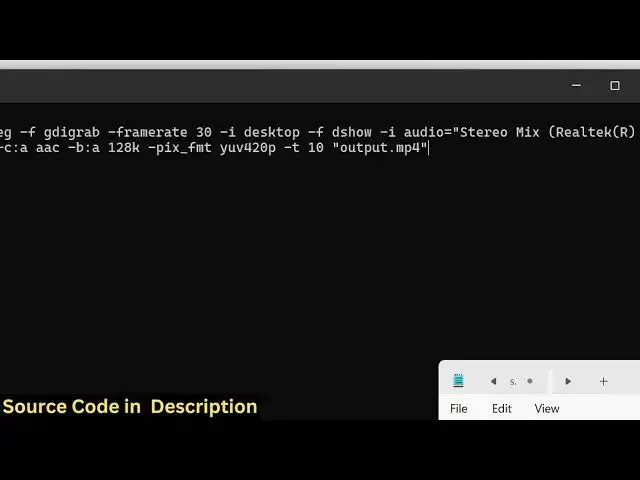
ffmpeg -f gdigrab -framerate 30 -i desktop -f dshow -i audio="Stereo Mix (Realtek(R) Audio)" -c:v libx264 -preset ultrafast -c:a aac -b:a 128k -pix_fmt yuv420p -t 10 "output.mp4"
Show More Show Less View Video Transcript
0:00
uh hello guys welcome to this video So
0:02
in this video I will show you how to
0:04
record uh your uh uh desktop screen with
0:08
audio using uh ffmpg command You don't
0:12
need any sort of uh OBS studio or any
0:15
sort of recorder for this You can
0:16
execute a simple command ffmpg command
0:19
which will record your screen alongside
0:21
with the audio and it will create a
0:23
video file right in the same directory
0:25
So I am just having this simple example
0:27
right here I've opened fMPPG in the
0:30
command line So I have given this
0:33
command in the description of this video
0:35
So let me just explain to you fmpp f So
0:40
gd
0:42
gr So we write like this This is the
0:45
starting of the command Fmpp
0:48
f and then
0:50
dash So first of all let me just uh
0:54
write this command and then show you
0:55
what this command does So as soon as you
0:57
paste this command this is this this is
0:59
actually the command right here And uh
1:03
if I just paste it let me delete
1:05
everything from this So no file is
1:08
present And as soon as I press the enter
1:10
key you will see it will now record
1:13
everything which is going on inside the
1:15
screen You will see that it will record
1:17
for 10 seconds and automatically it will
1:20
close and then it will create this file
1:23
You will see that So now the file has
1:25
been successfully created This is your
1:27
output.mpp4 file So this records your
1:31
desktop
1:32
screen You will see that now it has
1:36
actually record everything that was
1:37
going on inside your desktop screen for
1:39
10 seconds and it has created this uh
1:42
successfully this MP4 video file So in
1:45
this easy way guys you can actually with
1:48
the help of this command you can record
1:50
your screen with the uh whatever audio
1:53
file as well with audio as well So if
1:56
you are playing any sort of song you can
1:58
even record that as well So here we are
2:02
recording it for 10 seconds but here you
2:04
can change this value dash d parameter
2:06
right here So you can change this Let's
2:08
suppose you want to record this for only
2:10
5 seconds And just now now you can see
2:14
it will only record this for 5 seconds
2:17
So you would see
2:19
that So you can see can open this So now
2:23
it is only recording it for 5
2:29
seconds So you can see the file is uh
2:32
easily be played in the media player as
2:35
well So in this easy way let me now
2:38
explain you the command I've given this
2:40
command in the description of this video
2:42
So first of all we say
2:44
ffmppg-f GDI grabb and then we specify
2:48
the frame rate So we have FPS you can
2:50
specify 30 frame per second dash I
2:53
whatever we need to record right here in
2:55
this case we are recording the desktop
2:57
and then we are saying dhow and here we
3:00
can specify the audio source as well So
3:02
we are applying our speakers So here
3:05
stereo mix
3:06
realtech whatever is your speaker name
3:09
and then we are encoding it with the lip
3:11
x264 and then we are specifying the
3:14
preset which is ultra fast and then this
3:17
is your bit rate settings 128k and
3:20
lastly your output file So here this is
3:23
the time period for which it will record
3:25
for 10 seconds So this is the overall
3:27
command guys It is little bit
3:29
complicated but uh if you copy this
3:32
command if you understand this you will
3:34
get to know it's a really powerful
3:36
command It can even record your desktop
3:39
screen and then it can create audio
3:42
video files directly So this was the
3:46
ffmpg command guys Hopefully you will
3:48
like this video Please hit that like
3:50
button and also check out my website
3:53
freemediattools.com which contains
3:55
thousands of tools regarding audio video
3:57
and image
#Online Video
#TV & Video Equipment
#Software
#Multimedia Software
#Voice & Video Chat
#Video Sharing