Up next in 10

FFMPEG Command to Mute or Silence Specific Portions of Audio in Video in Terminal
Jun 3, 2025

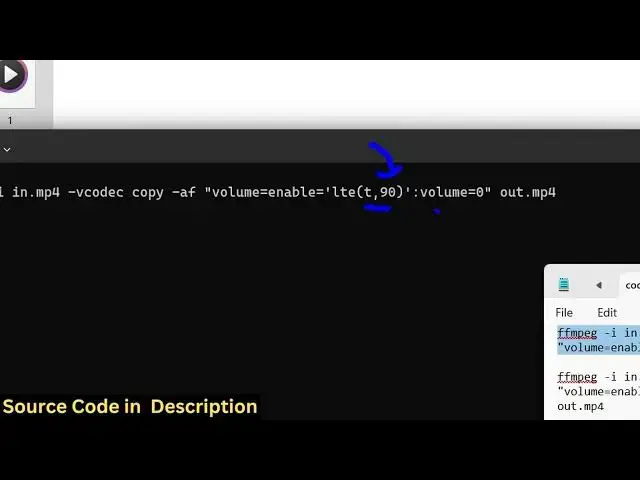
ffmpeg -i in.mp4 -vcodec copy -af "volume=enable='lte(t,90)':volume=0" out.mp4
ffmpeg -i in.mp4 -vcodec copy -af "volume=enable='between(t,80,90)':volume=0" out.mp4
Show More Show Less View Video Transcript
0:00
uh hello guys welcome to this video so
0:02
in this video I will show you uh a
0:04
ffmppg command which will automatically
0:07
silent or it will actually mute certain
0:12
sections inside your audio file that you
0:15
don't want to listen so I have taken a
0:18
very simple example we have this MP3
0:20
audio file present if I play this file
0:23
uh hello guys it is 2 minute 10cond long
0:27
audio file so now let's suppose Say you
0:30
want to mute or if you want to
0:34
uh just remove sound for certain time
0:36
intervals you can just execute this
0:38
ffmpg command so in this command you
0:41
will provide a section that you don't
0:43
want
0:44
to you just want to mute that sound you
0:47
can easily do this just open the command
0:50
line and I have given this command in
0:53
the description of this video
0:56
so we simply write here ffmppg- i and
1:00
then we simply give the input file name
1:02
which in this case is
1:04
1.mpp3 and then we simply write here - d
1:07
-
1:08
vcodec provide the encoding settings -
1:11
af and we applying this video filter in
1:14
double quotes we are simply writing here
1:18
volume so we are adjusting the volume
1:20
for certain time interval to we need to
1:23
mute that audio so volume is equal to
1:26
enable is equal to so here we exactly
1:30
tell the time interval in which you need
1:32
to mute it so we can easily do this let
1:36
me just show you so t comma
1:39
90 so at the 90th second of this audio
1:43
file we are making the volume is equal
1:46
to zero so this is essentially telling
1:48
that fmpg that go to this 98th second
1:52
inside this audio file and just remove
1:54
that particular section audio
1:58
so now just replace the file name here
2:01
and as you press enter it will create a
2:04
new audio file and
2:08
uh if you
2:12
see so it will create a video and uh the
2:17
first 90 seconds of the video will be
2:20
muted you will see the first 90 seconds
2:23
you can't hear audio but after those 90
2:27
seconds the audio will be there and just
2:31
click okay so you can see after those
2:33
first 90 seconds the audio is back okay
2:37
okay so this is a really useful command
2:40
guys for this you don't need any sort of
2:42
video editor you can easily execute the
2:45
simple ffmpg command which will mute
2:48
certain sections inside your video or
2:50
audio file so you can see after the
2:53
first 90 seconds the audio is back okay
2:56
okay so we can even write a second
2:59
version of this command so where you can
3:02
I have given all these commands in the
3:04
description of this video so now let's
3:05
suppose you want to provide a time
3:08
interval specifically
3:11
so you can even do that as well which is
3:14
from 80th second to 90th second for
3:17
these 10 seconds we just need to mute
3:19
the audio so you can just modify this
3:22
command just right here between between
3:25
80 to 90 second we need to mute the
3:27
audio so volume is equal to zero so once
3:30
again if you do
3:33
this take the video file
3:37
and now it will create a new video and
3:41
uh it will mute that specific portion
3:45
which is from 80th second to 90th second
3:49
so if you go to that section it will be
3:52
mute
3:53
muted so if you see
3:58
uh so now you can see from these 10
4:01
seconds I'm muted rest of the video
4:04
remains the
4:06
same so many times uh just click you can
4:10
see that so in this way you can edit
4:12
your videos you can mute specific
4:15
portion of your videos with this thing
4:18
simple FMPPG command so this will save
4:20
you a lot of time because you don't need
4:22
any sort of video editor for this and I
4:25
have given this command in the
4:27
description of this video and also check
4:29
out my website freemediatools.com
4:31
uh which contains thousands of tools
#Software
#Multimedia Software