Up next in 10

FFMPEG Command to Extract Frames from Video as PNG Images in a Folder in Terminal
Jun 3, 2025

ffmpeg -i 2.mp4 -vf "fps=1" img/frame_%04d.png
Show More Show Less View Video Transcript
0:00
uh hello guys welcome to this video so
0:02
in this video I will show you how to
0:04
take screenshots or
0:07
frames how to convert a whole video into
0:10
different frames so video is essentially
0:15
a frames so it is built up of uh images
0:20
so if I open this video here you will
0:22
see hello the video will play and uh it
0:27
is act video is essentially created from
0:29
a series of images animating so what we
0:32
will do in this video we will try to uh
0:35
convert this video to a series of images
0:39
so each second we will extract the frame
0:43
you will extract all the images frames
0:45
of this video so there is a command here
0:47
in ffmpg which will do this
0:49
automatically for you so just open the
0:51
terminal right here and just write here
0:53
ffmppg and then we just need to provide
0:56
the input file right here so the file is
0:59
already present in the same directory so
1:01
we simply write the name of the file
1:03
which is
1:04
1.mpp4 so after that we just need to
1:07
apply the video filter right here by
1:10
-ash vf vf stands for video filter and
1:13
then we inside double quotes we just
1:16
need to say FPS value is equal to 1 so
1:20
essentially what it is doing uh FPS is
1:23
frame per second so we are capturing
1:26
screenshot or image every 1 second so
1:30
and storing
1:31
it for this we just need to create a
1:34
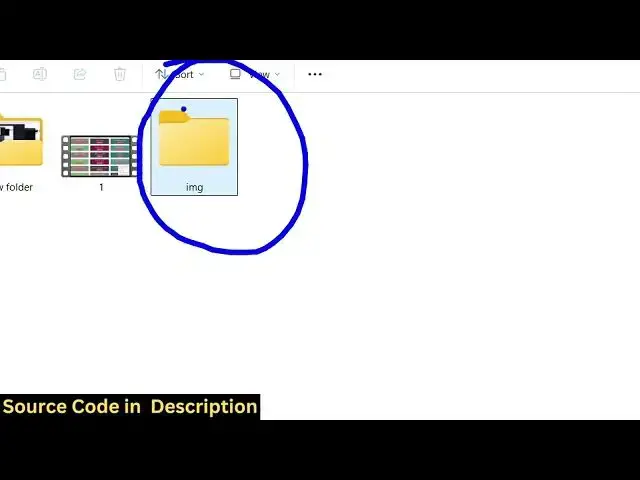
folder right here just create a image
1:37
img folder so inside this folder all
1:40
your images will be automatically
1:42
created
1:43
so right in the command itself we
1:46
provide the path here where we need to
1:48
store the images so image slash and then
1:52
frame
1:54
underscore and then percentage sign and
1:57
then we say 04
2:00
d.png so this command will automatically
2:04
capture screenshot of each second in the
2:08
video and store it inside your image
2:10
folder so as soon as I enter it you will
2:13
see this folder will be filled with the
2:16
images so if I press the enter key you
2:18
will see all the images will
2:20
automatically get created and it will
2:23
happen instantly it will not take a lot
2:26
of time just it took 2 seconds to create
2:29
all these images you will
2:34
see this you can see all these images uh
2:38
for each second it took
2:41
image so this is really useful because
2:44
uh if you are wanted to actually
2:47
convert your video into the images uh
2:51
the first use is actually you will be
2:53
able to if you're creating thumbnail for
2:56
a video this command will be really
2:59
useful because it will give you a series
3:02
of thumbnails for your video so you can
3:04
actually
3:06
uh choose which thumbnail you want to
3:08
use for the video so for each second it
3:11
has taken the screenshot here you will
3:13
see
3:13
that
3:18
so so once again let me show you the
3:21
command here i have also given this
3:23
command in the description of this video
3:25
so first of all we are providing the
3:26
input here ffmpg- i so this is your name
3:30
of the video here after that we are pro
3:33
applying the video filter which is
3:35
-ashvf and then we are specifying in
3:37
double quotes fps is equal to one so
3:40
each
3:41
second after 1 second it take the
3:43
screenshot and store it inside this
3:45
image folder so it's a very simple
3:48
command but uh very powerful command as
3:51
well so thank you very much for watching
3:54
this video and also check out my website
3:57
freemediattools.com which contains
3:59
thousands of tools
#Online Media
#TV & Video
#Software
#Multimedia Software
#Clip Art & Animated GIFs
#Video Sharing