Up next in 10


ffmpeg -i input.gif -filter:v "crop=200:200:50:50" output.gif
Show More Show Less View Video Transcript
0:00
uh hello guys uh welcome to this video
0:02
so in this video I will show you how to
0:04
crop a specific portion of the GIF
0:07
animation inside FMPG so I will write a
0:10
very simple command which will crop or
0:12
cut a specific portion from a GIF
0:14
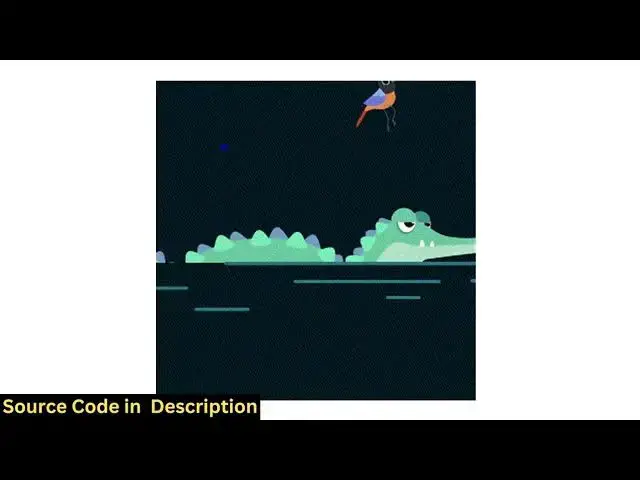
animation so we have this simple input
0:17
GIF animation file that I will be
0:19
working in this video so let's suppose
0:22
you want to cut a specific portion of
0:24
the GIF animation this portion so you
0:27
can actually execute this ffmppg command
0:29
i will show you how to do this so open
0:31
your command line and just execute this
0:34
command
0:35
fmppi and then you need to provide the
0:38
input file name which is
0:40
sample.g so we actually provide the file
0:43
for processing after that we apply this
0:46
filter here - dash
0:48
filter_v so we are applying this filter
0:50
and after that in double quotes you just
0:53
need to write here crop we are using the
0:55
crop filter and here you need to specify
0:58
the coordinates so this will be the x
1:02
coordinate the y-coordinate and then the
1:04
width of the total so let me say I want
1:09
to crop 150 width 150
1:13
height so these are four parameters
1:15
right here this crop filter takes this
1:17
is your x coordinate ycoordinate and
1:20
this is the width and this is the height
1:22
so this will basically crop this portion
1:25
from this GIF animation and then you
1:27
basically say the output file name which
1:29
is cropped GIF so this is actually your
1:32
command here and I just enter it you
1:36
will see it will now create this
1:39
cropped GIF animation and if I try to
1:42
open this you will see it has
1:44
successfully cropped this specific
1:47
portion from the GIF animation and uh
1:50
this is a very useful command because uh
1:53
it can actually capture or it can even
1:55
cut a specific or crop a specific
1:58
portion of the GIF animation and you can
2:01
cut the unnecessary portion that you
2:03
don't need you can apply this command
2:06
and once again let me summarize you
2:08
there here you need to provide your x
2:11
coordinate ycoordinate width and the
2:13
height so this is actually using the
2:15
crop
2:16
filter so you can change this value
2:21
accordingly this is your x coordinate
2:24
this is your
2:25
y-coordinate
2:27
so again if I change this so now you can
2:30
see it is changed
2:33
here you can see that so you can play
2:36
with this command i have given this
2:37
command in the description of this video
2:39
so in this way you can crop your GIF
2:42
animation very easily and uh thank you
2:44
very much for watching this video and
2:46
also check out my website which is
2:49
freemediatools.com
2:51
uh which contains thousands of tools
#Online Media
#Online Video
#Online Goodies
#Clip Art & Animated GIFs