Up next in 10


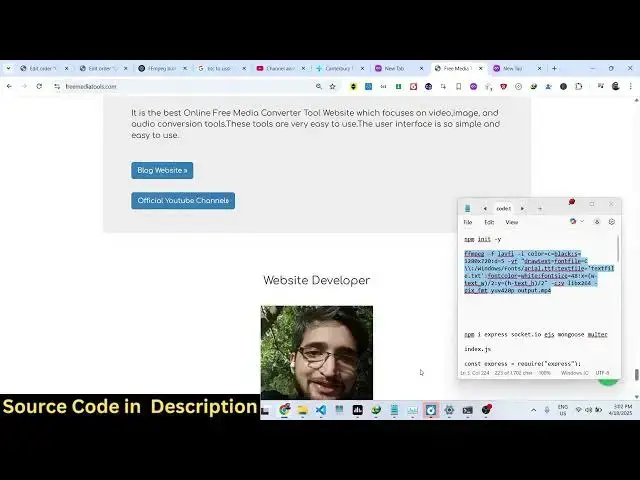
ffmpeg -f lavfi -i color=c=black:s=1280x720:d=5 -vf "drawtext=fontfile=C\\:/Windows/Fonts/arial.ttf:textfile='textfile.txt':fontcolor=white:fontsize=48:x=(w-text_w)/2:y=(h-text_h)/2" -c:v libx264 -pix_fmt yuv420p output.mp4
Show More Show Less View Video Transcript
0:00
uh hello guys welcome to this video so
0:02
in this video I will show you how to
0:04
create a video file directly from a text
0:07
file so inside ffmpg so there is a
0:10
command you can actually create a video
0:13
file it will actually create a video for
0:16
you from a text file so we created this
0:19
filet txt right here this is my text
0:21
file and uh let me just open it inside
0:24
VS code so you can just uh so this is a
0:28
simple file.txt and we have a bunch of
0:31
text right here you will see welcome to
0:33
this video my name is Goautam and I'm
0:35
from India you can write any
0:37
text and I will now convert this into a
0:40
video so there is a command right here
0:42
i've given this command in the
0:44
description of this
0:45
video so let me just paste this ffmpg
0:50
command so you can see this is actually
0:54
the command here it creates this
0:57
output.mpp4 file so if I just execute
1:00
this what you will see it will create
1:03
this output.mpp4 file so you just need
1:06
to
1:07
actually provide the path of your text
1:11
file so I have just named this file as
1:14
file.txt so what I will do I will
1:17
provide this file.txt correct path right
1:19
here and enter you will see it will now
1:22
create this output mp4 file and if I
1:26
play this video file you will see this
1:29
is the text that we written right here
1:31
you will see welcome to this video my
1:32
name is Gotham and it appears for 5
1:35
seconds you can even control how much
1:37
duration it appears in this
1:41
command if I change this you will
1:47
see so this is your file.txt
1:54
and let me just show you the command
1:57
here so here you can control all these
2:00
parameters you can control the color the
2:02
background color which is black you can
2:04
even change that as well
2:09
so so you can change this background
2:12
color to let's suppose yellow color or
2:16
yellow and then this is the size of the
2:19
video which is 1280 by 720 and then d is
2:23
equal to 5 so this amount of seconds it
2:26
appears you can even change that let's
2:28
suppose I want 10 second video and then
2:31
we have applying this video filter so we
2:34
are actually using this font file inside
2:37
our system to draw the text in the video
2:40
we are using the built-in font aerial.tf
2:43
then we are providing the file text file
2:47
the font color we can even control this
2:49
as well which is appear in the white
2:52
color so everything you can change
2:59
so let me change the font color to black
3:04
and phone size you can even control let
3:07
me change this to
3:10
uh 28 and then this is your x coordinate
3:14
ycoordinate and then we are encoding it
3:16
so if I again do this you will see that
3:20
it
3:21
will now it will change the background
3:23
color to the video you will see that so
3:26
now it appears for 10 seconds so in this
3:29
easy way you can actually create a video
3:31
file from a text file in
3:34
ffmppg using this command uh so the
3:38
command is given in the description of
3:40
this video and also check out my website
3:43
free media tools.com which contains
3:46
thousands of tools
#Flash-Based Entertainment
#Online Media
#Online Video
#Programming
#Software
#Multimedia Software