Up next in 10

FFMPEG Command to Convert MP4 to H 264 with libx264, CRF Quality Control, AAC Audio Encoding in CMD
Jun 3, 2025

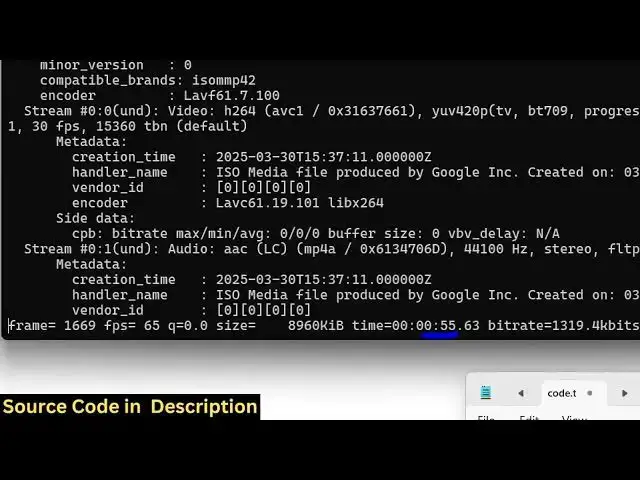
ffmpeg -i input.mp4 -c:v libx264 -crf 0 -preset veryslow -c:a copy output.mp4
Show More Show Less View Video Transcript
0:00
uh hello guys uh welcome to this video
0:02
so in this video I will show you how to
0:04
encode your video with the lib x264
0:08
encoder inside ffmpg so I'm taking a
0:10
very simple example we have a mp4 video
0:13
right here present right here so I will
0:15
try to encode this video with the lib
0:18
x264 encoder inside ffmppg so there is a
0:22
s simple uh command that I have given in
0:24
the description of this video so just
0:27
open the command line and just execute
0:29
this command here so I will just show
0:32
you the command here and explain you so
0:34
just write here
0:36
ffmppg dash i and then followed by the
0:40
name of the file which is 1.mpp4 and
0:43
then we actually provide the encoder by
0:45
this option here - c col v so here we
0:49
are using the lib x264 encoder which is
0:53
a default encoder inside FMPG to encode
0:56
your videos and then we can also adjust
0:58
some options such as uh CRF option so
1:03
this will be the frame
1:05
rate so CRF option is used to control
1:08
the quality of the video so here we are
1:10
specifically providing zero which will
1:12
be the highest quality and then you can
1:14
even set a preset
1:17
so we have various options for this we
1:19
can have ultra fast fast slow very slow
1:23
so very slow will actually encode your
1:24
video in a better way it will increase
1:27
the quality and then you can even set
1:29
the bit rate by this option - CA so we
1:33
will just copy the bit rate and then
1:35
this will be the output file so
1:37
output.mpp4 so this is actually the
1:39
whole command here so you can see we are
1:41
providing the input file then we are
1:43
using this encoder we are setting the
1:45
CRF value preset we are providing and
1:48
this is your output file so if I press
1:51
enter you will see it will now start the
1:54
encoding process so this will just
1:57
depend upon how long is your video so
1:59
it's the original video is 2 minute 10
2:02
second long so it will basically take uh
2:06
hello
2:07
guys it will not take too much time so
2:11
if you have a very long video then it
2:13
will take some time so you can just see
2:16
it is processing
2:19
it so if you want to increase the speed
2:22
you can enable GPU uh graphical
2:24
processing unit to increase
2:27
the efficiency of ffmppg
2:31
command so I've made this video on the
2:34
channel you can watch how to enable GPU
2:36
inside ffmpg so just wait for the
2:39
command to finish and it will actually
2:42
encode your
2:45
video so once it finishes you will get a
2:48
notification and
2:52
uh so now you can see the actually the
2:55
video has been created this is your
2:57
output video this was the original video
3:00
11.1
3:03
MP so we can open this
3:09
so you can see this is the output video
3:14
then you should definitely be able to
3:17
path here editn net and just click okay
3:21
okay will perfectly
3:24
work so this
3:26
is uh hello guys welcome called
3:31
asnet in this way you can do this uh the
3:33
command I have given in the description
3:35
of this video so you can actually
3:37
convert your MP4 to H264 encoder lib
3:42
x264 encoder we have encoded this video
3:44
and also control the quality control
3:46
using CRF and also check out my website
3:50
freemediattools.com
3:52
uh which contains thousands of tools
#Arts & Entertainment
#Computers & Electronics