Up next in 10


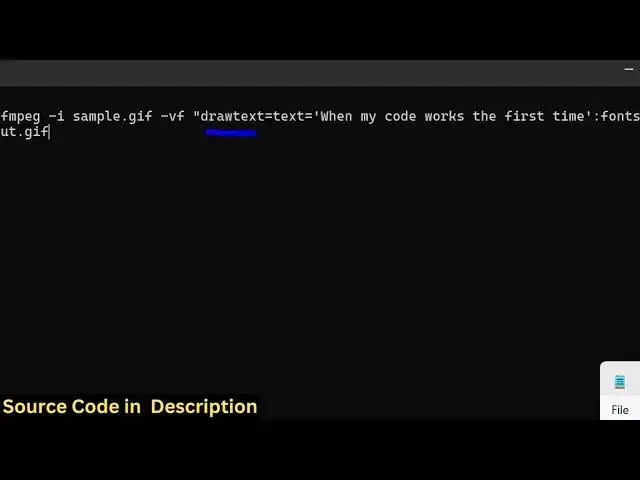
ffmpeg -i input.gif -vf "drawtext=text='When my code works the first time':fontsize=60:x=10:y=250:fontcolor=yellow" output.gif
Show More Show Less View Video Transcript
0:00
uh hello guys welcome to this video So
0:02
in this video I will show you how to add
0:05
a text on on GIF animation as an overlay
0:09
watermark text So I will be working with
0:12
this sample GIF animation file You can
0:14
see it's a very simple GIF animation
0:16
file So what I will do I will simply add
0:19
some kind of text on top of it as an
0:21
overlay text as watermark so that we can
0:25
add the text on top of this GIF
0:26
animation So there is a very simple
0:28
ffmpg command that you can execute I've
0:31
given that command in the description of
0:33
this video So let me paste this command
0:36
here So
0:38
here let me first of all execute this
0:41
command So
0:43
let put the sample file here and execute
0:46
this So as soon as you do this you will
0:49
see an output file will be created
0:51
output gif If I open this now you will
0:54
see the text will be added in yellow
0:57
color You will see you can control all
0:59
these properties The position font size
1:02
color of the text You can all control
1:05
all these properties So now let me show
1:07
you how this is achieved the command
1:11
here
1:13
So essentially this is actually the
1:16
command here fmpg- i You first of all
1:19
provide your input GIF animation file
1:22
Then we apply this video filter -vf and
1:26
inside double quotes we actually draw
1:28
the text So here you actually provide
1:32
whatever text that you want to write
1:34
here So let me just write free media
1:41
tools
1:43
freemediatools.com So this is actually
1:45
the watermark text or whatever text that
1:47
you want to write in single quote you
1:49
write And then we can even provide the
1:51
phone size value You can even control
1:54
and then we have the x coordinate and
1:56
the y-coordinate as well You can control
1:58
all these properties in this command And
2:02
then you can even control the font color
2:04
So here we are providing yellow color So
2:07
let's suppose I change this to blue
2:09
color
2:12
So again just execute this So now you
2:16
will
2:17
see the output GIF will be created and
2:20
you will see the text is successfully
2:23
added Freemediatools.com you will see
2:26
that so you can adjust this positioning
2:30
accordingly You can provide here uh
2:34
whatever let's suppose I say 150 of
2:37
ycoordinate So the position will be
2:42
shifted So now the text will be little
2:45
bit at the center of the screen So in
2:47
this way you can add the overlay text on
2:51
the GIF animation really easily using
2:53
this command I have given this command
2:54
in the description of this video And uh
2:58
also check out my website which is
3:00
freemediatoolsh.com
3:03
uh which contains thousands of tools
#Flash-Based Entertainment
#Online Goodies
#Clip Art & Animated GIFs
#Animated Films