Up next in 10


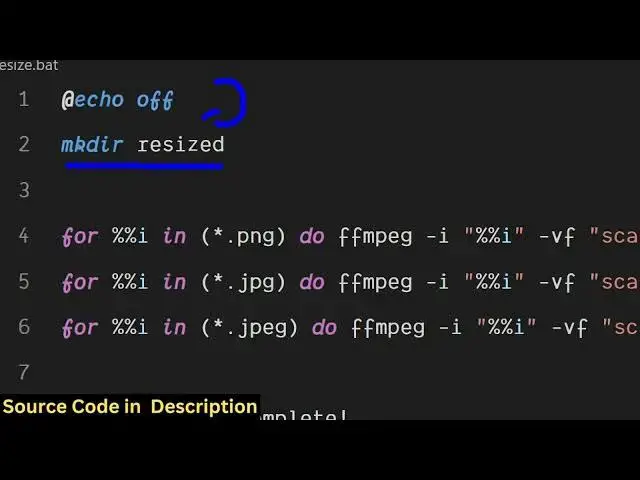
@echo off
mkdir resized
for %%i in (*.png) do ffmpeg -i "%%i" -vf "scale=800:600" "resized\%%i"
for %%i in (*.jpg) do ffmpeg -i "%%i" -vf "scale=800:600" "resized\%%i"
for %%i in (*.jpeg) do ffmpeg -i "%%i" -vf "scale=800:600" "resized\%%i"
echo Resizing complete!
pause
Show More Show Less View Video Transcript
0:00
uh hello guys uh welcome to this video
0:02
so in this video I will show you how to
0:04
write a batch processing script in
0:08
ffmppg to resize the multiple images
0:10
which are present in the directory in a
0:12
folder so you can see we have these
0:15
images present which contains jpg png
0:19
images so what I will need to do I need
0:21
to resize all these images to a
0:23
particular width and height using ffmppg
0:26
for this I will just write a simple
0:28
batch script which will automatically do
0:31
the job for us so we will just create
0:34
this resize dotbat script let's see bat
0:39
script so right here I have given the
0:43
script in the description of this video
0:44
so first of all what we will do echo of
0:47
we will make a new
0:49
directory so we make
0:52
directory resized we will create this
0:55
folder and after that we will just run a
0:58
simple for
1:00
loop and uh you can see it is giving me
1:04
suggestions so first of all we will
1:06
target all the png files png and then
1:10
for those we will simply execute this
1:12
command fmpp i and
1:17
inside double quotes we will simply
1:19
write uh percentage
1:22
sign and for each image we will be
1:25
applying this video filter which will be
1:27
the scaling filter
1:29
scale and inside the scale filter you
1:32
can actually provide uh whichever
1:34
dimension
1:36
uh you want to resize your image so
1:38
first of all will be the width so I will
1:40
resize to 800 width 600
1:43
height and then you just need to give in
1:46
double
1:47
quotes the name of the output file which
1:50
will be resized
1:56
slash so what I will do I will simply
1:59
copy paste the
2:02
script so this is a script guys so we
2:05
first of all make this folder once you
2:07
execute the script this will create a
2:09
brand new folder resized inside this it
2:12
will actually
2:14
uh target all the files right here which
2:17
starts from PNG JPG JPG and for all
2:21
those files we will resize it to 800 by
2:25
600 and once we will complete we'll
2:28
print out this message resizing complete
2:30
so now it will detect all these images
2:32
which are present in the directory which
2:34
starts from PNG or JPG you will see that
2:37
if I execute this uh bat script
2:41
just you will see it will resize all
2:44
these images in the command line and it
2:47
will create this folder resized if you
2:50
see and you will see all the images are
2:53
being resized you can cross check by
2:56
going to properties going to details you
2:58
will see the width is 800 600 you can
3:03
target any image here you can go to
3:05
details you will see the width and the
3:08
height is 800 600 so in this easy way
3:11
guys you can actually resize the bulk
3:14
images by this uh bat processing script
3:17
in ffmpg to resize multiple images to a
3:20
particular width and height you can see
3:22
all your images have been successfully
3:24
resized so this is a very important
3:26
script i've given the script in the
3:28
description of this video you can just
3:30
do this for all your images which are
3:32
there
3:33
and also check out my website guys
3:36
freemediattools.com which contains
3:38
thousands of tools regarding audio
#Software
#Multimedia Software
#Scripting Languages