Up next in 10


Get the full source code of application here:
Show More Show Less View Video Transcript
0:00
Uh hello guys, welcome to this video. So
0:02
in this video, I'll show you a quick
0:04
little way by which you can disable or
0:06
enable certain Chrome extensions inside
0:08
your Google Chrome browser. So there is
0:10
a custom extension made by a developer.
0:13
So the extension name is extensity. Uh
0:16
this is their official website as well
0:19
of this extension. So it quickly adds a
0:21
way enable disabling Google Chrome
0:23
extensions. So if you're tired of
0:26
basically manually doing this process,
0:28
it's uh you can install this extension.
0:31
It's used by almost two thou 100,000
0:34
developers. So click on add to Chrome
0:36
and once you add this extension uh this
0:39
extension will show right here. Simply
0:42
enable this and this icon will show and
0:46
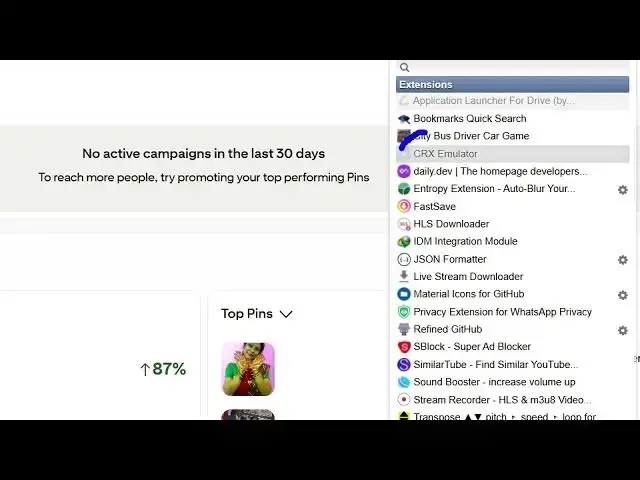
as soon as you click this extension, it
0:48
will list out all the Google Chrome
0:50
extensions that you are using.
0:53
Here you can even search for your
0:55
favorite extension. Simply search it. So
0:58
now let's suppose if you want to disable
1:00
this, you click the settings option and
1:03
then
1:05
you simply get more information about
1:09
this. Uh you can go to settings option.
1:13
So now let's suppose you just want to
1:15
disable it automatically. Now you simply
1:17
click on that and now the dis uh
1:19
extension is disabled.
1:23
Again select any extension that you want
1:25
to disable simply click it and this will
1:28
be disabled. If you want to enable this
1:30
once again again click it and this will
1:32
be enabled once again. So personally I
1:35
love this extension guys because I don't
1:38
need to manually go to extensions and
1:40
then uh go go to that tedious process of
1:45
uh enabling and disabling. So this is
1:48
replaced by a single click. You tap on
1:50
that and it will show you the list of
1:52
extensions. So if you want to reenable
1:54
this once again it will be reenabled. So
1:57
disable enabling and disabling
1:59
extensions is basically become quite
2:02
easy with this extension.
2:04
So you simply click on that to disable
2:06
and click on that and again to enable.
2:09
So you can see you can toggle this the
2:12
visibility of the extension in the
2:14
Google Chrome browser. Simply click on
2:15
that to disable and enable. So this is a
2:18
nice little extension. Definitely ex
2:22
install it. It's totally free and uh it
2:25
will save you a lot of time here. So
2:27
definitely install this.
#Software