Up next in 10


Get the full source code of application here:
Show More Show Less View Video Transcript
0:00
Uh hello guys, welcome to this video. So
0:02
Uh hello guys, welcome to this video. So
0:02
Uh hello guys, welcome to this video. So in this video, I'll show you a C C++ VS
0:05
in this video, I'll show you a C C++ VS
0:05
in this video, I'll show you a C C++ VS code extension. With the help of this
0:07
code extension. With the help of this
0:07
code extension. With the help of this extension, you will be able to compile,
0:10
extension, you will be able to compile,
0:10
extension, you will be able to compile, run, and debug single or multiple C C++
0:13
run, and debug single or multiple C C++
0:13
run, and debug single or multiple C C++ files with ease. This is extension. Go
0:16
files with ease. This is extension. Go
0:16
files with ease. This is extension. Go to the extensions tab and just search
0:18
to the extensions tab and just search
0:18
to the extensions tab and just search for this extension. It's got almost 7
0:20
for this extension. It's got almost 7
0:20
for this extension. It's got almost 7 billion installs. So simply click the
0:23
billion installs. So simply click the
0:23
billion installs. So simply click the install button. And after you install
0:25
install button. And after you install
0:25
install button. And after you install this extension, just go to your CPP file
0:29
this extension, just go to your CPP file
0:29
this extension, just go to your CPP file right here. So this is a very simple
0:31
right here. So this is a very simple
0:31
right here. So this is a very simple program right here which adds two
0:33
program right here which adds two
0:33
program right here which adds two numbers.
0:35
numbers.
0:35
numbers. So what we need to do right here, we
0:37
So what we need to do right here, we
0:37
So what we need to do right here, we simply open the command pallet and
0:40
simply open the command pallet and
0:40
simply open the command pallet and simply type here compile.
0:47
We simply type C++
0:56
So I think it will add this option right
0:58
So I think it will add this option right
0:58
So I think it will add this option right here.
1:01
So yeah. So if you go to the sidebar
1:04
So yeah. So if you go to the sidebar
1:04
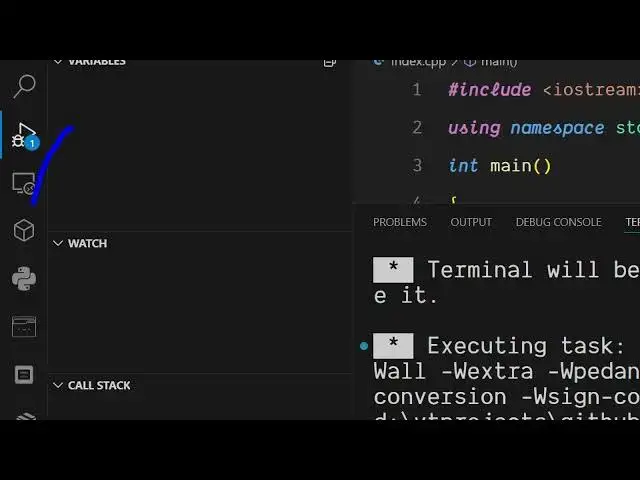
So yeah. So if you go to the sidebar section just say run or debug and it
1:06
section just say run or debug and it
1:06
section just say run or debug and it will add this option right here. C++
1:09
will add this option right here. C++
1:09
will add this option right here. C++ runner debug file or run file. So we
1:13
runner debug file or run file. So we
1:13
runner debug file or run file. So we have two options right here. Either we
1:14
have two options right here. Either we
1:14
have two options right here. Either we can run the entire file. So this will
1:17
can run the entire file. So this will
1:17
can run the entire file. So this will actually compile this program
1:21
actually compile this program
1:21
actually compile this program and it create created this file here.
1:32
This is your exe file. So here you can
1:35
This is your exe file. So here you can
1:35
This is your exe file. So here you can enter two numbers. Let's suppose
1:44
so in this easy way it compiles your C++
1:47
so in this easy way it compiles your C++
1:47
so in this easy way it compiles your C++ program CPB file to an exe file like
1:51
program CPB file to an exe file like
1:51
program CPB file to an exe file like this and also we can uh even debug the
1:55
this and also we can uh even debug the
1:55
this and also we can uh even debug the program as well.
2:04
you select debug file. So now it will
2:08
you select debug file. So now it will
2:08
you select debug file. So now it will basically
2:10
basically
2:10
basically enter into debug mode. So here you can
2:13
enter into debug mode. So here you can
2:13
enter into debug mode. So here you can actually watch debug in real time. As
2:16
actually watch debug in real time. As
2:16
actually watch debug in real time. As you can see, you just need to add a
2:18
you can see, you just need to add a
2:18
you can see, you just need to add a break point right here.
2:21
break point right here.
2:21
break point right here. Just click add a break point. So now
2:24
Just click add a break point. So now
2:24
Just click add a break point. So now this program is
2:27
this program is
2:27
this program is if you click on the run button.
2:35
So basically it will show you the values
2:37
So basically it will show you the values
2:37
So basically it will show you the values of all the variables at this moment of
2:40
of all the variables at this moment of
2:40
of all the variables at this moment of time in the program. So the program will
2:43
time in the program. So the program will
2:43
time in the program. So the program will pause right here and sidebar section you
2:46
pause right here and sidebar section you
2:46
pause right here and sidebar section you will see the value of a which is this b
2:49
will see the value of a which is this b
2:49
will see the value of a which is this b 0.
2:51
0.
2:51
0. So like this.
2:54
So like this.
2:54
So like this. So now you go to the next step. You see
2:57
So now you go to the next step. You see
2:57
So now you go to the next step. You see continue.
2:58
continue.
2:58
continue. So now the program can continue. Right
3:01
So now the program can continue. Right
3:01
So now the program can continue. Right here we add.
3:12
So in this easy way guys you can see you
3:14
So in this easy way guys you can see you
3:14
So in this easy way guys you can see you can
3:16
can
3:16
can debug your C++ programs and run this
3:19
debug your C++ programs and run this
3:19
debug your C++ programs and run this compile this with this extension. It's
3:21
compile this with this extension. It's
3:21
compile this with this extension. It's very useful extension. Definitely check
3:23
very useful extension. Definitely check
3:24
very useful extension. Definitely check out this.
3:28
This is the extension C++ runner.
#Software
#C & C++
#Development Tools