Up next in 10

Build a React.js PDF Document Custom Viewer With Validation & Controls Using pdfjs-dist in JS
Dec 22, 2025

Buy the full source code of application here:
https://procodestore.com/index.php/product/build-a-react-js-pdf-document-custom-viewer-with-validation-controls-using-pdfjs-dist-in-js/
Show More Show Less View Video Transcript
0:06
Uh hello friends, today in this tutorial
0:08
I will be telling you that how to build
0:10
a custom PDF document viewer inside your
0:14
ReactJS application. So basically this
0:17
will be the demo application we will be
0:19
building in this tutorial. You will see
0:22
that there is a choose file button with
0:25
the help of which you can select
0:28
only the PDF document and then there is
0:31
the full size viewer. Here you can view
0:36
your PDF document. So currently no file
0:39
is selected. So there is a option
0:42
available to you. This is a select input
0:44
field. So basically if I click on the
0:48
choose file button. So I will be
0:51
redirected to select any file. So this
0:54
is the PDF file. Let me select this file
0:57
here. So now you will see that guys the
1:00
PDF file has been selected successfully.
1:03
And you can see there are various
1:06
controls out there. You can also zoom in
1:09
by that much of percent. You can also
1:13
zoom out. So these are all the basic
1:16
controls which are there in every viewer
1:18
out there.
1:19
You can go to the next page, previous
1:21
page. You can search for something
1:24
if you want to search for something like
1:27
this. So all such functionalities are
1:30
there inside this viewer guys. You can
1:32
make a thumbnail as well about a
1:34
particular page. So these are some of
1:37
the features about this reacts uh
1:41
PDF document uh
1:44
thumbnail. You can see that you can take
1:47
the
1:49
thumbnail. You can also bookmark a page
1:51
specific page. You can also attach
1:54
attachment also.
1:57
And you can also switch to the dark
1:59
theme. So this is a dark theme if you
2:01
want to read something in the night. You
2:04
can switch to the light theme or to the
2:06
dark theme. So this is a advanced PDF
2:09
viewer guys inside ReactJS application.
2:12
We will be building this inside this
2:14
application step by step. So this is the
2:17
full screen. Full screen is also
2:19
available. You can move to the
2:22
exit the full screen. You can choose
2:24
another file like this. You can download
2:28
this. If you click the download button,
2:30
it will download this. You will see that
2:33
it will download it as attachment.
2:36
So all such options are there guys. You
2:38
can also print this document. Click on
2:40
the print button. You can also print
2:43
this document PDF document. Five people
2:46
are watching the stream guys. So in this
2:48
tutorial we are building this advanced
2:50
PDF document viewer application inside
2:53
ReactJS. All such controls are there.
2:56
You can see that you can search for
2:58
anything right here inside this PDF
3:00
document. You can go to the next page,
3:02
previous page, you can zoom in, zoom
3:04
out. All such controls are there. And uh
3:08
the last option you can also rotate this
3:12
page clockwise
3:14
and counterclockwise also.
3:18
Text selection tool is also there.
3:21
Hand tool is also there. You can also
3:23
move pages by hand. Vertical scrolling,
3:26
horizontal scrolling like this is also
3:30
there.
3:33
So you can also view the properties of
3:35
this uh file. file size, creation date,
3:38
PDF producer, it was made in JSPDF
3:43
libraries, PDF version,
3:45
how many pages are there, page count
3:48
one. So all such information will be
3:50
displayed inside this properties window
3:52
guys. So this will be the application we
3:55
will be building in this tutorial guys.
3:57
So if you want to get all the source
3:58
code of this application, you can go to
4:01
the video description link. I have
4:03
written a complete blog post. So this is
4:06
a blog post I have written here step by
4:08
step. So you will see that this is a
4:11
blog post
4:12
and uh all the source code is given in
4:15
the video description. So
4:18
alongside watching this video make sure
4:21
to also download the source code by
4:23
going to the video description link. And
4:25
one more thing guys it also supports
4:28
validation. So let's suppose you select
4:30
a wrong file apart from PDF file you
4:33
select a video file. Let's suppose I
4:36
select this vinzip file. So it will
4:39
exactly pinpoint tell me the reason that
4:42
it is not a valid PDF document. So
4:45
please only select the PDF document. So
4:48
error messages will also be shown to the
4:50
user if you select the wrong file. So
4:54
this is part of the validation process
4:57
guys. So this is a full application we
5:00
will be building and let me tell you the
5:02
library that we will be using for this.
5:05
So we will be using this react PDF
5:07
viewer library. This is its official
5:10
website. This is a paid tool which is uh
5:14
built by a developer. It also offers you
5:18
a free version to use. So all such
5:20
features are supported by this theme
5:23
localization. All such features are
5:25
supported. So we are using the free
5:27
feature. It is free for developers for
5:30
ReactJS developers. But you can also
5:32
purchase this software for only $49
5:36
for one license. Organization level you
5:39
can purchase it $1.99. And the
5:42
documentation is very much great. Many
5:46
examples are there. So for installing
5:50
this library full library you just need
5:52
to install this by using this library uh
5:54
command npm install pdfjs-ist.
5:59
So install this. So and also it has
6:04
illustrated the basic illustration of
6:06
this viewer. So let's get started guys.
6:08
So let me delete all this stuff and
6:11
start from scratch.
6:13
So let me delete all this code here and
6:17
start from scratch. For building this
6:19
application guys, we will also be using
6:21
some bootstrap. So for installing
6:24
bootstrap, it is very easy. I have given
6:27
the command
6:29
inside your package.json you just need
6:31
to copy paste all this code and once
6:34
again run npmi. So we are also using
6:37
some bootstrap. So you will see this is
6:39
the bootstrap version we are using
6:41
5.1.3.
6:43
So just include this. So right after
6:45
this guys we will now go to the app dot
6:48
js file. So inside this file guys we
6:52
will write
6:54
our functional component.
6:57
So function app.
7:00
So inside this functional component guys
7:03
what we will do is that
7:08
we will have our return statement
7:17
hello world. So simply we will say hello
7:21
world
7:22
and lastly we need to export default
7:25
export this def component export default
7:29
app. So uh right here now let me rerun
7:33
the application. So you will find out
7:36
that guys it will be printing out hello
7:38
world on the screen. So you will see
7:41
that hello world is printed out.
7:44
And now to include the bootstrap guys
7:46
you just need to make a slight
7:48
modification. You just need to go to
7:51
index dot uh
7:53
index.js js file and you need to include
7:57
this line which is import
7:59
bootstrap/dist/css/bootstrap.
8:03
CSS. So this will actually include the
8:06
bootstrap do.css file.
8:09
So after this guys you just need to
8:13
uh
8:15
import the libraries which is first we
8:18
will import the ustate
8:24
u state hooks. So this will be coming
8:27
from the parent library react.
8:34
After this guys, what we need to do is
8:36
that we need to import the worker
8:42
and we need to import the worker
8:44
dependency from at the rate react
8:51
pdf- viewer from the core library.
8:54
That's it.
8:56
And then guys, we also need to import
8:58
the same viewer
9:01
from add the rate react PDF viewer core.
9:08
So this is the actual PDF viewer that we
9:11
are importing.
9:12
And next guys, we need to import
9:17
import
9:19
in single quotes, we need to import
9:23
React
9:28
PDF viewer
9:31
core
9:33
and inside this guys there is the
9:36
library/styles
9:43
core lib styles
9:46
index dot
9:49
CSS. This is the file that you need to
9:52
include guys. So just include this.
9:54
After this, we also need to import
9:59
the default
10:03
the default layout plug-in.
10:10
And this needs to be imported from uh
10:15
add the rate react pdf
10:20
viewer
10:22
and uh viewer slash default
10:28
layout.
10:35
And lastly guys, we need to import one
10:38
other line at the very top which is uh
10:43
add the rate react
10:47
pdf viewer
10:51
slashdefault
10:54
layout / lib
10:58
slash styles
11:01
index dot css. So this is the file guys.
11:04
So we have imported all the libraries
11:06
that we will need here. So instead of uh
11:10
first of all we need to get the
11:14
default layout plug-in that we are
11:16
importing here. So we need to initialize
11:18
it. So we can declare a variable which
11:21
is default
11:23
layout plug-in
11:26
instance.
11:32
new default
11:34
layout plug-in. So I think this new
11:37
keyword is not there is not needed. So
11:40
this will be a parenthesis. So we have
11:43
initialized successfully
11:46
and next we will declare some variables.
11:48
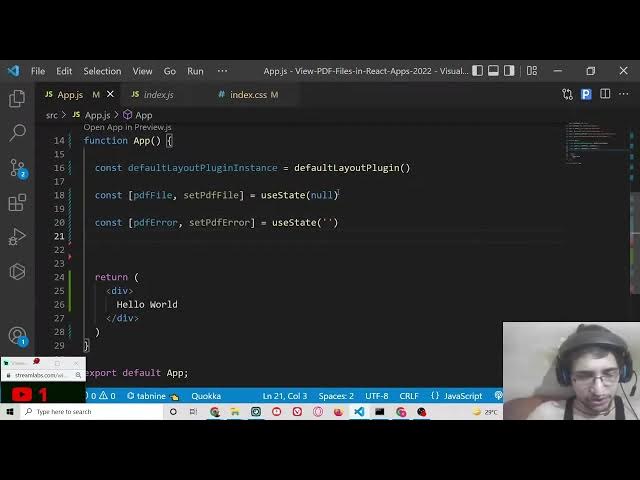
First will be for PDF file set PDF file.
11:58
So here guys we will use the u state
12:00
hook
12:02
to initializing u state. So the initial
12:05
value will be null of the pdf document.
12:11
This is pdf file. This will be null. So
12:14
that's why we are using the use state
12:16
hook here to initialize the initial
12:18
value. Next we will have our uh variable
12:23
to display the error messages. So this
12:26
will be PDF error and uh
12:30
the meth the method to set these errors.
12:33
So set
12:35
PDF error
12:38
again we will use the use state hook
12:43
and uh this will be empty by default
12:46
guys. So we will not be having errors
12:48
when we start the application.
12:51
And then we will set the allowed files.
12:55
So in this case guys, we are only
12:57
allowing the PDF files to be passed in
13:01
the validation.
13:02
So we will have this array
13:06
allowed files array. So this will be
13:10
holding only application/ PDF. So this
13:14
is a MIM type of uh only PDF file. So
13:18
basically this is actually the main type
13:20
of PDF file. So I am just checking it
13:24
inside.
13:28
So now guys uh instead of having hello
13:31
world we will have a simple input field
13:34
from which we will select.
13:37
So we will initialize a class to it.
13:43
So class name we will give it container.
13:46
This is bootstrap class container class
13:50
and inside this we will have the form
13:53
tag.
13:57
So inside the form tag guys we will have
14:00
our input field from which we will allow
14:04
the user to select its uh
14:09
input file input PDF file. So inside the
14:12
label we will simply say
14:16
upload
14:18
PDF file. So we will close the H5
14:24
and after that guys we will have two
14:26
break tags.
14:30
So two break tags we will have
14:35
and after that guys we will have the
14:38
input type file
14:41
and uh we will give it a class name.
14:44
This is bootstrap class which is form
14:46
control and we will also be giving a on
14:50
change to it. So when the file changes
14:54
so this needs to be capital C. So on
14:57
change.
14:59
So we will bind a function to it which
15:01
will be handle file.
15:04
So we will create this function guys. So
15:06
don't worry about it. So we now need to
15:09
create this function. So which will be
15:13
invoking every time we change the file.
15:17
So basically this will be a arrow
15:18
function handle file.
15:23
Automatically guys this uh e parameter
15:26
will be passed to it which is the event
15:28
parameter. So it is automatically
15:31
passed. So whenever you write this
15:33
function
15:37
so after this guys inside this function
15:40
what we need to uh just see here we need
15:44
to get the selected file. So we will
15:48
make a variable here. Simple variable we
15:51
will make is uh selected file.
15:56
Selected file. We will make this
15:58
variable and inside this guys we will
16:02
get the file which is selected by
16:05
e.target.files
16:07
and we will get the first file by using
16:09
zero.
16:12
And after that guys we will
16:15
now check if selected file is not null.
16:20
In that case we need to now compare the
16:24
extension of the file selected file
16:28
and
16:30
selected file
16:33
and we uh now we will check the allowed
16:35
files.
16:38
Basically we have declared this array
16:40
which is allowed files. This contains
16:42
one entry which is application/ PDF. So
16:45
here we will select if it is includes
16:49
if it includes
16:52
selection selected file dot. Now to get
16:56
the extension we will type here type.
17:01
So if it is matches if it is comes out
17:03
to be true then we obviously know that
17:05
it's a PDF file which the user has
17:07
selected. In that case
17:11
we can read the file. So we can read it
17:13
by using the file reader class. So we
17:17
can invoke it file reader.
17:24
So after doing this guys we can use the
17:28
reader dot read data read as data url.
17:32
This is a method and here we can pass
17:34
our selected file like this.
17:39
And there is a function which invokes
17:42
which is onload
17:45
end. This is a function. So when the
17:48
reading process is completed then this
17:51
function will automatically trigger and
17:54
inside this we can set the PDF error to
18:00
nothing.
18:03
And uh
18:05
here
18:11
after this uh
18:15
in the next line we will set the PDF
18:18
file set the PDF file
18:24
to
18:26
the selected E.target dot result
18:30
e.target target dot result.
18:36
That's it.
18:39
And now inside our else statement guys.
18:42
So if this is the if statement you will
18:46
see that this is the whole if condition.
18:49
If it doesn't evaluate to true, if the
18:53
PDF, if the selected file is not PDF, in
18:56
that case we will show the error to the
18:58
user that
19:03
that uh we can set the PDF error message
19:08
and here we can pass a message that not
19:11
a valid
19:13
PDF. [snorts]
19:16
Please select only
19:21
only PDF file
19:27
and uh we can set PDF file.
19:32
we can pass nothing.
19:35
And uh then there is another outer if
19:38
guys. This is outer if you can see this
19:40
is outer if here
19:43
we also need to write the if else
19:46
condition for this statement also.
19:48
So the else will be simply for this will
19:52
be
19:54
here we haven't selected anything. So we
19:56
will simply say please select a PDF
19:59
file.
20:05
So that's it guys. So we have written
20:07
this function handle file. So now we are
20:10
in a position to test out the
20:11
application. Let me check if what it is
20:15
showing us. So now you will see that
20:17
guys we have this choose file button
20:20
here. If I choose the file, you will see
20:24
if I select this in the console,
20:30
nothing is printed out because we are
20:33
not displaying the PDF file in the
20:34
viewer. So now we need to display
20:37
something on the screen so that we can
20:39
see the result in the PDF viewer.
20:43
So one thing if I want to display the
20:46
error message. So let's suppose I uh
20:50
select a wrong file here. Let's suppose
20:52
I select a video file or vinszip file.
20:57
So the error is not displaying here. So
20:59
now to display that error it is very
21:02
simple after this input m uh input
21:06
element ends. So here basically we can
21:08
check for pdf error.
21:12
So if it exist then we can show this
21:14
message which is inside curly brackets.
21:18
So inside a span tag we can show a
21:22
error message. We can give it a
21:24
bootstrap class of text danger. And here
21:28
we can simply say
21:31
the PDF error PDF error message. That's
21:36
it. So now guys if you see here this
21:39
will show you a red color message that
21:42
please select only a PDF file not a
21:45
valid PDF. So again if I refresh it if I
21:50
select
21:51
you will see that if I select a correct
21:56
file PDF document the error will not be
21:59
shown. So this is kind of validation
22:01
guys. So now we are successfully
22:03
displaying the error message. So now we
22:06
simply need to display the PDF document
22:08
in the viewer. So right after the form
22:11
we can have this feature. So inside H5
22:15
tag we can simply say view PDF.
22:20
And inside this guys we will have a
22:24
simple div which will have the class
22:26
name of viewer.
22:30
And inside this first of all we will
22:33
check inside curly brackets which is PDF
22:36
file. If the PDF file does exist. So we
22:40
are checking in for the hooks variable
22:43
you can see PDF file. So if the PDF file
22:46
exist in that case we will display the
22:48
PDF viewer. So and
22:53
so here we can display it
22:58
inside this
23:02
parenthesis we can display the worker
23:05
tag. So this is the way by which you can
23:07
display the PDF viewer guys. So here you
23:10
need to provide the worker URL.
23:14
So worker uler is nothing but the CDN
23:17
URL of the library which is
23:20
unpackage.com/
23:25
PDFJS
23:28
PDFJS
23:29
desk
23:32
at the rate 2.12
23:36
[clears throat]
23:39
313
23:43
/build/ [snorts]
23:47
pdfworker
23:49
dotbin.js.
23:55
So now just close it.
23:57
So inside [snorts] these worker tags
23:59
guys, we can just embed our PDF
24:02
document. So right here, this contains a
24:06
viewer tag.
24:11
So this will have the file URL tag file
24:15
URL.
24:18
So here you can provide any valid
24:20
internet URL. I will provide the PDF
24:24
file.
24:25
PDF file
24:28
like this.
24:31
So this will have all the controls. So
24:34
the next option you can pass is the
24:36
plugins options. the plugins options.
24:40
So this will be
24:43
the default
24:48
default
24:50
layout plug-in instance. So just pass
24:53
it.
24:58
That's it.
25:01
So now if you just now test your
25:04
application you will see your PDF is
25:07
displaying here. If I select a PDF
25:10
document now you will see it will
25:12
display this PDF viewer. So it has got
25:16
all the controls out there. Zoom in zoom
25:18
out. Search functionality is also there.
25:22
You can go to the previous page next
25:24
page. You can also zoom in zoom out. Go
25:27
to the full screen. exit out,
25:30
download, upload,
25:32
all the things you can do it.
25:38
So
25:40
one thing you can do this guys. So if
25:43
the file is not selected, you can just
25:46
show the message to the user that the
25:48
file is not selected.
25:50
So this you can check very simply by
25:53
using the hook variable which is PDF
25:58
file. So if the PDF file is not selected
26:01
then you can simply say
26:05
inside this brackets that no file is
26:08
selected yes
26:10
no file is not is selected
26:13
yet.
26:15
That's it.
26:18
So if you refresh the application for
26:20
the very first time, you will see this
26:21
message that no file is selected yet. So
26:24
if you now select your file, if you
26:27
select a wrong file, you will see not a
26:29
valid PDF. Please select only PDF
26:32
document. And uh if you select a correct
26:35
file, PDF document, the PDF viewer will
26:38
display the PDF document for you. So
26:41
this was the overall application guys.
26:44
So we are using some bootstrap bootstrap
26:46
classes we are using for the validation
26:48
purposes. So I have written a complete
26:51
blog post on my website and I have given
26:53
the full source code in the video
26:55
description. So you can go to the video
26:58
description to download all the source
27:00
code.
27:01
Please hit the like button if you
27:03
haven't hitten the like button.
27:04
Subscribe the channel
27:07
and uh I will be seeing you in the next
27:10
video. Until then thank you very much.