Up next in 10

Build a React.js Canva Clone Image & PDF Editor Clone in Browser Using Konva & PDF-LIB in TS
Apr 1, 2025

Buy the full source code of application here:
https://procodestore.com/index.php/product/build-a-react-js-canva-clone-image-pdf-editor-clone-in-browser-using-konva-pdf-lib-in-ts/
Watch My Visual Studio Code IDE Setup Video For Fonts,Themes & Extensions
https://youtu.be/Bon8Pm1gbX8
Hi Join the official discord server to resolve doubts here:
https://discord.gg/cRnjhk6nzW
Visit my Online Free Media Tool Website
https://freemediatools.com/
Buy Premium Scripts and Apps Here:
https://procodestore.com/
Show More Show Less View Video Transcript
0:00
uh hello guys uh welcome to this video
0:03
so in this video I will show you a react
0:06
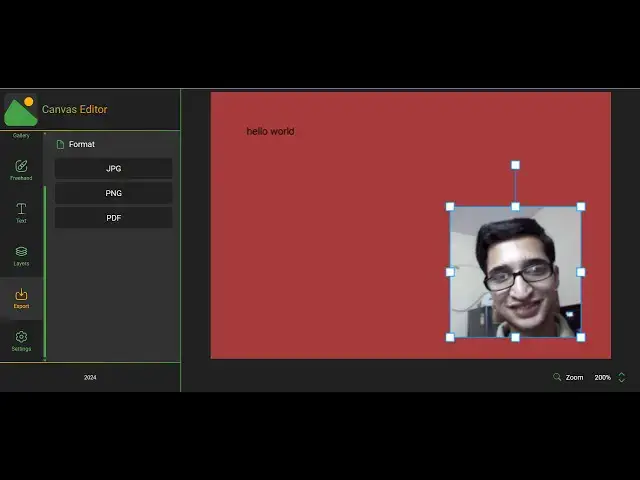
Canva clone that I developed right in
0:09
the browser itself it's a single page
0:11
application and it's uh similar to Canva
0:13
clone uh it's where you can actually
0:16
build out your images thumbnails with
0:19
this nice little advanced editor and it
0:22
can even export your images to PDF as
0:25
well so you can even we have also added
0:28
the support for adding images as well so
0:31
this is essentially the editor and uh I
0:33
have also deployed this on my website
0:36
free mediatools.com so you can check out
0:38
the live demo so when you land on this
0:41
you will see this canvas uh here you can
0:44
control the sizing of this canvas by
0:46
going to settings and just
0:49
uh by default it is set
0:53
to it has different kinds of layers as
0:56
well if you see if you go to canvas here
0:58
you can manipulate the width so if you
1:01
are building let's suppose a YouTube
1:04
thumbnail so you will say 1280 and the
1:07
height here will
1:11
be 720 so this is here you can even
1:14
control the zoom
1:16
level and then we uh can control
1:19
actually all these properties you can
1:20
give it a name to your document and then
1:22
we can change the background color using
1:25
this color
1:28
picker and then we also have uh just
1:31
wait let me open the zoom it tool so
1:34
that I
1:36
can zoom on particular elements on the
1:39
web page you can see we have this color
1:42
picker uh where you can
1:44
actually use this to change the
1:47
background color of the canvas then as I
1:50
already told you he can can change the
1:53
width and the height then we can
1:55
actually choose uh your local images so
1:58
here you will simply
2:00
select image if you want to add this to
2:03
the canvas and here you can control the
2:05
sizing and the location using your mouse
2:07
here you can see that then we have the
2:10
also the option to draw something using
2:12
the pen so there is a pen tool available
2:15
right here similar to canvas so here you
2:17
can control the sizing of this pen using
2:20
this can control
2:24
it so you can draw something right here
2:28
then we also have the capability to add
2:30
text so here you can actually uh just
2:33
first of all set the size here color of
2:36
the
2:38
text and just click the button add text
2:41
you will
2:45
see your text will be added right here
2:48
so you can just control the sizing here
3:00
so in this way you can do this uh we
3:02
have different kinds of layers here so
3:04
each element represents if you
3:08
see you can move each element by the
3:11
mouse here we have different layers out
3:12
there if you want to remove this you
3:14
click the simple uh dustpin icon so it
3:17
will
3:17
remove so it's a multilayer
3:20
canvitor and then here if you want to
3:23
export your result we have different
3:25
three options here jpg PNG or PDF so if
3:29
you click JPG your file will be a JPG
3:31
right
3:32
here if you click PNG you will see now
3:36
the file will be
3:41
PNG and now lastly we also have the
3:44
support for PDF so as soon as you click
3:46
this you will see all your result has
3:49
been successfully exported to the PDF
3:51
file so this is the React Canva clone
3:54
guys and uh you can access this on my
3:57
website freemediatools.com so if you're
3:59
interested in purchasing this project
4:01
guys with full source code the link is
4:03
given in the description you can go to
4:05
my website procodestore.com and there
4:08
you can actually will get a link you
4:11
just need to do the point payment here
4:12
and after the payment you will get this
4:14
zip file automatically from Google drive
4:17
and you just need to extract this zip
4:19
file and this will be the directory
4:21
structure it's coded inside typescript
4:23
and let me show you the package.json
4:25
file to show you the packages which I've
4:27
used for building this so I've used this
4:31
conv library which is a react package
4:34
for building graphical applications and
4:36
also we have used pdf lip for exporting
4:39
the canvas to pdfs so if you don't know
4:41
about these libraries let me show you if
4:44
you just write here
4:46
convascript canvas 2D library right here
4:50
so we are using this library there is
4:53
also an extension for react as well if
4:55
you just write react
4:57
conver so this is actually specifically
5:00
built for
5:02
react and
5:04
secondly we are using this PDF lip it's
5:08
an open-source library for manipulating
5:11
PDF files right in the browser
5:13
itself you can create modify PDF
5:16
documents so we are using these two
5:18
packages and you will get the full
5:20
source code right here each component is
5:22
divided into different components right
5:24
here so it will be very easy for you if
5:26
you are a developer to actually modify
5:28
this application and add additional
5:30
features as well you can see all the
5:32
code is perfectly coded so you will get
5:36
this source code and if you want to now
5:37
run it
5:38
locally it's very simple after you do
5:43
this you come to the
5:46
terminal so wherever you extract the
5:50
file here you just need to cd into the
5:52
folder so
5:53
React canvas editor and first of all you
5:57
just need to execute the npmi command if
6:00
you're running it for the very first
6:02
time so this will install all the
6:04
modules which are mentioned in the
6:05
package.json file and just create this
6:07
node modules
6:09
folder so the next step will be to
6:12
actually run this locally
6:15
so you just run the command here npm
6:18
rundev
6:20
this will start the development server
6:22
on localhost 5173 so in this easy way
6:26
you can run this application localhost
6:30
5173 so now the application will
6:34
run you can see that so essentially the
6:37
canvas canva clone is running right here
6:40
locally and if you want to deploy this
6:43
application
6:45
there's you all know the build command
6:47
npm run build so this will actually
6:50
create a dist folder right in the left
6:52
hand side here which will contain the
6:54
minified HTML JavaScript and the CSS
6:56
code so it's very easy to deploy this as
6:58
well so the link is given in the
7:01
description if you need the full source
7:02
code you can directly purchase it from
7:04
my website
7:06
procordstore.com it's a single page
7:08
Canva clone which has a PDF exporting
7:12
functionality as well so before that you
7:14
can try this try this tool on my website
7:17
if you are interested so thank you very
7:19
much for watching this video and I will
7:22
be seeing you in the next
#Clip Art & Animated GIFs