Up next in 10

Build a Next.js FFMPEG WASM Video Timeline Editor to Split & Trim Videos in Browser Using TS
Mar 5, 2026

Buy the full source code of application here:
https://procodestore.com/index.php/product/build-a-next-js-ffmpeg-wasm-video-timeline-editor-to-split-trim-videos-in-browser-using-ts/
Show More Show Less View Video Transcript
0:00
Uh hello guys, welcome to this video. So
0:02
in this video, I'll show you I built out
0:04
a NexJS video editor project for
0:08
actually splitting and trimming your
0:10
videos directly in the browsers. This
0:12
video editor is running on local host
0:14
3000. The interface is quite simple. You
0:17
select your video file, whatever video
0:20
file you want to edit. As soon as you
0:23
select the video file, the interface
0:25
looks something like this. It's a
0:26
timeline based video editor.
0:30
So if you need the p purchase the source
0:32
code the link is given in the
0:33
description. So this is the full
0:35
directory structure of the project here
0:37
each each component is coded directly in
0:40
typescript. So once you purchase it
0:43
automatically the source code will be
0:45
downloaded from Google drive. You can
0:47
customize this add more features as
0:49
well.
0:51
And if we show you package.json file,
0:53
we're using the latest version of next
0:57
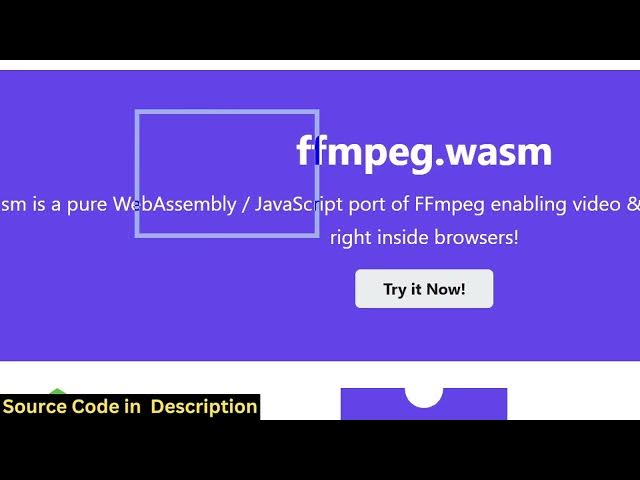
and we are using this ffmpg web assembly
1:00
library and we using radex UI for the
1:03
user interface design. So now you can
1:06
play the video as well.
1:10
So this is the timeline that it
1:12
construct and here you can add a marker.
1:15
So
1:17
you can adjust as you adjust here you
1:19
will see the duration will change. the
1:21
starting and the ending time. You can
1:23
split the long video into multiple
1:25
parts.
1:28
Here you can preview this.
1:34
So this is clip one. This is clip two.
1:42
So this is clip three. So in this easy
1:44
way you can see now you can split a long
1:47
video into small chunk parts. So just
1:51
move your marker and wherever you need
1:53
to place it.
1:57
Click on that. Click on that. You'll see
2:00
how easy it is.
2:03
So after you do this, you click on this
2:07
button of export all clips. So here you
2:11
can adjust the options here. Original
2:13
quality, compressed, aspect ratio. You
2:16
can even change 9 by 16. You can do this
2:19
for vertical videos, Tik Tok, res.
2:24
And click on export. So now the
2:26
processing will start.
2:29
So one by one it will export all the
2:31
clips for you. You can individually
2:33
click the download button. So it's very
2:36
useful because many a times you do need
2:38
to split your long videos into small
2:41
parts.
2:45
So you can see this is the first part of
2:47
the video.
2:49
And so this processing directly happens
2:51
in the browser. So there is no need to
2:54
actually have a back end or server. So
2:56
we are using this ffmpg web assembly
2:58
library. So this library allows you to
3:02
use the ffmppg library which is a really
3:06
famous library. So essentially it's a
3:09
command line based library but this
3:11
package allows you to use this directly
3:13
in the browser. So we are using this
3:15
inside our next.js project.
3:18
You can add more parts here. You will
3:20
see how just place the marker. So, clip
3:24
one, clip two, clip three, clip So, so
3:26
it will create. You can also click the
3:29
preview button. So, this will show you
3:30
the actual preview as well.
3:33
You can edit again by providing manually
3:36
the time as well.
3:39
And click the dustpin icon to delete
3:41
that.
3:44
And it's completely responsive as you
3:47
can see the user interface I coded in
3:49
radics UI. So it's completely responsive
3:52
and uh you can even monetize this
3:55
application by purchasing a domain name
3:57
and deploying this application and
4:00
earning a lot of softwarebased
4:03
SAS revenue as well.
4:06
So
4:09
you can build out this project just
4:10
purchase a domain name and simply run
4:13
this host this video editor.
4:20
So many a times user will come to your
4:22
tool because it will basically save a
4:26
lot of time of the user as well to
4:30
actually trim and create highlights of a
4:33
long video. This timeline based editor
4:35
makes it easy for them. So
4:42
can see one by one the processing will
4:44
start.
4:58
So totally depends upon the uh length of
5:01
the video how much length you are
5:03
working upon. So that's why it will take
5:05
a lot of time if for longer videos but
5:08
there is no limit to it. So you can
5:10
actually
5:12
select
5:15
so interface is quite simple here you
5:17
will see that. Oh.
5:32
So it can be a trimmer, it can be a
5:34
video cutter, video trimmer, anything
5:36
you can say. It's advanced video editor.
5:40
It directly runs in the browser and
5:42
essentially it's using the latest
5:45
NexJS version.
5:48
and React 18 we are using. So quite a
5:51
number of libraries we are using and
5:52
also we are using Tailwind as well for
5:54
the user interface.
6:00
So definitely check this out.