Up next in 10


Buy the full source code of application here:
https://procodestore.com/index.php/product/build-a-javascript-qr-code-generator-using-tailwind-css-in-browser-using-html5/
Visit my Online Free Media Tool Website
https://freemediatools.com/
Buy Premium Scripts and Apps Here:
https://procodestore.com/
Welcome Folks My name is Gautam and Welcome to Coding Shiksha a Place for All Programmers. You can learn Web Development and Programming Tutorials.
Donate to Our Youtube Channel at :
https://www.instamojo.com/@geekygautam1997
Subscribe for more Videos: https://www.youtube.com/channel/UCR6d0EiC3G4WA8-Rqji6a8g?sub_confirmation=1
Show More Show Less View Video Transcript
0:06
uh hello friends today in this tutorial i will be showing you a new tool that i deployed on my website which is
0:12
codingsiksa.com so basically this tool is going to generate the qr code for
0:18
text images and for payments so basically everyone inside the world uses
0:23
qr code for generating payments or for any sort of text and image
0:29
so this is a great service which will allow you to generate the qr code in the browser itself
0:35
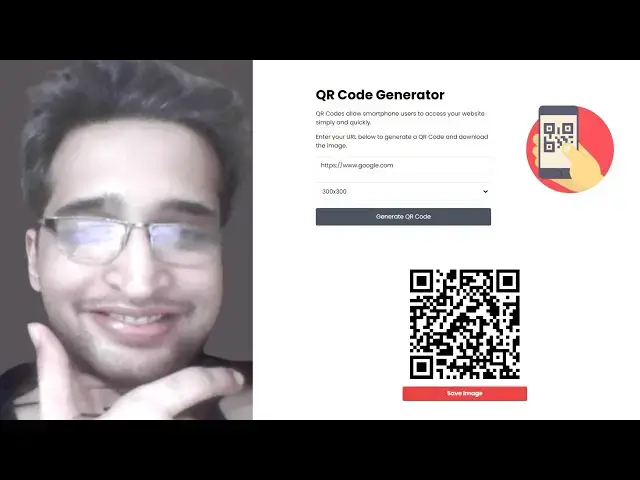
so basically this is the interface of this application
0:40
so now you can see it is successfully deployed on codingsicsha.com qr code generator
0:46
so in the description of the live stream i have given the link here so basically this is the actual tool
0:51
that we will be building in this tutorial live stream so you can see that this is a nice little interface which is
0:59
designed using the tailwind css framework
1:04
which comes with its own classes for this you don't need to write any
1:09
sort of css it comes with a bunch of classes utility classes
1:15
with the help of which you can design these cool little interfaces so the application logic is that guys
1:20
you can see that you can write any url here and let's suppose
1:27
i write this codingsection.com http and then you basically you can select
1:33
the size whichever size that you want to select for the qr code let me select 300 by 300
1:41
and then if i click the generate qr button so basically there will be a spinner
1:46
here after that now this will this will be the generated qr code
1:52
you will see that this is a generated qr code and then
1:57
there is a button here which allows you to save the image if you click this
2:03
button so now basically what will happen is that your image will be saved here as a
2:09
png image let me just show you once again hit this button
2:14
save image you will see that the png image is successfully saved here if you see your image this is the qr
2:21
code which is generated here you can see that if you're joining it for the very first time then please hit
2:26
the like button so you can see that this is the overall application guys that we will be building in this tutorial so it's a qr
2:33
code generator for any sort of url image or
2:39
payment here you can put a payment link as well here it is not you can put here any url google.com
2:47
as well and then you can select the size here 600 by 600
2:55
and now you will see it will have a larger qr code here and then there will be a simple button
3:00
to save your image like this you can see that
3:06
so this is the overall application guys in order to generate qr codes it's very
3:11
easy in the browser site for generating the qr code we are using a special library called as
3:19
qr code js so if you search for this qr code js
3:24
this is the library so it's a cross browser qr code generator library
3:30
for javascript it is also available for node.js as well so basically this is the
3:36
we are using it uh you can provide a text width height you can also provide color
3:43
as well but we haven't used color in this tutorial but you can add the option the third
3:48
option that you allow user to choose their favorite color for qr code this can be colorful
3:55
as well so this is the qr code generator guys we will be building in this tutorial so let's start building it so
4:01
if you want to get all the source code i have written a complete blog post on my tutorial website codingsicsha.com
4:08
so here i've given all the source code so this is a source code is there
4:13
so just go to the description of this live stream you will see that
4:20
here the link is given in the description of the live stream
4:25
so let's get started guys by building this application
4:30
so now i will delete all the source code and start from scratch
4:36
so just make an index.html file here and give it a title that qr code
4:42
generator in javascript so now we will write
4:49
our html for as i already told you guys we are
4:55
using tailwind css framework for designing the interface
5:00
so tailwind is a great framework for css
5:06
for designing css layouts without having to write custom css it's a great
5:11
framework and it is maintained by a bunch of developers out there it's a very famous framework
5:18
you can read the documentation but i will be telling you how to use its
5:23
ready-made classes which are available to design these interfaces so there is extension inside
5:29
visual studio that you can install for autocomplete for tailwind just right here tailwind and the very first plugin
5:36
which comes in which is this one tailwind css intelligence so just install this so this will make it easy
5:42
to work with tailwind classes you will get auto suggestions so for doing this guys we need to
5:49
include the cdn for tailwind it's very easy just put this link tag and inside
5:56
stylesheet you have this https
6:02
cdn.tailwindcss.com like this so
6:11
i think this is a script tag sorry so just surround it script source
6:18
https cdn tailwind css.com so this is a script tag that you
6:25
need to include now to use it and also guys we will be using
6:30
the google phones so we need to include these custom google phones
6:37
style sheet so include these link tags all the description code will be given so you
6:42
can just copy paste it so now after including all the dependencies
6:50
we will also need to include its this one
6:55
this is qr code js library so as i already told you in order to
7:00
generate the qr code we are using this external library called as
7:06
qr code js so we are just including it cdn so if you just search on google
7:13
qr code js so this is a library and we are just included including a cdn
7:20
like this so after including it cdn guys so if you're joining it for the very first
7:26
time guys we are building a qr code generator which is deployed on my website coding fixture
7:32
it allows you to generate the qr code and save this image inside your computer so we are using tailwind css to generate
7:39
the layout tailwind css is a great framework which allows you to
7:46
add ready-made classes without having to write custom css so this is the
7:51
interface it is looking quite good and now to design this interface guys it
7:57
is pretty easy if i now write it
8:05
before that you also need this custom javascript which is for setting the
8:13
tailwind config file paste it here so
8:18
so inside this tailwind guys we are just setting out the theme and the phone family so you just
8:25
need to copy paste the link would be there inside with your description so now let's start building the interface
8:31
guys so first of all i will just write the cust html later on i will add the classes
8:37
so here we will have our header element and inside header
8:44
we will just give it a class empty here for now later on i will add the classes
8:51
so div and class and first of all hit the like button
8:57
guys so again we will have empty the class
9:02
here and here we will simply say qr code generator
9:08
there will be a heading here after this header section guys we will put a image image source
9:14
it is the spinner svg alt
9:19
nothing so there are three images out there which we are using here inside this so qr code svg say svg image screen
9:28
dot png you can see that and spinner dot svg so all these images are there i have
9:35
given this link in the description so just download it after this guys we will have the main
9:42
section where we will be styling this so right here you will have the main section
9:48
so inside the main section we will have another div
9:55
and we will not be assigning the class now we will later on assign the classes
10:03
here we are just writing the interface here so we will have simple heading here which is qr code
10:10
generator and this is just barebone html guys
10:18
so basically let me paste it let me don't waste your time so if you
10:23
just open this inside open with live server it's just a bare bone html it's qr code generator qr
10:31
code allows smartphone user to access your website simply and quickly enter your url below to generate a qr code and
10:38
download the image so it is just barebone html and now after this we will have a
10:44
form after this paragraph ends we will have a form
10:50
so inside this form we will give it a id to the form so that we can target it inside javascript
10:56
generate form and class will be empty and
11:02
we will have a input field which is type of url basically here you need
11:08
to input the url id will be url and here we will be giving a placeholder
11:16
that is enter a url so basically enter a url
11:22
and again we will be left the class empty so later on when we complete the application we will
11:29
assign these classes of tailwind and design the interface and after this we have got
11:37
a select field select element inside the select element guys we will
11:43
have the name which will be equal to size so here you will be providing the size
11:50
of the qr code so we have various options so these options will be
11:58
let me paste it copy paste it so this will be a drop down and there will
12:04
be a various options which is 300 by 100 200 by
12:10
200 this will be selected by default 300 by 300
12:15
so you can see that after this we will have a simple button
12:21
to submit the form which is we will say that generate
12:26
qr code so basically this will be
12:33
we will left the class at empty and type will be our submit that's it
12:40
so now if i refresh it you will now see this will now contain this input field this is a select box
12:48
and then this is a button you will see that
12:55
so after this guys now we need to simply after this
13:01
we need to have another div inside this div we will have the image
13:10
so the class will be empty source will be image slash qr code
13:17
svg so basically this is the image that we are using for
13:23
the logo for svg sorry qr code
13:29
so after this ends guys you can see that
13:35
we will have another uh section where we will be
13:42
having another div so this time we will be giving a id so this will be the generated qr code image
13:49
so here first of all we will have a simple spinner
13:59
basically we have the spinner so whenever you click the button to
14:06
generate the qr code there will be a spinner which will be there by default
14:11
if you now see here open with live servers so there will be
14:18
this spinner guys you will see that this is a spinner here this is built using svg
14:24
so this is a spinner that we will be animating whenever you click the generate button so this will appear for
14:31
just one one second and then it will go away after this we will display this
14:37
resultant qr code we will give it a id of qr code
14:44
and we left the class as empty that's it so this is all that we need to do guys
14:50
for now this is all the html now it is not looking good but still we just need to
14:56
complete the javascript and at last i will tell you to design how to design this using the tailwind classes we will
15:03
assign the classes dynamically and see how it pans out
15:08
so now you need to create your custom javascript file so right here we will include this file
15:15
script dot js so just create inside this root
15:20
directoryscript.js so right here guys we will write the javascript part now so first of all we
15:26
need to get the reference to the form element so we have given this id to the form
15:32
element which is generate dash form
15:38
after getting the reference we will also get the reference to the document.getelementbyid
15:44
of the qr code so basically this is the two qr code
15:49
that we have initialized the diff section where the qr code will be displayed so we have got the references
15:55
of both the elements so after this guys we need to attach a event listener to the form
16:04
so we can simply say that form dot add event distiller so whenever the form submits so this
16:13
e parameters so basically we will declare a function so right here
16:18
at the bottom if you see we will declare a function called as on
16:24
generate submit so this function will be
16:29
executed guys so now to make this function on generate submit
16:34
this will have the e parameter so inside this function guys
16:42
first of all we need to prevent the auto submission of the form so we will say that e dot prevent default
16:50
and then basically we will get the url which the user writes
16:56
document.getelementbyid url dot value so whichever url that user
17:03
writes here inside this input field we will get it by its id and similarly we will get the
17:09
size as well which the user selects document.getelementbyid
17:14
size dot value that's it so whichever size the user selects
17:20
so here we will check for the validation part validating the url
17:25
inside if condition we will simply say if url is empty in that case we will say to the
17:32
user that please enter a url like this
17:38
and in the else block we will simply say that
17:43
if the url is valid so we now we will be generating the qr code
17:50
for so now first of all we need to show the spinner so we will say show spinner this
17:57
is a method that we need to make so we will say that show spinner
18:03
so inside this this is a simple method in order to show the spinner
18:16
let me see
18:26
something has gone wrong guys so just wait
18:49
now just wait guys the i think it was just a problem of crashing here
18:56
so if you're joining it for the very first time then we are building a qr code generator
19:02
inside javascript
19:10
uh it is just crashed here so just wait
19:18
so in the meantime if you have any sort of questions guys you can ask in the comment section i will highly recommend
19:24
that you ask questions also and please hit the like button as well
19:40
so let me open it again here
19:50
so just wait here right
20:04
let me go to the task manager and close it sometimes it can create problems guys so
20:10
you can you can see that it is crashed so we
20:15
need to reopen it sometimes this visual studio can
20:21
cause problems so you can see first of all we need to show the spinner and here we need to create a method here
20:27
which will do the process for us this is the arrow function so basically now to show the spinner
20:33
it's very easy inside this we will say const spinner
20:40
and document.getelementbyid so we have provided the spinner element id of
20:46
spinner so we need to change its property spinner dot style dot
20:53
display to block and when we load the page guys we need to hide it hide the spinner
21:00
we don't want to show it so again we need to create another method which will hide the spinner
21:06
height spinner this will again a simple method so here we will get the reference to the
21:12
spinner first of all by document.getelement spinner
21:18
and then we need to do the reverse process of this so spinner dot style dot
21:24
display to none so basically this will hide the spinner so we need to call this function when we load the script here so
21:32
now basically if you see if you open this in the browser you can see the spinner
21:39
will not be shown to you
21:45
so if you enter the url
21:50
you need to enter a valid url so
21:57
you can see size 300 let me see
22:04
in the script.js you will see that if the url is not empty
22:10
then we need to show the spinner so corn spinner
22:20
so here you will see that
22:27
show spinner and height spinner
22:39
so in the index.html file guys you will see we have given this id
22:44
to the spinner which is this div id spinner so that's why we are making
22:50
use of it so what we can do we can
22:57
call this here hide spinner if you reload
23:03
now you can see the spinner is not showing here so that's the important thing whenever you declare the function after that you
23:10
need to call it don't call it before so that's why it was not executing it so
23:15
now you can see when you reload the page it is the spinner is not showing so whenever if i enter a url click
23:23
generate qr code so now it is showing the spinner here you can see that
23:28
so now we need to only show it for one second and after that we need to generate the qr code so for doing this
23:34
we need to use a special method here which is called as set timeout
23:41
so here what we need to do first of all we need to call the show
23:47
spinner method we need to show the spinner and then we need to
23:52
only show it for one second for showing it for one second we need to
23:58
use set timeout here we need to provide 1000 millisecond this means that
24:04
it this code will run for one second delay so after this we will call hide spinner
24:11
to hide the spinner after one second and then we will call another method which will call
24:17
generate the qr code for us which is generate qr code and here we will pass the url and the size values
24:24
you can see we have got the url and size values which the user provide and then we are passing it
24:31
to this custom function so here we need to create another function which will be generate qr code
24:38
so basically this will get the url and size this is an arrow function so here we
24:45
need to generate the qr code so for generating this guys as it's very easy
24:51
we will need to create a a new instance of this qr code
24:57
library and here you need to pass qr code and the properties this is an object
25:03
so the text will be equal to the url which is passed the width will be equal to the size
25:11
and the height will also be equal to the size that's it because width and height will be the
25:16
same 300 by 300 400 by 400 so after this you can see that it will
25:23
generate this qr code for us you can see that
25:30
so after this what we need to do is that
25:36
after this function generate qr code
25:41
we need to
25:47
here we are calling it so after this one second is over we
25:54
if you see here [Music] now if i refresh it and try to enter a
26:01
url click generate qr code so now you can see for one second that spinner appears
26:08
and now your qr code is generated this is your qr code here you can see that
26:14
if i move my face upwards and also let me move it this window
26:20
you will see this qr code is now generated if you
26:25
type a different url change it to different size 700 by 700
26:32
click it now you can see it is even bigger you can see that so you can right click save this image on
26:38
your computer but we will do it automatically we will provide a button for the user to download this image to
26:46
your computer so for doing this guys we will be
26:54
we need to write a function for this so after generating this qr code we will
27:00
once again have a set timeout
27:06
and this will now run for 50 milliseconds this is very short in interval of time
27:12
we are doing this because we need to get the url of that qr code so for that we
27:17
need to have a slight delay once it is generated so now we can get
27:23
the save url which will be the url base64 url of qr code so this will be qr
27:30
query selector image dot source
27:37
so basically here we are just assigning we are manipulating the source parameter
27:43
of this image stack you can see that this qr code
27:50
we have got the reference here to this qr code you can see that at the very top we have
27:57
got this reference and now we are simply assigning it to the image like
28:04
this if you see here
28:09
like this
28:15
so after this guys we need to call a method which will be creating the
28:21
save button so create save button
28:28
here we will pass the base64 url which is save url that's it so now we need to create this method
28:34
right here this will be again a
28:39
a arrow function so this will receive that save url
28:46
so please hit the like button guys if you're like liking the content and also subscribe the channel for more videos
28:51
like this more live streams like this so inside this guy's
29:01
in the same button we will have just a anchor tag we will create this anchor tag using document.create element
29:09
we will pass a and then we will be giving it a id of save link
29:16
just to just manipulate it in later on and also we will be providing a class
29:22
list basically this will be empty by default we will attach it later on when we talk
29:28
about tailwind classes and here link.href basically this will be equal to the
29:34
base64 url which is passed here save url
29:40
after this we need to download this so we will give it a name
29:45
called as qr code and then we will add this link dot inner
29:50
html the label will be simply save image
29:56
and then we will add this to the dom
30:01
so for adding it to the dom we will simply say generate it dot
30:07
append child and then we will append it as a append the link that's it
30:14
so here what will now happen guys if i refresh it
30:20
if i enter a url click generate qr code
30:25
so now now you will see this button guys which is save image
30:31
let me just show you this button my face is coming here
30:37
so now at the very bottom you will see the save image button if i click this your png
30:42
file will be downloaded so now the application is overall working guys we just need to design this
30:48
interface which is you can even have 700
30:55
so now you have
31:01
save images like this
31:07
so now we need to design the interface guys the application is almost complete
31:16
so
31:21
so now what we can do is that
31:27
we can now design our application so just go to the index.html guys
31:33
and here now we will be attaching the classes step by step so just clearly notice how
31:39
it changes so i will just uh
31:46
float this window at the right hand side so that you can clearly see what is happening let me float this
31:54
and also put this side by side so now this is your interface guys first of all
31:59
we will target this header class you can see that header section here we will now attach the classes of
32:07
tailwind so just closely look how i do it
32:13
so there is different classes out there guys which is very much utility classes for adding
32:19
padding margin background color so if you write here p p stands for padding so here you will
32:26
see p 0 means that it will add short padding p 1 will add slightly more
32:34
you can see that p 2 will add slightly more and p 3 will add more padding
32:41
so in this way you can control how much padding margin you can control the
32:46
interface so you can see in the right hand side how the values are interfaces changing
32:52
life so you can see that p4 is the class that we need to give p means padding
32:58
and then m means margin from the bottom position we need to give it
33:04
10 so you can see now it creates some space from the bottom side so mb stands for
33:10
margin bottom so if you don't study guys tailgate css i will tell you that this is the number
33:17
one framework out there i think it's better than bootstrap if you want full customization
33:24
many developers love it because it is compatible with the angular react vue.js
33:31
all the component based libraries so there's a lot of positive things about
33:36
tailwind css and then when it comes to background guys which is bg
33:43
and here you can give any color let's suppose you need to give here you can see all these colors are
33:48
supported bg black so this will make the background black
33:54
there is also a white bg white there is you can see all these shades
34:00
are there bg gray 800 you can see that so this is the beauty of this
34:07
plugin which is there inside visual studio this makes it very much easy which classes to assign
34:14
you can see that how much classes are there bg red bg orange you can see that
34:23
so for this guys we will be using bg red 500 this is the class that we are using here
34:30
bg rat 500 so this is you can see that it has made this header section beautiful
34:36
now we will come to the second part which is this one you will make the maximum width here
34:43
maximum width and then five excel
34:49
you can see that and then we will make it in the auto so this will center itself
34:56
you can see that so after this we will have this text we will
35:02
have excel excel stands for extra large so they you can see that this makes this
35:08
text extra large you can also make it even bigger like
35:14
5 xl so this will make it even bigger here you will see that all these utility classes are there
35:20
tech sl so after this we also need to bold this text here so
35:27
we will simply say font bold this will make the
35:33
this text as bold and also now to change the color we will have text white
35:39
so this will change the color to white so you can see that guys how easy it is
35:44
entailment you don't need to left your html to write css code
35:50
in the html itself you just are assigning classes and it is automatically
35:55
generating your layout it's the most beautiful thing that i have done in programming
36:02
so after this guys you will go to the next section which is this
36:08
this section which is this one
36:13
so here guys what we need to do is that
36:19
inside this we will make this section as flex flex column you can see that how it is
36:27
in the right hand side we will flex column reverse and here we will be
36:33
aligning it in the center position align center
36:40
and just justify center so basically what it will do guys if you
36:47
see it will make this in the center position you can see that
36:53
how it is looking
37:00
if you even check my blog post in the blog post itself i think
37:06
image source yes
37:12
and now there are more classes to be attached after this so
37:23
after this guys we have to attach margin auto
37:28
so this will m stands for margin margin auto so basically after this we need to
37:35
attach medium sizes devices we need maximum width
37:41
for medium devices we we need maximum width
37:47
for excel padding we need 10 like this
37:55
so these are the classes and now we will attach to this div
38:00
we will make the width full on medium devices the width will be two
38:07
by third and this will be mr margin from the right position 24
38:18
and here we will attach this class text 3xl to this paragraph
38:25
font bold if you see here you can see we are styling this you can see that
38:32
text 3xl
38:38
so this will make this 3xl and now to bold this so we will again use this class font
38:45
this will make this text as bold
38:52
and also we need to attach margin bottom from five mb five
39:04
and on medium devices we need to have this medium devices we need to
39:09
change the size which will be text for excel
39:18
so it is completely responsive here you can see that if you like this
39:24
if you shrink it you will now see it is completely mobile friendly you can see that this layout
39:31
on mobile it is looking like this if you increase the size it will
39:36
increase the size so you can see that how it is looking pretty good here you can see that
39:47
so please hit the like button guys if you like the content
39:52
so next class we will assign guys is to this
40:02
mb4
40:09
and
40:24
mb4 and now we will be attaching the classes
40:30
for the input fields so basically if you refresh here this is the input field that we are
40:36
targeting so basically we will first of all make it full width full
40:43
border 2 border gray
40:48
200 so this will have a gray border you will see that now
40:58
to make it rounded we will use the rounded class
41:06
just make it rounded so this will make the fields rounded here you will see that
41:15
and then basically we will have padding from
41:21
you can see the padding is increased here and then basically we will make
41:28
the text to be gray dark so when you write something here it will
41:34
be gray like this this is a shade and then we will be giving margin from
41:41
the right position to two so when you focus it we need to remove
41:47
the outline so focus outline none so this means that whenever you focus
41:54
outline will not be there similarly we need to do it for the
41:59
select field as well
42:07
so in the class section here
42:13
w full border 2
42:20
and border gray
42:26
200 you can see that round it
42:33
and then basically
42:39
text gray dark
42:45
margin from the right position focus
42:53
outline done that's it
43:01
so now you can see that this is
43:08
the values here now we need to do it for the button
43:15
so for the button guys we will have the gray background bg gray 600
43:22
this will make it as grey and then we need to make this rounded button w full
43:31
and the text we will change to white
43:37
so after this we will have
43:43
some more classes which is p y p y stands for padding from the y position
43:49
p x from padding from the x position and margin top five
43:56
so you can see that this is our button ready so we need to attach a pseudo class so
44:02
when we hover on to the button we need to change the background to black
44:08
so now you can see that when we hover onto the button the background changes to black
44:16
so after this guys we will attach to this here w full
44:23
md one by three
44:29
self center so this is we are attaching we are styling this image
44:35
so basically what will happen now this image will go about here
44:42
in mobile devices it will be right here stack here but
44:48
it is completely responsive you can see that
44:53
so after this guys we will have the next class which is for the image here
45:00
so here we will say that max w
45:05
five excel m dash auto
45:11
and then we will say flex flex call
45:19
text center and
45:24
also we have this another class align center
45:32
justify center margin top from 2
45:38
so margin talk to 20 so i also don't
45:44
have the full experience in taylormade css but i am also learning it's a very fantastic for framework to design
45:51
interfaces you should obviously invest some time in learning this
45:56
it's very good framework and then we will have this inline mr2
46:02
w24 h24 text we will change to gray
46:10
200 you can see that we are styling this portion now
46:18
so there are also animation classes as well guys so you can also animate
46:24
spin dark
46:29
text gray 600 so all these animation classes color
46:34
classes are all available it is totally up to you how you need to do it
46:39
fill pink 600 so now this is for the spinner guys
46:44
basically if you see now if i write something here
46:50
click generate we need to write a http url
46:56
so now you will see that the spinner will be there you can see that for one second
47:11
so the next class is sr only and moto
47:16
let me also write it
47:21
sr only m auto
47:27
that's it
47:34
you can see that so now for styling this button guys we have various classes out there so
47:43
if you see so inside of this button
47:54
so inside our script.js so right here
48:00
inside of a button we forgot to add these classes so we can now add these
48:05
classes
48:18
so just add these classes guys bg red 500 so this will make it
48:25
background to be red you can see that
48:35
now we can start this application
48:54
i think guys i have written make some mistake here
48:59
in coding writing this code here from scratch so you can go to the description of the
49:04
live stream to copy paste all the source code sometimes it can happen because while coding
49:11
i also am new to this tailwind css so that's why also these sum class some of
49:16
the classes would be in error so go to the description and copy paste the correct source code now
49:23
basically you will now see the interface will be there in a correct order so here you need to
49:30
enter the url and now you will see the spinner and this is yours button here you can save this image like
49:38
this and
49:44
if you once again do it for the second time choose something 700 by 700
49:51
now you can see that how it is looking good very good you can see that
49:59
save this image so it's a very necessity guys in the in this modern times you need to have a qr
50:05
code every shopkeeper has to have a qr code while collecting payments so it's a very good
50:11
tool you can also print this image inside a sheet of paper
50:16
and then inside your shopkeepers they can also use this qr code for payments
50:22
customers can pay their bills using this qr code you can just assign a url
50:29
just provide this url here and select your size accordingly 500 by
50:34
500 and then click the generate qr button to save this image
50:39
this is the very nice application that i want to develop it you can see that it is looking so good and now i will
50:47
read all the comments that you have made and try to reply to them
50:53
so learn some coding is saying vs code nowadays have some issue it sometimes face it yeah yeah
50:58
many times it crash and it's very frustrating when you are developing some important work and it suddenly crashes
51:06
so i am also feeling that issue because in the latest version there are some bugs that it needs to be fixed
51:13
awesome bro is without saying uh are we building qr generating using
51:19
url yaya we need to pass a url and then if you click the qr code
51:26
generator then it will generate it is this possible to put image in center of qr code just like phone
51:32
or whatsapp qr code in center they have logo so we quickly identify which upi
51:38
code it is yeah you can do it but i think there will be a separate code
51:45
for this you can put a logo just on that qr code so that you people can uniquely identify which is google pay which is
51:52
paytm which is phone pay yeah you can do it but
51:57
i don't think so this library allows it screen is free for some time can't see code traversing
52:03
media a week ago done same yeah i got that idea i watched his video so that's why i
52:10
implemented this application so the source code is so
52:15
i've just try to replicate that one and also increase my
52:22
effectiveness as well same code yeah but you can change the design it is
52:27
totally up to you you can change it change the interface it's tailwind css it's very much easy to change the css
52:34
you can change the colors bg green so if you change these you can see the
52:40
interface looks totally different so there is just a matter of time to change some of the classes some of the
52:47
background color and basically the logic remains the same you can't say that it is the same code
52:54
because in programming same it is not private code he has made this code public so other
53:00
people can watch his code try to learn something so in programming you can't
53:06
say that it is copy pasting it is not copy pasting we are learning all the time for
53:12
from other developers it's a healthy competition every developer is not saying that he
53:18
knows everything every developer needs to learn something from other developers and traversing media is my favorite
53:24
youtube channel i'm saying that i'm watched all his videos regularly
53:30
so that's why i'm very very happy to replicate some of the skills that brad
53:38
has spread diversity and basically i love it love his videos
53:44
and basically so more questions guys that you need to ask related to programming some more
53:51
ideas that you can give me in future which of the topics you want to learn i will definitely try to put the live
53:58
streams in the next live stream guys in just i think 15 to 20 minutes we will be
54:05
building a barcode scanner qr code scanner so try to join in that live
54:10
stream so we will be scanning stuff so this will be the next live stream which will
54:15
be coming so please join in that live stream also
54:24
and if you've got some questions you can ask it if you don't have questions i will turn off this stream
54:32
just reply it in the text section
54:37
you can see the current side traffic it is really boosted in two three days
54:44
you can see that now it is looking so good
54:49
nine percent increase in the last seven days it is quite massive and we are saying
54:56
from two three days the massive core google update will be coming and finger crossed because
55:02
whenever a google update comes the traffic goes down so i really hoping and praying to god that this time
55:09
my website traffic remains the same and still increase it at this level
55:14
so you can see that organics traffic is also up 3.1 3.3
55:20
and youtube traffic is also up because i'm making regular videos like live streams
55:27
so that has a positive impact on the channel and for the first time the channel has
55:33
crossed over 9000 daily views you can see that 9471.
55:40
so this was on august 22. you can see that the real time
55:46
real time 48 hours the views are really up so that's quite good
55:52
how it is shaping out to be
55:59
your channel is looking quite good guys and i can't explain you how you guys
56:05
support this channel keep on supporting it keep on liking
56:10
and
56:15
that's the only thing that i can tell you keep on supporting it and if you have
56:20
questions you can ask it in the comment section i will highly recommend that you ask questions
56:31
i am waiting for your questions if you have any sort of question you can ask in the comment section
56:57
hello bro if you want to have any sort of question you can ask in the comment section
57:03
the traffic is so much increased which is quite looking good here
57:11
[Music]
57:29
if you're joining it for the very first time then please hit the like button guys subscribe the channel as well
57:36
so please ask your questions related to blogging programming and izoic
57:42
adsense as well so adsense revenue is also up
57:52
you can see that three dollars yesterday it was made it's quite a good day
57:57
and cpc is quite good
58:02
so all in all a good day in the blogging office youtube office as well
58:14
so app with help of python yeah i will definitely do that stuff guys
58:20
so no need to worry about it i will develop that inside python itself
58:26
so guys if you're watching it for the very first time then please hit the like button which is there inside the below the video
58:34
and here in this tutorial we have built this
58:40
qr code generator so you need to put the url and select the size
58:46
and basically generate qr code so we have built this
58:51
you can see that we have a spinner you can save this image inside your computer
58:56
this is a nice interface we have built here so
59:02
all the source code is given in the description of the live stream
59:24
you
#Programming