Up next in 10

Build a Client Side AI Canva Image & PDF Editor Clone in Browser Using HTML CSS & JavaScript
Mar 5, 2026

Buy the full source code of application here:
https://procodestore.com/index.php/product/build-a-client-side-ai-canva-image-pdf-editor-clone-in-browser-using-html-css-javascript/
Show More Show Less View Video Transcript
0:00
Uh hello guys, welcome to this uh video.
0:03
So in this video I will show you I built
0:05
out a clientside
0:07
Canva image and PDF editor directly in
0:11
browser using HTML, CSS and JavaScript.
0:15
So you can just see here this is
0:16
actually the demo of the application. Uh
0:19
this is the full image and PDF editor
0:23
similar to Canva. It has all the
0:25
features. So if you are interested in
0:27
purchasing the source code I have given
0:29
the link you can directly purchase it.
0:31
After purchasing it you will get the zip
0:34
file automatically
0:36
from Google drive after the payment. So
0:39
let me first of all show you the demo of
0:41
the application.
0:43
So right here you simply select your
0:45
image file whatever image file you want
0:47
to select. After you select the image
0:49
file, the image will live preview and
0:53
right here you have the option to
0:54
convert image from one format to
0:57
another. So we have the output format.
0:59
So from here in the drop-down section
1:01
you can select any let's suppose you
1:04
want to convert this into webp. Here you
1:07
can even control the quality as well. So
1:09
you can just see using the slider
1:12
can control the quality just to optimize
1:14
it
1:16
and then you have this.
1:20
You can select multiple images as as
1:22
well or simply click convert. And after
1:26
you convert this uh your image will be
1:28
successfully converted. And uh now you
1:32
can click the download button and your
1:35
image is successfully as you can see
1:37
it's converted to webp image. And
1:40
similarly it's a image converter. You
1:42
can select also you can select PDF here.
1:46
So you can actually convert these bunch
1:48
of images. Select the page size,
1:51
orientation, everything. And again, you
1:54
simply click
1:58
convert. So it will simply
2:01
convert this image into PDF. So you can
2:03
just see here. And then we come to the
2:06
remove background section as well. So if
2:09
you want to remove the background with a
2:10
single click this background will also
2:13
get removed. So it's actually we have
2:16
used I written this from scratch. So
2:19
only these three files are there. It's
2:21
easy for you to actually deploy this
2:23
application as well on any shared
2:25
hosting platform. You will be able to
2:27
add more features on top of this project
2:29
as well.
2:32
So you can remove background. You can
2:34
even detect objects as well. So image
2:38
detection you can even do as well.
2:42
So this is the watermark tool as well.
2:44
So you can even add watermarks as well.
2:47
Image watermark, text watermarks. So you
2:50
can easily do this
2:52
and you also have the ability to extract
2:55
text from images using AI powered. So
2:58
it's behind the scenes it is using AI to
3:02
actually extract the text from the
3:04
images. So you can select the language
3:06
here, any sort of language and then you
3:08
can extract text. And then you also have
3:11
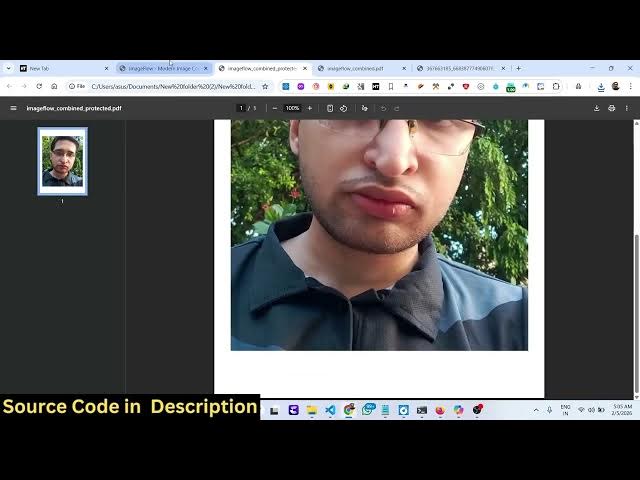
the ability it's a PDF editor. So that's
3:14
why you can select a PDF file.
3:19
As you select the PDF file, you can
3:21
actually lock the PDF file with the
3:23
password. So here you can enter the
3:25
password
3:33
and click on protect file and it will
3:35
actually now download the output PDF. So
3:38
now this file is protected by the
3:41
password here. So it's easily can be
3:44
able to perform all these features. So
3:47
you can just see you enter the password
3:49
and then the PDF file will open. So
3:52
it's a fully responsive as well because
3:55
it looks quite good on mobile devices as
3:58
well. So
4:00
this is the application. If you are
4:01
interested in purchasing it, I've given
4:04
the link in the description and you can
4:07
even resize your image into any social
4:10
media templates with a single click. So
4:13
right here you just select the image
4:15
file. So it's 100% private. It directly
4:19
runs in the browser. So there is no
4:21
serverside code is involved. It entirely
4:24
runs in the browser. So you just need
4:26
these three files. index.html script.js
4:30
style.c CSS. So I written this entirely
4:33
on the client side. So
4:36
you can just see here this is almost
4:39
1,400 lines of code here. So this is the
4:42
JavaScript code here. So we have used
4:45
quite a number of uh libraries for
4:47
building this.
4:49
This is almost I think 4,000 lines of
4:52
JavaScript code. So it's a really big
4:55
project but it's entirely built on the
5:00
uh client side. So there is no server
5:02
side code involved. So you can directly
5:04
purchase it. If you still face any
5:05
issue, I will definitely help you.
5:09
So I just shown you each feature here.
5:12
As you see here is a image converter.
5:15
You can
5:17
convert your images into PDF. Control
5:19
the quality.
5:23
You can even upscale your image as well.
5:26
Just provide the effective. So this will
5:29
upscale your image.
5:34
Then you can download this. So
5:41
So you can see that you can pick any
5:43
color as well. So,
6:06
so you can remove background detect.
6:13
It will basically give you 90%
6:15
confidence 54. It's image detection
6:18
which is going on. So
6:21
it will detect all these things here.
6:23
You see
6:45
So here you can actually extract
6:49
text from images. So by selecting an
6:52
image file.
6:59
So here you can even compare
7:03
two images. So you can
7:15
Then compare these two images using this
7:17
nice little editor that I made.
7:48
So if you're interested guys, the link
7:50
is given in the description.