Up next in 10

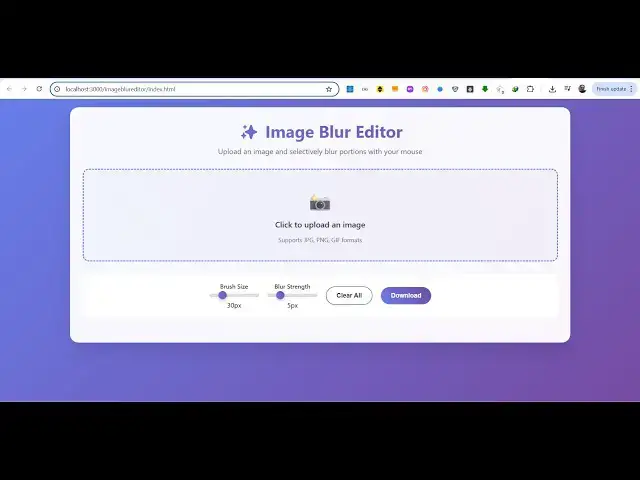
Build a Canva Image Blur Editor to Blur Images Using Magic Brush in Browser Using HTML & JavaScript
Jun 25, 2025

Buy the full source code of the application here:
https://procodestore.com/index.php/product/build-a-canva-image-blur-editor-to-blur-images-using-magic-brush-in-browser-using-html-javascript/
Official Website:
https://freemediatools.com
Show More Show Less View Video Transcript
0:02
uh hello guys uh welcome to this live
0:04
stream So in this live stream I will
0:07
show you
0:08
a new tool that I deployed on my website
0:11
freemediatools.com It's a canval like uh
0:14
image blur editor where you can actually
0:17
blur out your images directly right in
0:19
the browser itself It's a static tool
0:22
that I developed inside HTML CSS and
0:24
JavaScript So no serverside code is
0:26
involved So you can go to the website
0:30
freemediatools.com
0:31
This tool is live here So you can try
0:33
this
0:35
So it is called as canva image blur
0:38
editor tool So if you go to this the
0:40
interface looks like this You can either
0:42
you can drag and drop your images or
0:44
simply click it to choose your file
0:48
that needs to be blurred out So
0:51
once you select the file here the image
0:55
will be displayed right here with the
0:57
live preview and you get this magic
0:59
brush kind of a tool right here which I
1:03
developed here So using this magic brush
1:05
you can blur out with the sections that
1:07
you don't want So you can control the
1:09
size of this brush here and the strength
1:11
of the blur as well using these two
1:13
sliders right here So we can control the
1:16
brush size and the strength of the blur
1:18
So now the brush is becoming larger So
1:21
it's similar to Canva here So you can
1:23
blur out the background of the image if
1:25
you don't want to show it So as you can
1:28
see how easy it is to blur out the
1:31
background of the image So using this
1:33
magic brush here it's a complete editor
1:37
So in this easy way you can blur out the
1:41
background inside the image very easily
1:47
You can see
1:49
So once you're happy with the changes
1:51
that you make now you can download the
1:55
image You have the download button as
1:57
well So you can try out this tool So the
2:00
image output image looks like this So
2:02
the image background is blurred So if
2:06
you need the source code of this project
2:07
the link is given in the description You
2:09
can directly purchase it It's almost 625
2:12
lines of code So automatically you will
2:15
get the source code from Google drive
2:17
after the payment is done So you will
2:18
get this index html file and uh it's
2:22
built entirely inside HTML CSS and
2:24
JavaScript and as you can see
2:28
it runs entirely in the browser So you
2:30
can even run this locally as well So you
2:32
can see now we running it project
2:35
locally Again you repeat this process
2:37
You select the image
2:41
then you control the brush size the
2:44
strength of the blur
2:46
And now you can see how easy it is to
2:50
blur out
2:53
the background or any part that you
2:56
don't want inside the image as well
3:05
So before purchasing it you can try out
3:07
this tool It is deployed on the website
3:10
on the check out page also I've given
3:11
the demo link as well So you can try out
3:14
it's a very awesome tool similar to
3:15
Canva image blur editor using magic blur
3:18
section We actually designed this
3:20
entirely inside HTML CSS and JavaScript
3:23
You will get to know about how I
3:25
developed this once you get the source
3:26
code
3:28
So you can see this is the overall
3:30
project here
3:33
So you can selectively using your mouse
3:36
blur out specific portions that you
3:38
don't want Also you can hide faces as
3:41
well like this as well So it's very
3:44
you can do all sort of things using this
3:46
tool And then we have the download
3:49
button to download the image as well So
3:51
thank you very much for watching this
3:53
video and uh also check out my website
3:56
freemediatetools.com
3:58
uh which contains unlimited number of
4:00
tools regarding audio video and image
4:03
and I will be seeing you in the next
4:05
live stream
#Online Media
#Multimedia Software