Up next in 10

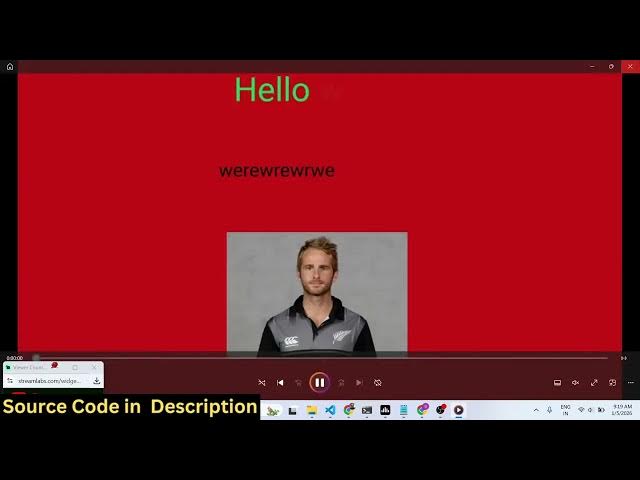
Build a Canva Clone Video Editor Using FFmpeg, Fabric.js and JavaScript in Browser Using HTML
Mar 3, 2026

Buy the full source code of application here:
https://procodestore.com/index.php/product/build-a-ffmpeg-timeline-video-editor-in-browser-using-fabric-js-gifencoder-js-in-javascript/
Show More Show Less View Video Transcript
0:00
stream. So in this live stream I will
0:01
show you I built out a Canva clone uh
0:04
video editor uh which directly runs in
0:07
the browser. Uh so I'm just showing you
0:10
the demo right here. So it's running in
0:13
the browser. It's a timeline kind of a
0:15
Canva clone video editor. It has all the
0:19
features. You have this timeline here.
0:22
So here you can add your images.
0:25
We also have the templates as well.
0:28
Readym made templates. You can use
0:31
with a single click you click this
0:33
template and the template will load and
0:36
here you can change anything edit this
0:39
template
0:41
and then you can play this play button
0:44
is there. So you will see that the
0:46
template will play similar to canva and
0:49
then you can export this.
0:52
So if you need the source code of this
0:53
I've given the link in the description.
0:55
This is actually the full directory
0:57
structure. uh you can directly purchase
0:59
this Canva loan script. After purchasing
1:02
it, you will get the source code from
1:04
Google Drive and uh it's actually as you
1:08
can see everything is customizable
1:13
and you can export this to a video file,
1:16
GIF file or image.
1:19
So you can even anim uh export to a
1:22
video file. So once you click the
1:24
download button, it will render this
1:27
So once it it will automatically
1:30
download this as a video file. You will
1:32
see that
1:34
all these things are exported. You can
1:36
even export this to a PNG image file as
1:38
well.
1:43
So everything is exported to a image
1:45
file.
1:47
So animated GIF as well. So here you can
1:50
provide the quality as well. So
1:51
everything is it directly runs in the
1:53
browser. There is no back end. It's a
1:56
front- end application
1:58
and if you want to clear everything you
2:01
can click the clear button and then this
2:04
automatically it will go away and here
2:07
you can change the background you can
2:12
resize the canvas here
2:21
like this. So here you can control the
2:23
duration here. If you want only 3 second
2:26
you can put
2:28
and then you can add a text here.
2:46
So now if you see so you can actually uh
2:50
see the lot more animations which are
2:52
there if you type right slide top slide
2:57
left. So here you can change this.
3:03
So this will
3:09
similarly we also have the support for
3:11
adding your own images as well. So you
3:13
click the upload media button. So
3:31
here you can integrate your own images
3:33
as well. Simply click a button and the
3:36
image will be added
3:39
to the canvas. So it's a timeline based
3:41
video editor
3:44
and then you can export this.
3:48
So you can either add image, text,
3:51
everything and then you can export this
3:53
to a video file. So it will render out
3:56
everything.
3:57
So it's actually built using ffmpg and
4:01
uh fabricjs which is a javascript
4:04
animation kind of a library. So if you
4:06
look at the source code, it's very easy
4:08
for you to deploy this. Everything is
4:10
customizable. We using fabric js and
4:13
also we are in the background we are
4:14
using ffmppg web assembly library.
4:18
Fabric js as you can see quite a number
4:20
of libraries that we are using. So
4:24
the shapes everything are there. The CSS
4:27
file is there. So it's customizable. You
4:30
can purchase this project. It's also
4:32
very easy for you to deploy this. The
4:34
single index html file is there
4:38
and there is no back end to it. So a
4:42
very simple project Canva clone video
4:45
editor which directly runs in the
4:47
browser
4:52
and you also have you can even uh import
4:56
your own template as well. All these
4:58
options are there. You also have the
5:01
ability to add different kinds of
5:03
shapes.
5:09
Then we also have the support for
5:11
integrating videos as well. From pixels
5:14
we have integrated that support.
5:17
Similarly from Pixabay images pixels you
5:20
can actually integrate third party
5:22
images with a single click.
5:27
So the image will be loaded here. So you
5:29
can just see and use stock images as
5:31
well.
5:38
So if you're interested by the link is
5:40
given you can directly purchase the
5:41
script
5:43
and
5:46
you can just see here these are
5:47
different emoji shapes you can add
5:55
it has you can just see here in a single
5:58
click you can add the emoji here as
6:05
So direct you can even upload your own
6:07
audio file as well. So if you have an
6:09
MP3 file you can inside the timeline
6:11
section you can upload your own audio
6:14
file as well and uh then you can even
6:19
just embed a QR code as well. So just
6:22
provide the URL of the website. So you
6:25
can just see here it's a fullyfledged
6:27
Canva clone timeline based video editor.
6:30
Uh now you can do this. You can just see
6:33
here. So it's entirely built in the
6:35
browser
6:37
and then you can export this to a video
6:39
file.
6:45
So you can just see here.
6:57
So I should you can just see here all
7:00
the shapes are there.
7:04
So it can be used to create thumbnails.
7:06
It can be used to edit your videos
7:08
directly in the browser as well. So if
7:10
you have a video file that you want to
7:12
edit, this can even handle that as well.
7:15
So go to the video section, upload
7:17
section and right here upload a video
7:19
file. So now if you have a video file
7:22
that you want to edit, you can directly
7:25
drag the video in the timeline section
7:28
and play the video here.
7:31
And then now let's suppose you want to
7:35
add a watermark. So you actually add
7:38
this watermark right here.
7:50
So now what happens you will see the
7:52
watermark will get added
7:56
and then if you export this. So now the
7:59
video will get exported the text will be
8:01
added right here. You will see if I
8:03
export that the video is successfully
8:06
edited the text automatically gets
8:10
added. You will see that. So how easy it
8:12
is to actually edit your videos directly
8:14
in the browser.
8:17
So the link is given guys. You can
8:19
directly purchase this project. It has
8:23
all the things are customizable.
8:26
It's entirely built in HTML, CSS and
8:28
JavaScript. It's a single page
8:31
application.
8:33
So all the controls are there. So you
8:35
can resize the canvas, change the
8:37
background color as well.
8:47
You can even resize it
8:55
to various screen sizes. And this is
8:57
actually the timeline section.
9:00
So if you're uploading it to Instagram
9:02
vertical video, you can with a single
9:05
click you can resize the video as well,
9:07
crop the video.
9:12
So here you can even use your mouse to
9:14
actually crop the video.
9:16
So it's you can just see here so how
9:19
easy it is.
9:22
You can even export this to a animated
9:24
file as well.
9:26
So you can directly purchase it. The
9:28
link is given in the description.