Up next in 10

Build a Canva Clone & Photoshop Image Editor & Cropper in Browser Using HTML & JavaScript
Jun 19, 2025

Buy the full source code of the application here:
https://procodestore.com/index.php/product/build-a-canva-clone-photoshop-image-editor-cropper-in-browser-using-html-javascript/
Official Website:
https://freemediatools.com
Show More Show Less View Video Transcript
0:09
uh hello guys uh welcome to this live
0:11
stream so in this live stream I will
0:13
show you a image editor that I developed
0:17
inside the browser similar to Canva or
0:20
Adobe Photoshop it provides you all the
0:22
features it entirely runs in the browser
0:25
you can see this is actually the demo
0:27
that I deployed on my website
0:29
freemediatools.com
0:31
you can check out this uh image editor
0:33
it has all the options so first of all
0:36
you will select your image file by
0:38
selecting this button of upload image
0:42
so you actually go to the folder where
0:46
your images are present so as you select
0:48
your image the image will show right
0:51
here in the live preview section and now
0:55
we have all these options adjustments
0:57
you can make such as the bright
0:59
brightness you can use the slider to
1:01
decrease the brightness or increase it
1:05
then we also have the button for
1:07
contrast
1:08
same thing you can do for contrast as
1:10
well
1:13
then we also have saturation
1:17
we also have invert you can see then we
1:20
also have the option to blur the image
1:23
using the slider you can control the
1:25
blur level
1:30
and then we also have the option to
1:33
grayscale so these are all the filters
1:35
which are available in a basic image
1:37
editor these are all available
1:40
you can see that so that save here you
1:44
can see how these are all the filters so
1:48
it is built inside HTML CSS and
1:50
JavaScript you can see this is three
1:52
files here html JavaScript and CSS this
1:56
is the overall project if you are
1:58
interested in purchasing the source code
2:00
of this project the link is given in the
2:02
description then we also have the option
2:04
for rotating the image anticlockwise or
2:08
clockwise direction rotating you can see
2:10
that then we also have the option to
2:13
flip the image horizontally or
2:16
vertically and then we can even crop the
2:18
image so as you click the crop button
2:20
you will able to crop the image using
2:22
this nice little editor
2:26
you can select whichever portion that
2:28
you want to crop and then click the
2:30
button of apply crop
2:33
so then we have the button to save the
2:36
output image after you make the
2:38
modification simply click the save image
2:40
button and then your output image will
2:42
be downloaded
2:44
so you can see that so this is a overall
2:47
static image editor something like Canva
2:49
or Photoshop the link is given in the
2:51
description guys after purchasing it you
2:54
will get the zip file which will contain
2:56
these three files HTML CSS and
2:58
JavaScript so it's very easy to run
3:02
locally simply open the HTML file and
3:04
simply open your VS code and run this
3:06
project locally so now you can see we
3:09
are running this project locally here
3:11
again you repeat the process you simply
3:13
select your image file and then you can
3:15
again adjust the all these parameters
3:19
flip the image rotate the image
3:25
you can crop the image so for building
3:28
this application we have used all
3:30
open-source libraries once you get the
3:31
source code you will get to know that
3:33
how I developed this and you can also
3:35
modify the application as well and uh
3:38
you can add additional functionalities
3:40
as well so the link is given in the
3:41
description you can definitely purchase
3:44
the source code of this project from my
3:47
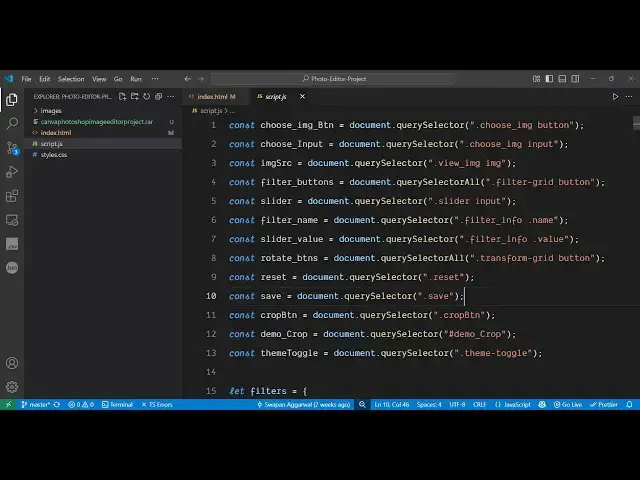
website procordstore.com so this is your
3:50
HTML file here you can see this will be
3:52
the JavaScript file you will see and
3:56
this is your CSS file so it's a single
4:00
static website you may say image editor
4:04
and it looks something like this it also
4:06
looks good on mobile devices as well so
4:08
it's completely responsive so it also
4:11
have various themes here this is the
4:13
dark theme and the light theme so
4:18
if you want to reset everything there is
4:20
a button for resetting everything so
4:22
there is this button reset all
4:31
so this is actually the application so
4:33
if you interested the link is given in
4:36
the description you can definitely
4:37
purchase the full source code of this
4:39
project and thank you very much for
4:42
watching this video and I will be seeing
4:45
you in the next video
#Online Media
#Software
#Multimedia Software