0:00
uh hello guys welcome to this video so
0:02
in this video I'll show you how I build
0:05
this static tool which allows you to
0:08
convert a bunch of images to PDF uh it's
0:11
a canva clone kind of an editor it runs
0:13
entirely in the browser it doesn't
0:15
require any server and you can see the
0:19
interface whenever you load this I'm
0:21
running it locally right
0:23
here and uh you can see we have a drag
0:27
and drop interface where you can
0:29
actually pick any PNG or JPG files
0:33
so let's suppose I you can select here
0:38
images so you can see you have selected
0:41
four images and then you can even
0:43
control the margin as well so we from
0:45
this drop down you can select small
0:47
margin medium margin large margin so
0:50
let's suppose I want small margin and
0:53
then we have a simple button which lets
0:55
you say convert to PDF so now what this
0:59
application will do as I click the
1:01
button you just need to give it a file
1:03
name now your output PDF file will get
1:06
downloaded automatically as soon as you
1:08
click the button and you will see the
1:10
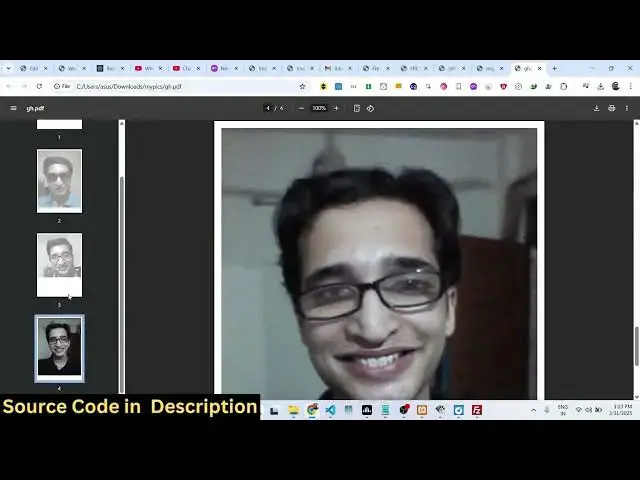
PDF file will contain four pages as you
1:13
selected four Images each image is
1:15
taking the full page width and
1:18
height so it's a very good application
1:21
many of times you need to convert your
1:23
images to PDF documents so in that
1:26
situation this tool will very comes in
1:29
very handy and it's built using entirely
1:33
JavaScript and uh if you need the full
1:36
source code of this project I have given
1:38
the link in the description you can go
1:40
to my website trod store.com and once
1:43
you purchase it you will actually get
1:45
the zip file uh from Google Drive
1:48
automatically and this is actually HTML
1:51
code here if you see we have this
1:55
JavaScript code and the CSS code and for
1:58
building this application we have used a
2:01
on open source package which is
2:05
jspdf which is on client Side open
2:08
source JavaScript PDF generation
2:10
Library so this is actually the open
2:13
source library that we have used you can
2:16
even check this tool on my website I
2:20
tool so if you need to check this you
2:22
can go to my website free mediat
2:24
tools.com before purchasing it you can
2:26
actually try out the live demo just go
2:30
tool I have just given the demo Link at
2:34
the checkout page so you can check out
2:36
this app before purchasing it just
2:38
select a bunch of images you can control
2:42
the margin here let's suppose I select
2:48
medium and now you can see it will give
2:51
a margin of medium margin from every
2:55
side so this is first 2 third fourth so
2:59
this this will save you a lot of time
3:01
and once you purchase it you will
3:02
actually get the full source code you
3:04
will able to modify the source code and
3:06
or add additional capabilities to this
3:08
app as well so the link is given in the
3:11
description uh you will get this full
3:14
directory structure this after
3:16
extracting it from this ZIP file you can
3:19
easily run this inside your vs code
3:22
using a simple extension locally it's
3:25
very easy to deploy this as well you can
3:28
simply upload all these files to your
3:31
hosting and it's a single page
3:34
application which runs entirely in the
3:36
browser the user will pick their images
3:39
select the margin and then as soon as
3:42
they click the button you will see the
3:44
images will be converted to
3:46
PDF so this is a application guys if you
3:50
are interested in this uh the link is
3:52
given in the description and thank you
3:54
very much for watching this video and
3:56
also check out my website free mediat
4:00
which contains thousands of tools