Up next in 10

Build a Canva Clone FFMPEG GIF Animated Video & Image Editor in Browser Using gifsicle in JS
Mar 12, 2026

Buy the full source code of application here:
https://procodestore.com/index.php/product/build-a-canva-clone-ffmpeg-gif-animated-video-image-editor-in-browser-using-gifsicle-in-js/
Show More Show Less View Video Transcript
0:00
Uh hello guys, welcome to this video. So
0:03
in this video I'll show you I built out
0:05
a Canva clone GIF editor directly in
0:08
browser with the help of which you will
0:10
be able to edit your GIF files directly
0:13
in browser. So it's a single page
0:15
application. There is no backend to it.
0:17
This is the full directory structure of
0:19
this if you are interested in purchasing
0:22
it. So it's actually built in HTML, CSS
0:26
and JavaScript. So this is a full
0:28
directory structure as you can just see
0:30
here we have this index html file the
0:33
link is given you can directly purchase
0:35
it. So after you open it in VS code the
0:39
application user interface something
0:40
looks like this. You actually upload
0:43
select your GIF file whatever GIF file
0:45
you are working and after that the GIF
0:48
file will render out. You can see the
0:50
live preview and then we have quite a
0:53
number of options to actually resize
0:56
crop compress export frames histogram
1:00
info rotate change speed and flip. So
1:05
let's suppose if I want to crop the GIF,
1:09
I can actually crop it using these
1:12
controls using the mouse. So I just want
1:15
to crop this portion. I will simply say
1:18
crop
1:19
and it's it's actually using FMPG
1:23
directly in browser to actually do the
1:26
processing for us.
1:37
So first of all you select the GIF file
1:47
and you can see automatically the GIF
1:50
will be cropped. So you just need to
1:52
wait for some time for the ffmpg to load
1:55
successfully because it's using ffmpg.
1:58
If I show you, it's using fmfmppg and
2:01
gifle. These are the two libraries that
2:03
it is using and inside the javascript as
2:06
well. So each file is customizable
2:09
for compressing. You will see that. So
2:12
once you get the source code, you'll be
2:14
able to modify the application very
2:16
easily. You can crop any sort of portion
2:19
of the GIF.
2:22
Just select the portion and click crop.
2:25
And instantly it will be you also have
2:27
option to compress the GIF. This is the
2:30
second option. And here you can provide
2:32
the compress level.
2:35
Just compress. So now the size will be
2:37
reduced.
2:39
So you just need to provide the correct
2:42
compression level.
2:45
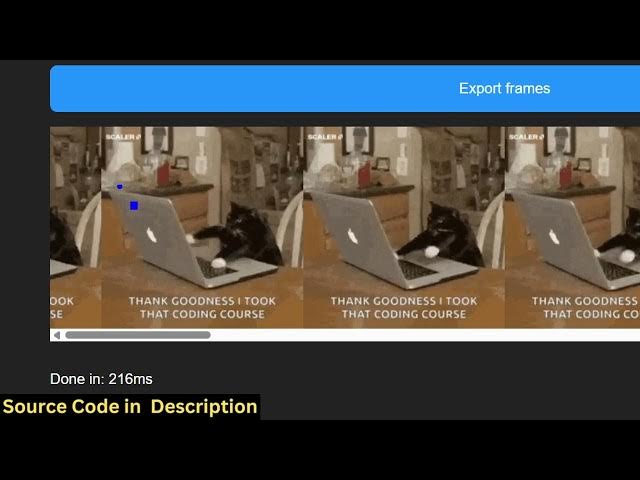
And now if you want to export the
2:47
frames, so the GIF will be exported to
2:50
each frame. the image file as you can
2:52
just see
2:54
then we also have the histogram as well
2:57
for this.
3:02
So this all processing is directly
3:04
happening it in the browser. So info you
3:08
can simply set the information about the
3:10
GIF file it will show you. Then you also
3:14
can rotate the GIF file by just
3:16
providing an angle 180° 90°
3:23
and then you can click the download
3:25
result button to actually download the
3:27
output GIF file.
3:32
So this is the full Canva clone GIF
3:35
editor guys. If you want to change the
3:37
speed,
3:38
you can just see here it has increased
3:40
the speed of the GIF animation.
3:43
can provide any value here.
3:46
You can decrease it, increase it
3:49
accordingly. So it's in full. You can
3:52
even flip it as well. Horizontal flip,
3:55
vertical flip. So you can resize it as
3:59
well. So
4:01
just provide the dimensions, the width
4:04
and the height.
4:10
So if you're interested guys, the link
4:12
is given in the description. You can
4:14
directly purchase it. You can change it
4:17
to black and white.
4:23
So this is a full directory structure
4:25
you will get for each file is
4:27
customizable. So it's built entirely as
4:30
a single page application in HTML, CSS
4:33
and JavaScript. So if you're interested
4:35
in this definitely purchase it and if
4:38
you still face any problem I will
4:40
definitely help you.