Up next in 10

Angular 13 JSZip Example to Download & Compress Multiple Files into a ZIP File in TypeScript
Dec 22, 2025

Buy the full source code of application here:
https://buy.stripe.com/aEUcQ60gN54A9nG1zw
Show More Show Less View Video Transcript
0:06
Uh hello friends, today in this tutorial
0:08
I will be showing you that how to
0:10
download multiple files from URL and we
0:13
will be compressing those files and
0:16
trying to download them as the
0:18
attachment inside angular application.
0:21
So basically this will be a zip file and
0:24
we will be using this library which is
0:26
JS zip. So it's a JavaScript library
0:29
which allows you to download zip files
0:32
inside your machine inside the browser.
0:34
It is available also inside Angular. We
0:37
will be using it inside our Angular
0:39
application. So basically it's a
0:41
open-source JavaScript library for
0:43
creating, reading and editing the zip
0:47
files that you see with a lovely and
0:49
simple API. So basically whenever you
0:51
want to compress any sort of large file
0:53
into a smaller size file you make zip
0:56
files inside your PC also. So we will be
1:00
trying to make those files inside
1:02
angular application. Let me show you a
1:04
very short little demo here. So let me
1:07
start this application which is ngserve.
1:10
So basically this will start this
1:12
application on localhost 4200.
1:15
So let me just uh it is just compiling
1:19
it. So just wait after it completes.
1:23
So now basically you will see that now
1:26
it has successfully deployed this
1:28
application on localhost 4200. So now
1:32
basically we can
1:35
open this application at this port
1:38
number. So if I open this
1:45
so local host 4200
1:49
sorry I have named it wrong. Local host
1:52
4200. So now basically you will see that
1:55
guys these these three files are there.
1:58
Uh and there is a option to download a
2:01
zip file here. So if I click this button
2:04
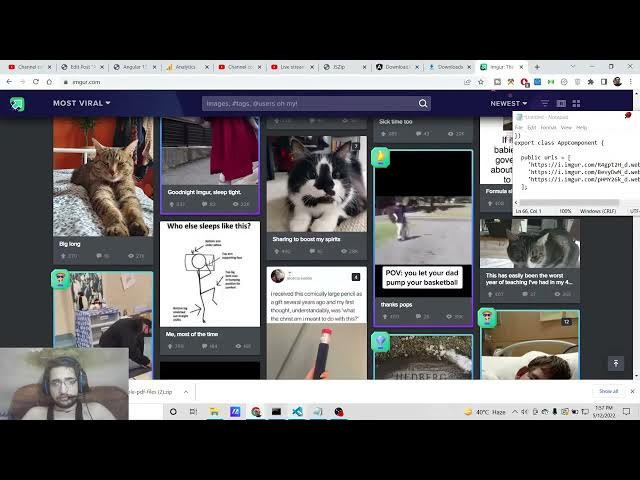
you will see that a download zip file
2:07
will be created here. you will see that
2:08
it is downloaded. So when I open this
2:11
zip file.
2:14
So if I show this folder. So if I open
2:18
this try to open this with zip vinzip or
2:20
any sort of software that you have
2:22
installed on your machine. So simply you
2:25
need to 15 KB is the size three files
2:29
are present inside this. So basically I
2:32
just want to see the contents. So you
2:34
can see this is the first image. This is
2:36
the second image. This is the third
2:37
image. So in this way guys, you can
2:39
download any amount of files and try to
2:43
open it inside a zip file with this.
2:46
It's JS zip library. You can then open
2:50
with this software vinszip or winner any
2:53
sort of free software. So we will try to
2:56
download this zip file multiple files
2:58
inside our angular application with the
3:00
help of this library. So all the source
3:03
code I have given inside video
3:05
description. This is the blog post I
3:07
have written. Step-by-step instruction I
3:09
have given inside this blog post. So if
3:12
you want to download all the source
3:14
code, you can download all the source
3:17
code here.
3:19
So you can just see here this is the
3:21
full source code I have given. So let's
3:23
start building this application from
3:25
scratch guys. So so the very first thing
3:28
I will stop the angular application here
3:31
which is running on localhost 4200.
3:34
I will move on outside of this make a
3:37
new directory which is zip file cd into
3:41
zip file and I will initialize a new
3:44
project zip file. So this will create
3:46
this project. So now this will ask some
3:49
questions such as would you like to use
3:51
routing. I will say no. So we will use
3:54
CSS. So this will just be installing all
3:57
the packages. So just wait until it
4:00
install all these packages. So basically
4:04
this is the library guys two people have
4:06
joined in. So we have using this JS zip
4:09
library to create zip files
4:14
to compress multiple files and download
4:16
them as a zip file inside our angular
4:18
application. So JS zip is a great
4:21
solution for this. So it's open-source
4:24
JavaScript library. This is the
4:26
documentation. You can read more about
4:28
it. So various examples are also given
4:31
here. If you run this zip file will be
4:33
created instantly. You will see that
4:35
example.zip.
4:37
So various examples are there.
4:40
So this is a JavaScript library which
4:43
allows you to download zip files.
4:46
[snorts]
4:47
So exactly we are using this library at
4:50
the angular site.
4:52
So it is just
4:55
installing these packages. So once it is
4:57
installed we can start uh make this
5:01
application.
5:05
So
5:08
now you can just see it is installing
5:10
the packages.
5:17
So now this is successfully installed
5:19
guys. Now we can go to the
5:22
directory which is the project directory
5:24
and open this inside visual studio code
5:26
text editor. So basically now this is a
5:29
brand new angular project guys. Nothing
5:31
is present here. So now the very first
5:34
thing you need to do you need to install
5:35
this library which is jszip.
5:38
So just simply install this library. So
5:42
it will install this inside your
5:43
project.
5:45
That's it. After that you just need to
5:47
open app folder app.component.ts.
5:52
So right here you need to include this
5:54
library at the very top. So two lines
5:56
are required. So import
5:59
star as uh js zip.
6:04
So you need to import this from jszip.
6:09
And the second statement import all as
6:12
uh JSZIP
6:17
utils
6:19
from and this is present inside the
6:22
assets folder
6:25
and scripts.
6:39
And in this we have uh JSZIP
6:44
utils dot JS.
6:52
So basically it can't find it. So
6:56
basically in this folder you will see
6:58
that uh we are imported this.
7:02
So
7:04
here we just need to create a folder
7:06
here inside our uh assets.
7:09
So inside script section we need to
7:12
create this file which is this file. So
7:15
you need to copy paste all this code. I
7:17
can also update my blog post. So you
7:20
need to simply create this file right
7:23
here inside this directory which is
7:25
jszip
7:27
utils.js.
7:30
Simply paste this code
7:32
and uh right here we can import this
7:35
file.
8:01
or we can create a assets folder here.
8:08
So assets folder already exist here. You
8:10
will see that. Now inside this we need
8:12
to create script folder and inside this
8:16
we need to create a file which is called
8:19
as jszip
8:22
utils dot js. So paste this code
8:27
delete this file from here.
8:31
So now basically we can include this
8:35
simply
8:38
inside assets we have script and inside
8:41
script we have got uh jszip
9:02
So [snorts] you can see that in the
9:04
previous project also.
9:07
So just need you need to install like
9:09
this inside our assets folder.
9:14
So now we can delete all this code and
9:16
start from scratch. So after you import
9:21
this library at the very top, you need
9:23
to write something here which is very
9:25
simple.
9:28
So basically you need to create a URLs
9:32
array. [snorts]
9:33
Inside this you will provide the files
9:35
which you want to download. So this can
9:37
be files from internet the files that
9:40
you own. So you can go to this website
9:45
they provide free images which you can
9:48
download. So simply you can copy the
9:51
image address
9:56
and paste the address in single quotes.
10:06
So put a comma for the second file. So
10:09
this you can repeat the process. Pick
10:11
any image that you want to download.
10:25
Paste it.
10:31
So this can be any file. It is not
10:33
restricted to images. This can be PDF
10:35
file, video file as well. So just you
10:38
need to provide the URLs. After
10:40
providing the URLs, we will just update
10:43
a simple
10:46
we will have a simple button here which
10:48
will simply say that uh download the zip
10:51
files inside our directory.
10:56
So [snorts] we will have a simple button
10:59
download zip file.
11:02
So we will attach a on click.
11:06
So when we click this button we will
11:08
execute this function which is download
11:10
zip. So now we need to write this
11:12
function which is download zip. So
11:15
inside this function it will do the same
11:19
thing
11:21
download zip.
11:23
So basically it's a void function
11:26
and uh the thing it will do it will
11:29
download the all the content in a zip
11:31
file. So we will make track of the files
11:34
which are there. So count is zero. Then
11:37
we will initialize the new instance of
11:40
JS zip like this.
11:44
So then we will look this URLs for each
11:48
URL.
11:51
For each loop we will use for each file
11:54
what we will do.
11:56
So this URLs you need to declare at the
11:59
very you will see we are using this
12:01
array here. So in this array we are
12:03
using the for each loop. For each URL we
12:07
are downloading it. We are inserting it
12:10
to zip file. And the thing what we can
12:14
do we can first of all extract the file
12:16
name using url.slip split
12:21
like this. And then URL do.plit method
12:24
we can again use.
12:30
And here we can again provide slash then
12:33
we can get the length and subtract it by
12:37
one. So this will get the file name for
12:40
us which is the file name of the actual
12:44
file with the extension.
12:49
So after that guys what we need to do is
12:51
that we need to use the jszip utils
12:55
library and inside this there is a
12:57
method which is get binary content.
13:03
So here [snorts] we can pass the URL and
13:05
this takes the callback function which
13:07
is error and data.
13:18
So basically here we will check if any
13:20
sort of error is there. We can throw
13:22
this error like this.
13:25
If no error is present then we can
13:27
download the zip file zip dot file. We
13:30
can provide the file name pass the data
13:33
and the binary will be equal to true.
13:38
That's it. So this will download as the
13:41
attachment. And also we need to increase
13:44
the value of count because we are
13:46
tracking how many files are there.
13:51
So after this guys what we need to do is
13:53
that we need to check for the count
13:55
value. If count is equal to triple equal
13:58
to this dot urls.length.
14:02
If all the URLs are covered in that case
14:05
we will download the zip file generate
14:08
async. So here we will pass the type
14:11
parameter to blob.
14:14
So this will be downloading as a blob
14:16
file. So this returns a promise. So we
14:18
can handle this using dot then. So
14:21
inside this content
14:24
we can download the file as a
14:27
attachment. So here we can declare
14:30
object URL. This will be of type string.
14:34
So here we can use URL dot create object
14:37
URL.
14:39
So
14:41
we can pass the content which is there.
14:45
So then in order to download it as a
14:47
attachment we can basically create a
14:50
dynamic link.
14:52
So
14:54
this will be of type any. And here we
14:57
can create a simple anchor element by
15:00
using document.createelement.
15:03
And uh then we can provide the file
15:06
name. You can provide file name anything
15:08
link.d download. So this I can have
15:12
sample output.zip.
15:15
So link.hf
15:16
we can manipulate this property
15:18
initialize it to object URL. And lastly
15:22
we can automatically click on it to
15:24
download it. That's all that you need to
15:26
write inside this file guys. So the
15:28
project is complete. So now basically if
15:31
I
15:34
want to run this application.
15:37
So if I
15:40
open this project,
15:46
if I say ngsurf, if I try to run this
15:48
application, angular application.
15:51
So
15:54
just wait. It is just uh compiling the
15:57
project. So once it is completed it will
16:00
run this project at localhost 4200.
16:04
So now this is completed.
16:08
So basically you will see localhost
16:10
4200.
16:12
So there will be a download zip file
16:14
button. If I click this button a zip
16:18
file will be downloaded. Let me just
16:21
uh move my face so that you can see.
16:25
Click this button. So now basically you
16:28
can see that guys this file is
16:29
downloaded if I click this button. So
16:32
now basically if I look inside what is
16:35
containing inside this if I want to
16:37
extract it. So you will see that
16:43
there are two files available to us
16:47
which we have inserted two unique files.
16:51
This is all the image files. If I want
16:53
to
16:56
see it, open it. So like this you will
17:00
see that.
17:02
So this can be either PDF file, video
17:04
file, any file that you want to insert
17:06
inside the zip file and download it as a
17:09
attachment. So this is very much useful
17:12
library guys. If you want to compress
17:14
large file and compress it to a short
17:17
file using JSZIP, you can use this
17:20
project. So I have given all the source
17:23
code in the video description and I will
17:26
be seeing you in the next video.