live_tv
Livestream Starting Soon
00
Hours
:
00
Minutes
:
00
Seconds
Up next in 10


Project management Accounting -6
Show More Show Less View Video Transcript
0:04
foreign
0:27
welcome back again to the project management accounting Basics and today we are going to discover
0:35
discuss about uh timesheet submission now how timesheets users will submit in
0:42
d365 what is the process and the various configurations relating to the timesheet
0:49
that we are going to discuss so what is timesheet why timesheet required
0:56
timesheet means uh recording the labor hours meaning uh
1:05
see whoever working for any immense any company they they need to book their
1:12
timing for building right so it may be depends on fixed price fixed price
1:18
project or time and material project but for example uh company
1:25
working on the project for uh for Company B Company B and a agreed
1:33
for a fixed price uh contract that means uh they they be not bother about the
1:42
employees how many uh Finance Consultants or technical concerned are
1:48
involved in their project because it is a fixed price billing uh so what is the
1:54
price they already discussed each other and uh the same price uh their uh a
2:01
company building to the B company and B company is paying to the company uh
2:07
maybe some uh some other companies are there maybe they will go with uh
2:13
how much time they spend uh at that time whatever the hovers they uh
2:20
invested for that particular project they will claim uh from the customer the
2:26
customer in the since B company from the B company they will uh uh the a company
2:32
will Bill to the B company so that uh B
2:37
company will pay to the hours work invested by the a company labels
2:45
okay that is the overall concept of timesheet and
2:50
coming to timesheet a process in the d365 first of all create timesheet I it
2:59
may be creation of timesheets it will be from new timesheet or we can extract
3:05
from the timesheets previous timesheets favorites those things we can do manual
3:12
are timesheet from the copy from the previous timesheet or from the favorites
3:18
we can take the lines lines of the timesheet and later once the creation of
3:25
timesheets then they will submit to the workflow
3:32
workflow is approved it may be Auto post uh it may be Auto post like uh they if
3:40
what is the design behind the workflow if it is auto post it will uh post
3:47
automatically otherwise uh it will be manual posting then once the posting is
3:53
completed it will create the uh journals it will create the project
4:00
labor journals whatever the project they submitted for a time in that uh
4:07
particular project a user can see the posted transactions for that uh employee
4:15
or labor okay these are the major things normally for timesheet things what are the
4:22
prerequisites means workflow is required for this timesheet and
4:29
timesheet period course uh what is the period like from Monday to uh
4:35
Monday to Sunday or Saturday to uh Sunday it depends on their requirement
4:43
uh what is the time sheet period course and
4:48
it requires employee setup without employee how they will book it right so
4:53
employee setup required because so normally it will be like this uh few
5:01
uh companies they will follow the workday
5:07
for uh they will maintain the work day uh
5:13
employees uh related information in the work day uh whatever the employees uh
5:21
whenever the new employee or old employee is terminated they will update
5:27
the details in the workday by the headshot team then same thing will come to the 365 it may be integration or it
5:35
may be through manual upload or something else uh once
5:40
data comes to the 365
5:46
worker worker record and user account uh will create uh once the worker worker
5:53
record is created once the worker record is created so that worker record can
6:00
um that worker record can create a worksheet in d365 so that that's that
6:08
means uh employee setup required in the employee setup timesheet period course need to be done and user relation user
6:15
relation in the sense uh user account in the system administration we have users
6:22
right user account and work worker relation supposed to be
6:27
there that I'll show you anyway but I'm uh just explaining the what are the
6:33
requirements needed for the timesheet there are a few timesheet parameters as
6:39
well in the project management parameters what required what not required what is the maximum hours
6:45
booking those type of fields available in the parameters level those we are
6:51
going to discuss and and posted timesheet from
6:59
approval and in this one approval timesheets it won't create anything once
7:06
the timesheet is posted it will create the labels and then we'll discuss
7:12
timesheet policy min max calendar audit Trail and absence reporting in this
7:19
session uh let's go and create the timesheet first for for example to
7:27
create the timesheet before going to timesheet creation I'll
7:33
show the user relationship how um how it will be assigned for example
7:42
system administration users in the user form we have all the users who are who
7:51
will access or who will access d365 if the user account is enabled they can
7:58
access the d365 these are the users we have currently in
8:04
oh sorry currently in d365 for example uh
8:12
here a liquor April we have a mail IDs here and uh the
8:20
a user account is enabled and we they can log into d365 when their account is
8:27
enabled status if it is disabled it will throw an error saying that you are not
8:33
authorized to log into the d365 application so
8:39
so here I am what I am trying to explain is that how user account is assigned to
8:46
the work uh what how relation will develop here from this screen so here you can see the
8:54
maintain versions in the maintained version see here this is the uh never
9:01
that means this employee not terminated still is in employment uh user ID is
9:09
this one person ID is this one I'll show you one more uh thing before yeah so person name is
9:18
there right let's take person name
9:26
and go to Human Resources where the employee
9:33
records will be available I'll go to the workers
9:52
I'll filter with the name
10:16
okay see this is the worker record and if you want to check the employment
10:24
history employment of this worker you can go to a worker Tab and click on
10:30
employment history you can see which legal entity this employee uh is working
10:39
currently employment is in usmf previously you see it is glsa and let me
10:48
drag it oh he is working in both the legal entities uh glsa as well as usmf
10:55
maybe I can create a in USM as well employment I'm starting
11:03
with January 1st
11:10
to never so his employment started in USSA as well
11:16
so now currently three Employments are there for this work okay
11:24
this is uh so let me uh show you how to
11:29
map this delete this one I'm just deleting and I'll do
11:36
again add back the same record anyway so
11:42
if I remove this see person go on here person relation gone
11:50
maintain versions grayed out if you want to build up the relation you need to map
11:56
the person here
12:04
filter with the person select and select and save it then you
12:11
can see the maintained versions enable status then you can click on and you can
12:17
check the uh relation
12:25
and one more thing uh
12:31
for any project how project and resource how it will be related how system will
12:39
recognize this person is working to this particular project
12:45
that I'll show you somewhere we need to set up right this
12:53
employee is working to this project so if you go to Resource list
13:10
okay
13:17
today few points I noted down
13:22
to explain it's okay here
13:28
you can see here there are many uh uh
13:33
employees let me go with this person
13:43
oh filter not working
13:50
let me
14:07
I'll go with this here liquor what is our name
14:15
I'll go with this filter where is that name begins with
14:23
Alika
14:34
it's not showing
14:47
hmm
15:18
okay
15:25
why it is not showing
15:41
okay uh how resource will be uh uh mapped to the project means for example
15:49
this uh iron first one only will take it
15:54
out uh and this is resource ID name sales price
16:01
of this cost price of this resource worker type calendar period uh
16:08
period types this I'll explain a bit later a period type now how we'll assign
16:15
the project as in projects we have here these are the projects assigned to this
16:21
particular uh particular
16:26
uh resource sorry
16:33
and I am trying to
16:39
add these projects as well which we created
16:45
okay I added and it's coming here as well so for Aaron corn
16:53
we have added few projects so now it is linked together
17:00
linked to each other resource and the project and later on I'll show that
17:09
how resource can be assigned here maybe I'll go to feature module
17:20
workers
17:25
um from here iron corn from here
17:34
projects you can check the his employment as well
17:40
I think it is in USA only previously that uh
17:46
Alika employment I just added right in ussi maybe that's not refreshed actually
17:54
this iron cone is belongs to a ussi only
17:59
so let's go with this here you have assign projects again from here we have
18:07
added there right automatically it will be vice versa uh
18:13
and if you add from the resource list of the project management it will appear in
18:18
the human resource uh and from the resource point you are adding uh
18:25
projects also fine it will pick okay let's go with uh know
18:34
period codes let me go to
18:49
so here employment details you can see and
19:00
here we create status [Music]
19:07
you you'll have the periods of this particular employee so it is like this a
19:14
one six two one until four and current uh data is there current dates
19:21
uh it is still 2018.
19:28
19 20.
19:37
so till 21 we have update worker periods
19:48
foreign
20:12
[Music]
20:22
period interval does not exist and the period table
20:50
so 12 1 12 it is there
21:00
maybe calendar also not there I think
21:28
so normally if you want to update uh latest periods this is what I need to do
21:37
for updating the periods so if
21:44
so period interval does not exist in the period table so
21:50
period interval is not there in the period table let me finish the
22:20
before that
22:27
working times you can see here calendar what are the working times and see here
22:34
you have open and close Uh current 8 AM to 12 p.m then this is 100 divisions you
22:45
see uh water open periods and closed
22:50
periods actually so here you can see working times
22:56
Saturday Sunday it's a closed period so there no need to submit the time compose
23:03
working times if you want to compose it this is the way to compose the uh
23:08
periods so you you can use from the template or you can
23:15
use manually by clicking ok
23:35
okay you understood right I'll go and create the timesheet now uh how to
23:41
create the timesheet from the project management accounting
23:47
our time and attendance also we have I'll go with project and management
23:53
accounting and
24:00
timesheet we have all timesheets my timesheets if you are submitting for viewers and you can go to the my uh my
24:08
time sheets and here all the timesheets available for the all employees and for
24:14
example take new timesheet periods in company ussi has
24:23
not been created for the Julia this person
24:30
so
24:36
so these are the basic errors when we create the timesheet we'll we'll
24:42
get it um let me go to
24:50
workers
24:58
I'm not sure whether employment is there for uh Julia for
25:05
ussi because I am currently logged in with this account so that's why
25:10
uh
25:18
USSA never employment is there
25:24
so let me go to here
25:30
period codes
26:03
Superior interval is not there this one uh let me check what is this error um
26:12
I'm not sure maybe Ledger calendar is the problem I think
26:35
so for this legal entity this is the physical calendar uh
26:41
uh let's see how many years it's created we have 2023 22 also we have I am let's
26:52
check this error message why it is causing
27:00
it maybe
27:06
let me check there so timesheet
27:33
hmm
27:41
so actually timesheet periods are not created over this one before this
27:50
we need to solve one more error that we are getting in the
27:57
resource form that not sure let's try
28:07
um human resource worker
28:29
and uh project
28:40
foreign
28:46
so here we can see one more thing like period code is uh this one and day week
28:55
starts on Monday update timesheet periods here and
29:02
I need from here to 24.
29:10
31
29:16
so timesheet periods created show timesheet periods if you want to
29:22
see this new H2O list
29:27
so timesheet periods it is not coming uh
29:34
generate periods
29:41
update
29:47
length of the period thank you
29:56
specific start date of the period and day week starts Monday
30:18
so both the timesheet periods as well as uh occur periods I am updating
30:43
let's take a bit time
30:50
so in now let's check the timesheet periods
30:55
and latest to oldest it is still 22 we got
31:04
still we need to create so we are in uh
31:09
2023 I'll give
31:20
you 100
31:27
.
31:37
normally they can use we can use this update timesheet periods as well as
31:43
update worker periods instead of generate if it is uh
31:49
like if timesheet periods are completed so we created for 2023 2023 is over to
31:59
for 2024 again we need to create it right so for that we can come here and
32:05
update a timesheet periods for the employees
32:28
oh
32:33
okay uh show timesheet periods
32:39
the newest oldest it is still 24 we created
32:45
a given 100 periods so I didn't calculated probably uh till so you can
32:52
create from here as well once the older periods are completed for the
32:58
timesheet periods worker periods also you can create from here okay and we have generate period and
33:05
generate periods maybe you can use for both and periods we created now
33:13
let's go back this is the period code and
33:18
uh resource scheduling calendar is this is the one they are following uh enable
33:25
project validation category validation we have here if you want to do that you
33:31
can do it and request start and stop time use efficient labor rate Max uh our
33:39
calendar if you want to put Max hover calendar you can assign here as well so
33:46
let's uh I'll there are many uh
33:52
things we can explain in this particular form but I'll stop here maybe in future
33:59
if I start with human resources maybe I'll explain those things so let's
34:05
cancel it create new timesheet see now we got the
34:11
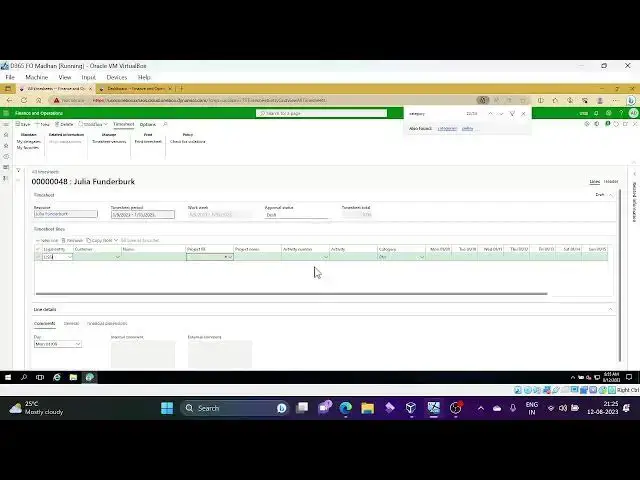
timesheet period so if you if you want to book for
34:16
January month uh first so it's
34:22
January January month start so I given Monday date I think
34:28
so Monday start period right so Monday too it's uh eighth means 8th January
34:36
means Monday to Sunday so it is like that we defined like that
34:43
if you want to create from favorites you can do this one or click ok
34:56
so once you click OK this is the resource ID this is the Julia is the
35:03
person who is creating this time sheet this is timesheet period and worker
35:08
period currently it is in draft status and total timesheet submitted this is
35:15
the one so add the line here which legal entity you are trying to
35:22
submit ussi otherwise if you have any uh inter company inter company timesheets
35:28
you can select that particular legal entity So currently I'm using ussi and
35:34
project ID we need to select which project you are clocking the time
35:40
uh I'll go with our project
35:46
basic timesheet Pro time and material project okay
35:53
uh default category it came as this one maybe I'll use eight hours
35:59
once save it
36:13
you have external internal comments as well here you can update the comments
36:18
whatever the whatever you did in for this particular time we have that option as well
36:27
and we have Financial Dimensions if you uh to update the financial dimensions
36:32
for the lime level you can update it
36:42
say once it is saved total time she and time is timesheet total is eight hours
36:49
and we have General tab here sales tax group and item Sales Tax Group
36:56
assignment and financial Dimensions to assign the financial Dimensions here we
37:01
have Financial dimensions and
37:10
so from here you can submit the timesheet uh we have copy functionality
37:17
here timesheet copy from timesheet means if you want to copy from the previous time
37:24
sheets you can see you can select that particular time sheet which was
37:29
previously submitted uh for example I'll submit this to workflow maybe I'll show
37:38
you in the other timesheet creation how that copy functionality work so now we
37:45
submit a timesheet for January 1st to January 2nd to January okay
37:57
foreign so once it is submitted I'll show this
38:03
copy functionality
38:09
and the favorites functionality
38:14
foreign
38:31
you can update comments as well here if you want please approve my timesheet or
38:37
something like that once it is submitted and I'll do one
38:46
more thing before this timesheet
38:54
so I'll use this as a favorite as well favorites save as favorites
39:02
okay ah now I am trying to create the timesheet
39:09
for the second week of the January so I'll use January month only and here
39:16
till 8 we have Monday is the start date and click ok
39:22
so once this is done we have copy functionality you can copy from the timesheet previous timesheet date is
39:31
selected from Julia resource if you want to select you can select it so once you
39:37
click OK whatever previously you applied which project you selected what is the
39:43
category everything will come from that particular previous timesheet which you
39:48
already submitted you have copy from my Favorites we have you can copy from the
39:56
favorites as well it it will get created the line and we have my delegates here
40:05
so you can create the delegates if you are in options who supposed to create uh
40:14
your timesheet so admin is the person uh need to create my so for example uh this
40:23
one person going for annual vacation or some leave during that period who will
40:32
submit your timesheet that delegated name you are providing here
40:40
so till what date uh delegate is supposed to be there start date and end
40:46
date you can map so that that person can submit timesheet on behalf of you
40:57
okay so let's go to go back check I will
41:03
check the workflow it is in review status maybe I'm not
41:10
sure but how the workflow is designed whether it is auto approval or uh
41:17
is there any setup behind that that will check it out
41:22
in the workflow history how it is designed
41:43
so still absence reporting we need to
41:48
discuss today okay
42:05
okay
42:29
still pinning status
42:38
I think workflow bad jobs are running yesterday we checked up in the previous
42:43
class we checked we will wait for one more minute
42:52
to process the workflow
42:59
let me check again bad jobs foreign
43:22
related bad jobs
43:30
so it's executing only
43:37
yeah it's a
43:57
so Auto completion condition is there okay
44:02
okay oh wait for one more minute
44:18
mm-hmm
44:31
okay completion completed done
44:43
Let me refresh
44:51
it's approved status now
44:56
[Music] it is approved
45:04
post selected once it is posted
45:12
it will create the label have a lever hover Journal
45:18
and the project management accounting for that particular project
45:28
as I told you for our Journal it will be like a project cost will be debited and
45:36
payroll all creation will be credited so that will be the entry it depends on the project group setup as
45:44
well
45:50
meanwhile I'll go to that project to show the our Journal
45:59
posted transaction
46:05
cannot create a transition deadlock where one or more users say 17
46:12
is
46:21
okay anyway it's posted uh uh which project we posted I think basic
46:36
basic basic time and material project which we created
46:41
in the previous sessions that is the project we created we posted the entry
46:48
this is the one main step
46:54
poster transactions
47:05
[Music]
47:28
okay so today
47:42
of which date we posted January month right so here start date
47:48
is
47:55
see first one first line chargeable
48:01
View video watcher
48:19
once the tree is done as I told you see their project cost debited and payroll
48:27
allocation credited
48:42
as I showed you the calendar uh from where it will create means
48:48
organization Administration
48:56
calendars
49:04
see this is the calendar created working timings where we can
49:09
mention the hours per day so if it is Friday these are the uh eight hours
49:18
working timings uh 8 AM to 12
49:23
p.m it's 8 hours and one more is that you can add the ad here working timings
49:31
any if you have different shifts
49:36
and coming to we have timesheet policies as well
49:45
uh and the project management accounting
49:50
policies
49:55
so here timesheet policy
50:06
see here parameters
50:11
here we have company and Consulting Consulting uh sorry
50:19
contesso Consulting if you want a company's level or if you want the
50:27
dimension level or hierarchy level you can use this contest of Consulting as
50:34
well and I I need companies uh level and here policy rule type
50:42
parameter hovers for day you want her hours per week you want so hours per
50:48
week maybe we have two options here let's close this one
50:55
create new policy
51:00
here Max time
51:12
Max time per day maybe like that I'll give here uh companies
51:44
I'll go with this USSA
51:55
okay for this company and policy rule here we have
52:03
the at the down uh house per day uh create a policy rule
52:12
for the hours per day
53:09
foreign [Music]
53:21
few more parameters Fields I need to explain
53:27
after this uh later on absence reporting you we
53:33
need to do uh then yeah I'll stop
53:40
at this point [Music]
53:59
so in the I'll explain maybe you can try later for this one it's becoming a bit
54:07
late so I'll put this screen like this and may I'll jump into other fields that
54:14
I need to explain but you can what you can do is that you
54:20
can create a policy uh like a policy rule like how many hours
54:28
not supposed to be exceed like that maybe you create you can create your rule and test it uh it's supposed to
54:35
throw an error if it violated your rule and coming to next uh topic uh project
54:45
management parameters I am going to explain which uh relates to the
54:51
timesheet
54:57
the project management parameters
55:04
oh why just keep on
55:09
started it's taking time
55:23
here you can create see this one opened I mean well I'll complete this effective
55:28
date from when it's supposed to uh this policy rule need to applicable
55:36
maybe I'll give from 15th uh calendar for minimum uh hours per day
55:45
and calendar for maximum hours per day if you have you can give it out and give
55:53
and I'm giving a standard one uh anyway for the standard one uh
56:01
eight of us is there as we already checked that calendar allow user to
56:06
submit and approve but display warning message don't allow user to submit the
56:12
timesheet what type of error message do you want um don't allow maybe I'll try with this
56:20
message to be displayed
56:26
must be entered in the policy
56:34
translation
56:40
foreign
57:58
foreign
59:01
language
59:18
okay done I given something
59:28
this is display okay I'll try with this one the
59:33
translation that I need to select there maybe that's causing the issue so I'll
59:39
proceed with this allow user to submit and uh submit to the workflow but it's
59:47
supposed to send the warning message when the policy is violated
59:57
um
1:00:51
hmm
1:01:15
foreign
1:02:06
where it's supposed to enter
1:02:21
foreign
1:02:48
okay
1:03:06
it's not allowing only oh something's wrong with this
1:03:27
[Music]
1:03:32
uh okay I'll check this one later it's it's taking time
1:03:40
where it is coming almost here
1:03:46
new policy return policy we have option here
1:03:51
uh okay and after that you can test that
1:03:59
meanwhile I'll go to this parameters we have a few options uh to discuss
1:04:07
we have the day week start it is Monday maximum number of timesheets 0 means you
1:04:15
can create n number of timesheets uh for the same week and if it is one uh then
1:04:22
it will be it will allow for that particular period only one time sheet if
1:04:28
it is 2 2 it will allow use favorites favorites we can use or not from this
1:04:34
you will you need to enable this one if you want to use the favorites
1:04:40
minimum time increment and requires start and stop time if you want you need
1:04:48
to enable and then automatic posting
1:04:54
once the approval of time sheet allow date correction on the timesheet
1:05:01
block future time sheet if you want and the valid validate options next up since
1:05:08
uh thing we are going to discuss at that time uh how to validate it
1:05:16
whether a validate of options required or not maybe you can create one options
1:05:22
project if since
1:05:28
don't have maybe we can create one options uh project and we can test it
1:05:35
allow time sheet change region required times change reason display work item
1:05:41
notification these things are available here okay major fields in the parameters
1:05:49
and
1:05:59
we have options reporting we'll discuss this one now record the options what is
1:06:06
absence reporting to record the options time using project time sheets if you
1:06:13
want to record the any uh sorry
1:06:20
any employees of sessions we need to clock to that particular one of the
1:06:26
project then we can track the employees
1:06:31
who have taken leave for a particular period right so for that purpose options
1:06:39
reporting is required for options required I'll create one project uh
1:06:45
saying that options project
1:06:57
project category and Define parameters and these are the three things we need
1:07:03
to do let me create project
1:07:24
Diamond material uh sense
1:07:29
foreign
1:07:41
contract ID selecting one and
1:07:54
once this is done I'll stop here and remaining topics uh new I'll come with
1:08:01
new topic and the next episode I hope
1:08:07
timesheet creation these topics you understood
1:08:15
correlate with your company uh project and project that you are working
1:08:22
how you are clocking time and how the our company is taking amount from the
1:08:31
customer and when we take leave How We are
1:08:37
booking time which project We are booking time check that project how they
1:08:43
created how they did set up so that you can analyze how or how it is
1:08:50
happening in your company so that so that easily you can
1:08:58
understood the project management accounting
1:09:21
okay once this is done once the project is created
1:09:34
categories will create
1:09:42
together
1:10:07
project categories foreign
1:10:21
[Music] create new
1:10:27
and you can select
1:10:58
let me create from here I have since
1:11:14
used in product or project yes this will be used in Project
1:11:21
now come here absence
1:11:26
select the one using expense using production no
1:11:32
and category I will get Gary
1:11:38
and I'll select this one
1:11:45
absence save it
1:11:55
and you can create PTO electrically any type of categories that
1:12:04
you want to create it then once that is done
1:12:11
go to timesheet
1:12:19
new or maybe you can use this one already we
1:12:26
have one draft timesheet that I am trying to add the
1:12:32
line new line
1:12:38
and
1:12:45
here I have since oh that is in created status
1:12:52
maybe I'll use basic timesheet only
1:13:00
but category I'll use
1:13:15
for this category is not mapped with this project that is one more thing
1:13:21
let's go to this project
1:13:32
together then categories
1:13:40
assignment
1:14:08
oh sorry absence project let me go to
1:14:17
the projects all projects
1:14:39
absence project I'll change this to improv service
1:14:52
okay foreign
1:15:11
we'll select this parameter level uh I told you in a default
1:15:21
absence
1:15:38
here only data options and
1:15:56
project is not as in again that is one more problem
1:16:03
for this is okay it's game here and
1:16:10
here you can select what is this here
1:16:30
okay let me go to to go to this project
1:17:15
you can map default category default one or
1:17:23
Zen categories let me add this
1:17:29
to project
1:17:46
come on only one point is spending I can close
1:17:52
this session
1:18:08
we have one more thing our utilization as well
1:18:16
here you can mention the hover utilization uh billability definition
1:18:23
of billable rate utilization button not include according to line property
1:18:32
efficiency rate also you can mention billable rate also you can
1:18:58
so this is not coming because
1:19:04
category
1:19:11
let me go to Resource list
1:19:35
oh sorry
1:19:41
only one point here
1:19:49
okay resource so which resource We are booking
1:19:55
timesheet enjoy
1:20:35
Mist taking time for loading the resources
1:20:45
let me filter Julia starts with j
1:20:55
apply filter
1:21:05
here this person assigned projects
1:21:51
okay
1:22:17
why this project category not coming
1:22:23
ah the drop down list also category is not
1:22:30
coming
1:22:47
assign category absences and
1:22:53
resource
1:23:05
Julia
1:23:18
and
1:23:37
don't know okay I'll stop here I'll need
1:23:42
to check it out why this project category we selected options and
1:23:52
project we have created uh
1:23:58
enabled of sense to category
1:24:03
[Music] let me go to categories only
1:24:11
last final checking
1:24:24
oh let's get this
1:24:34
absence
1:25:01
foreign active in journals I think
1:25:11
this is the problem I guess
1:25:25
let me Google two timesheets again last
1:25:35
trial
1:25:40
so let me take the project
1:25:48
absence project yeah
1:25:54
so see a simple setup I just missed it and I am checking with the assign
1:26:03
validations whether it is up if it is uh we create if we created an illegal
1:26:11
entity and we did all the setups maybe we easily find out but in this scenario
1:26:17
I am thinking about assigning resources at the project level categories at the
1:26:23
project level those things but activate button is disabled the
1:26:30
category level so that is the problem you can book the timings like eight
1:26:35
hours for options or sick leave or any type of leaf you can
1:26:42
clock your time and you can post to the absence uh project or absence project or
1:26:50
categories uh different category substance Maps sickly will be their annual vacation or
1:26:58
different types of leaves will be there right so they can clock to that particular time
1:27:05
okay I'll stop here it's too late for me thank you all uh maybe in next session
1:27:12
I'll cover other topics yeah thank
#Management
#Accounting & Auditing
#Billing & Invoicing
#Flexible Work Arrangements